Article
I Built a Tool That Turns the Mac Notch into a Status Bar, Made for Developers in the Vibe Coding Era
How It Started
I usually run several coding agents at once — Claude Code, Codex, and sometimes one on a remote server. Once I've set them going, I move on to something else. The trouble starts when they stop: a command needs approval, a question needs an answer, or the tests blow up. All of that happens inside one particular terminal window, and if I'm not in that window, I won't know.
Every agent has its own way of getting your attention: a terminal bell, a changed tab title, a system notification. But three agents means three different setups, and the alert always lands on that agent's own window.
In today's free-for-all of competing models, picking the right model for each task matters a lot: it raises development efficiency and saves tokens — which means saving money! The usual top-tier names are Claude, Codex and Gemini (it used to be, but I'm not sure how strong the latest model really is, so Grok can take that seat for now), plus China's GLM, DeepSeek, Qwen and so on, and they update almost every month. So my approach is: use a top-tier model for large, complex tasks and project architecture (I use Claude Code), and hand the simple small tasks — fixing minor bugs, adjusting page layouts, changing content and the like — to a model with better value. DeepSeek and the like are good choices, and if you need multimodal you can use the GLM 5.3 series. These models also hand out the occasional freebie, and for small tasks you'll basically never use it all up.
Which brings up the problem of running multiple agents at the same time. Before I built Runnock, I opened the terminals one by one to check progress and status, and stepped in whenever a manual approval was needed. It really isn't difficult — a few mouse clicks — but it wastes time. Most of the time I dispatch a task and go do something else, so I often forget to switch back and forth between the terminals, especially when an agent is waiting for my approval. By the time I look again, it has been stuck for a long time....
What I wanted isn't complicated: a fixed spot that is empty most of the time and only shows up when something needs me; it should show which agent it is and what it's doing; and if I need to act, one click takes me back to that terminal.
The notch in the top center of a MacBook screen fits exactly. It's in your line of sight, yet it doesn't cover any content. As for Windows — I don't have a Windows machine, so I started by taking advantage of this MacBook feature, and that's how the idea for Runnock came about.
What Runnock Is
A macOS app that lives only in the notch, with no Dock icon. When there are no tasks, it draws nothing at all.

While an agent is working, the collapsed notch is narrow: on the left, the agent's icon and status; on the right, how long the task has been running. The statuses are drawn as blocky pixel art, and each one has a different shape: running is three droplets, waiting is a hand, done is a checkmark, and failed is an exclamation mark. That way you can tell them apart without relying on color.
Where the task name goes depends on your screen. On a screen without a hardware notch, Runnock draws one itself, with the task name in the middle; while working it cycles through what you asked for, what the agent just said, the checklist step it's on, and the tool it's using. On a MacBook with a hardware notch, the middle is the camera and there's no room for text, so the task name sits on its own line below the camera.

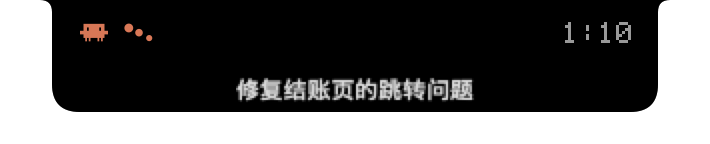
When several sessions are active at once, the ones that need me come first: waiting for approval has top priority, then failures, then running ones. Up to three bubbles hang below the main island, and anything beyond that is folded into +N.
+
Approving Commands in the Notch
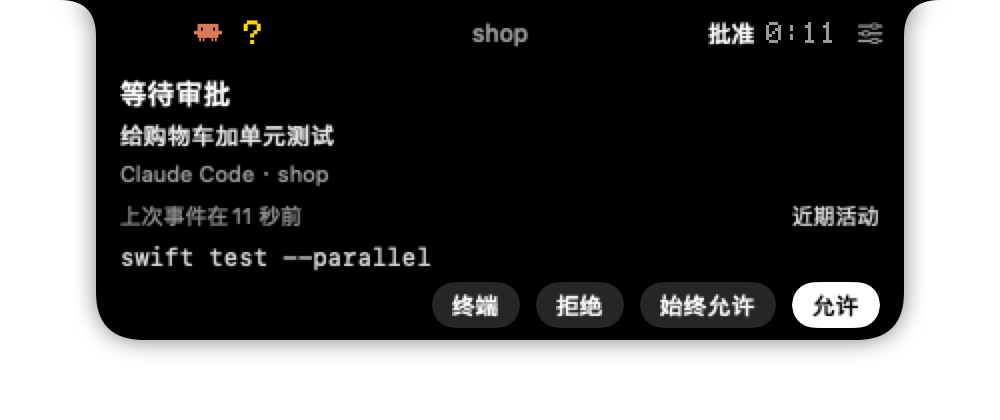
When a supported agent sends a permission request, the notch expands automatically and shows the command it wants to run. Below are Allow, Always Allow and Deny buttons, plus a "Terminal" button that hands the request back to the agent's own prompt.
When an agent asks a multiple-choice question, you can answer right in the notch too.
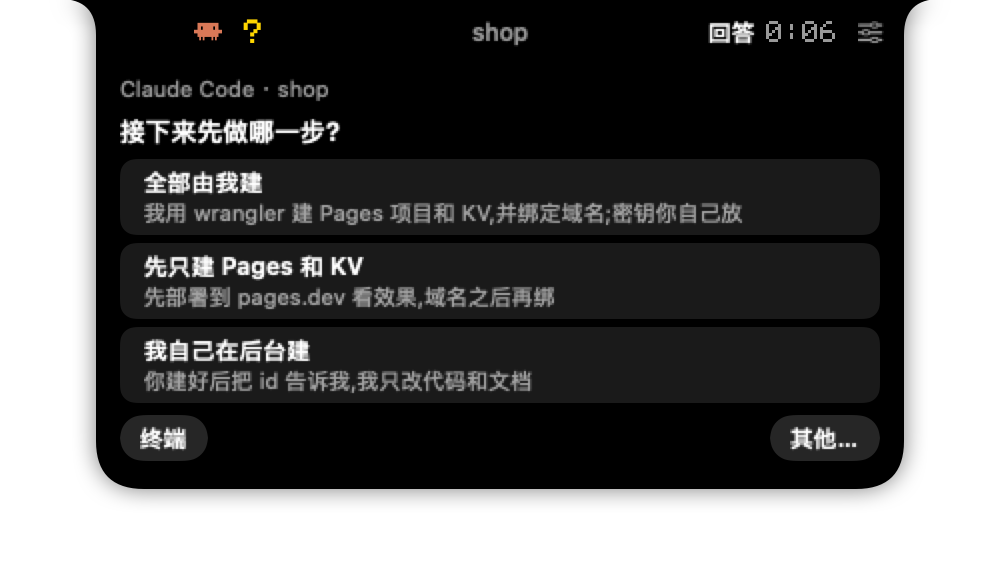
Both of these require the agent itself to expose an interface that can be answered, and for now only some agents do. For those that don't, the notch just tells you it's waiting for you, and one click takes you back to the terminal.
Watching What It's Doing
Knowing only "running" and "waiting for you" isn't enough; often I want to know where it is at this very moment. So for Claude Code, hovering the mouse over the notch expands it into a live view of the agent's current turn:
What you asked for, along with any images you sent it
What it said, rendered as Markdown, with headings, lists and code blocks
Every tool call, each with a running, done or failed marker; click a call that has output to expand it and see what it printed
Calls that edit files show the diff directly, deleted lines on a red background and added lines on green, with line numbers
The content follows the progress downward automatically; if you scroll up to look at something earlier, it won't drag you back to the bottom. The card first grows tall enough, and only shows a scrollbar when it can't fit.
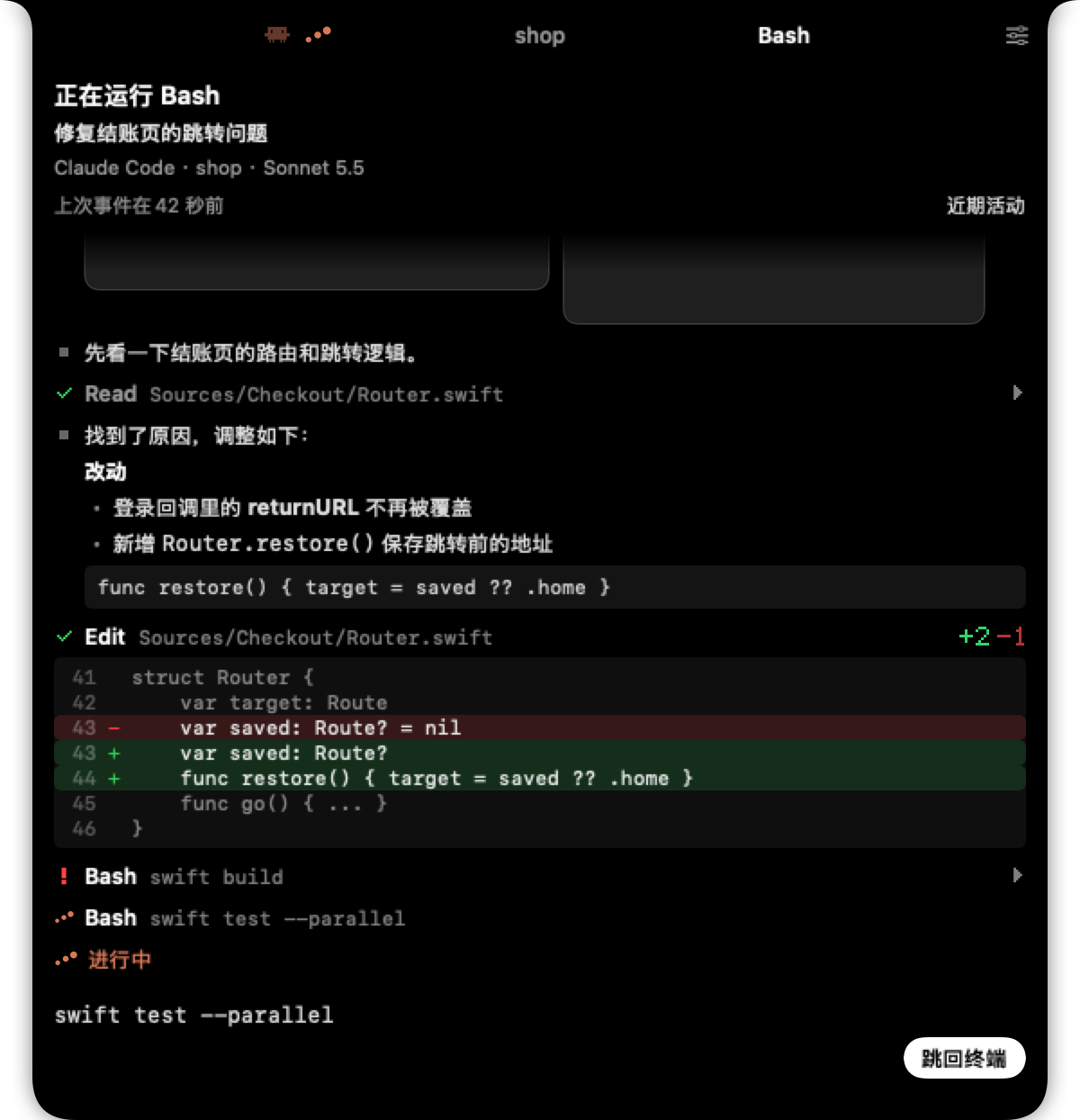
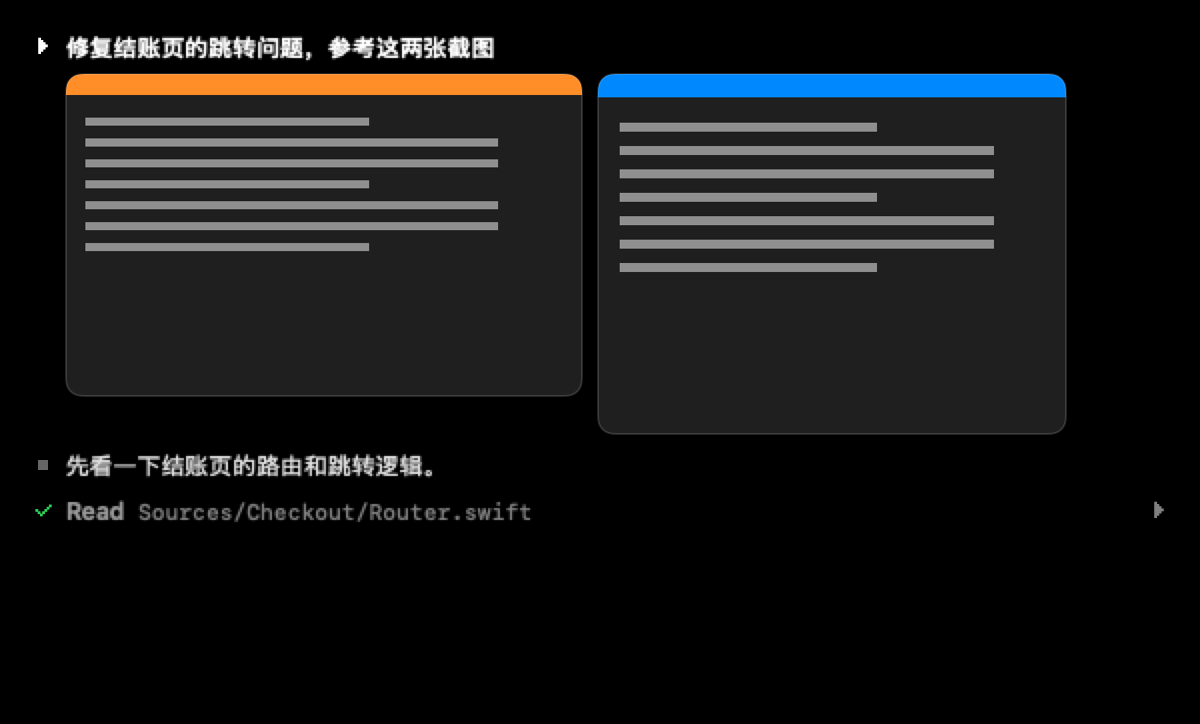
This comes from the conversation files Claude Code saves on your computer, and Runnock reads the tail of the file every second or two. The content lives only in memory — it isn't written to disk or uploaded. There is one limitation I need to be clear about: secrets and tokens in text are masked, but images can't be masked and are shown as they are; also, diffs and the output of file reads may well be your source code, so be careful when screen sharing or recording. There is a "Live messages" switch in Settings; once it's off, that file is never opened at all.
For now only Claude Code has this part. Codex also stores its conversations in files — I've looked at the format and it can be done, but I haven't done it yet; I haven't checked the other agents' files.
+
What I Didn't Build: Sending Messages to the Agent from the Notch
I thought about this, and I also looked at how similar open-source projects do it: they send keystrokes into the terminal through tmux. That only works if the agent runs inside tmux; Terminal, iTerm2 and Ghostty users are out of luck, so the same button exists for some people and not for others. And pushing keystrokes into another process gives no acknowledgment: if you happen to be typing, or an approval box happens to pop up, the characters land in the wrong place.
So I didn't build it. The notch is for watching and deciding; the conversation stays in the terminal. One click takes you back to that exact window: Terminal and iTerm2 can jump straight to the right tab.
+
A Few Things I Ran Into While Building It
I changed how tall and wide the collapsed notch should be several times. On a Mac with a hardware notch, I first put the task name on its own line below the camera, and as a result the collapsed notch on screens with a notch came out a bit taller than on screens without one. Then I tried putting the text into the two sides, but once the sides got wider the whole notch turned into a very long bar, with proportions that looked wrong. Comparing with similar projects, I found that theirs doesn't show text when collapsed at all — just an icon. The final trade-off: narrow the two wings, keep the timer, and put the task name on the line below the camera. The price is that when there's a task the notch is a bit taller than the camera, which I think looks better than a long bar. On screens without a notch I also fixed the simulated notch to the height of the MacBook Pro notch instead of following the menu bar height; otherwise it looked a bit shorter on an external monitor than on the MacBook.
Telling whether it's "still running" is harder than it sounds. An agent producing no new events for a while doesn't mean it's stuck; it may just be thinking, or running a long command. So Runnock shows "status may be stale" rather than "not responding".
Claude Code itself keeps changing, too. In the few days I spent on these features, Claude Code shipped more than a dozen versions, and two of the changes hit me directly. One is that its conversation file started writing a roughly 40 KB record for every API request, and the output of a single large file read can reach several hundred KB, so reading only a small chunk at the end of the file may not contain even one complete message. The other is that it compacts its own context after a session has been idle for a while, and no further events arrive once compaction ends; if you treat that as a "compaction mid-turn", the session stays "running" forever. I only found both by reading the changelog and then verifying against real files.
+
After a Turn Ends, and Other Alerts
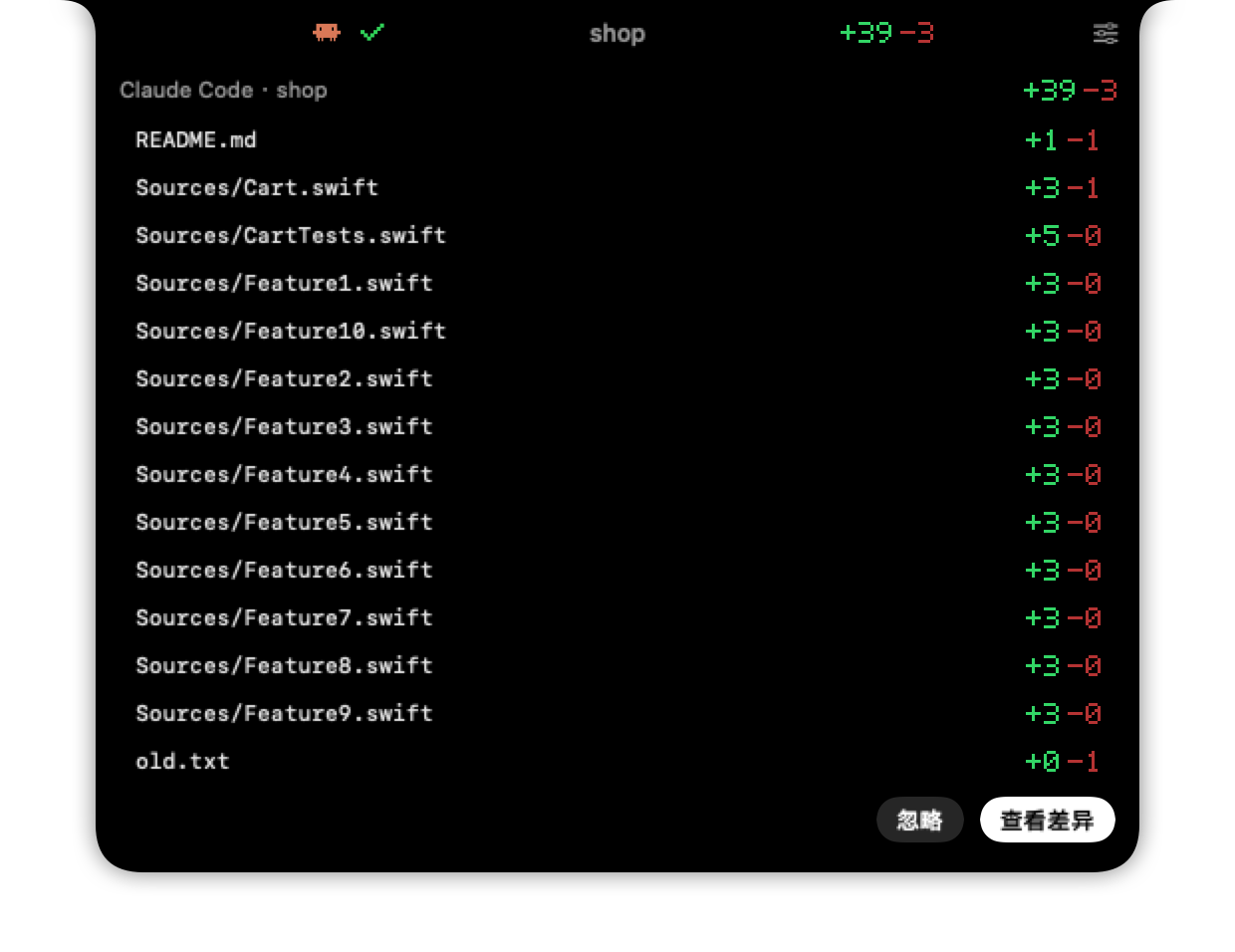
When a turn finishes, you get a change summary: which files changed and how many lines were added and removed, and clicking it opens a standalone diff window. When there are many files, the card shows as many as it can first and only scrolls when they don't fit.
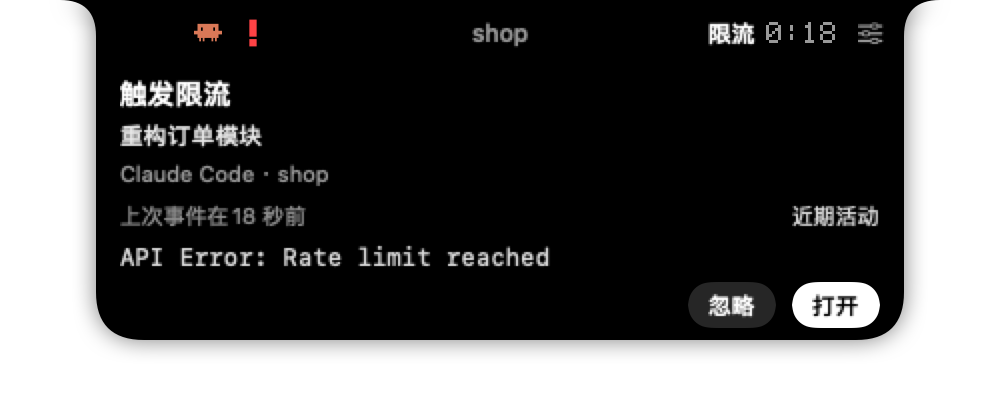
Build or test failures, a local server going down, or a CI failure also show up in the notch, and one click opens the log or the page. For Claude Code, Codex and Grok, you get an early warning when usage reaches 50%, 80% and 95%, and when it runs out it tells you when it will reset; clicking the menu bar icon also shows each agent's usage directly.
+
The Session Window and SSH
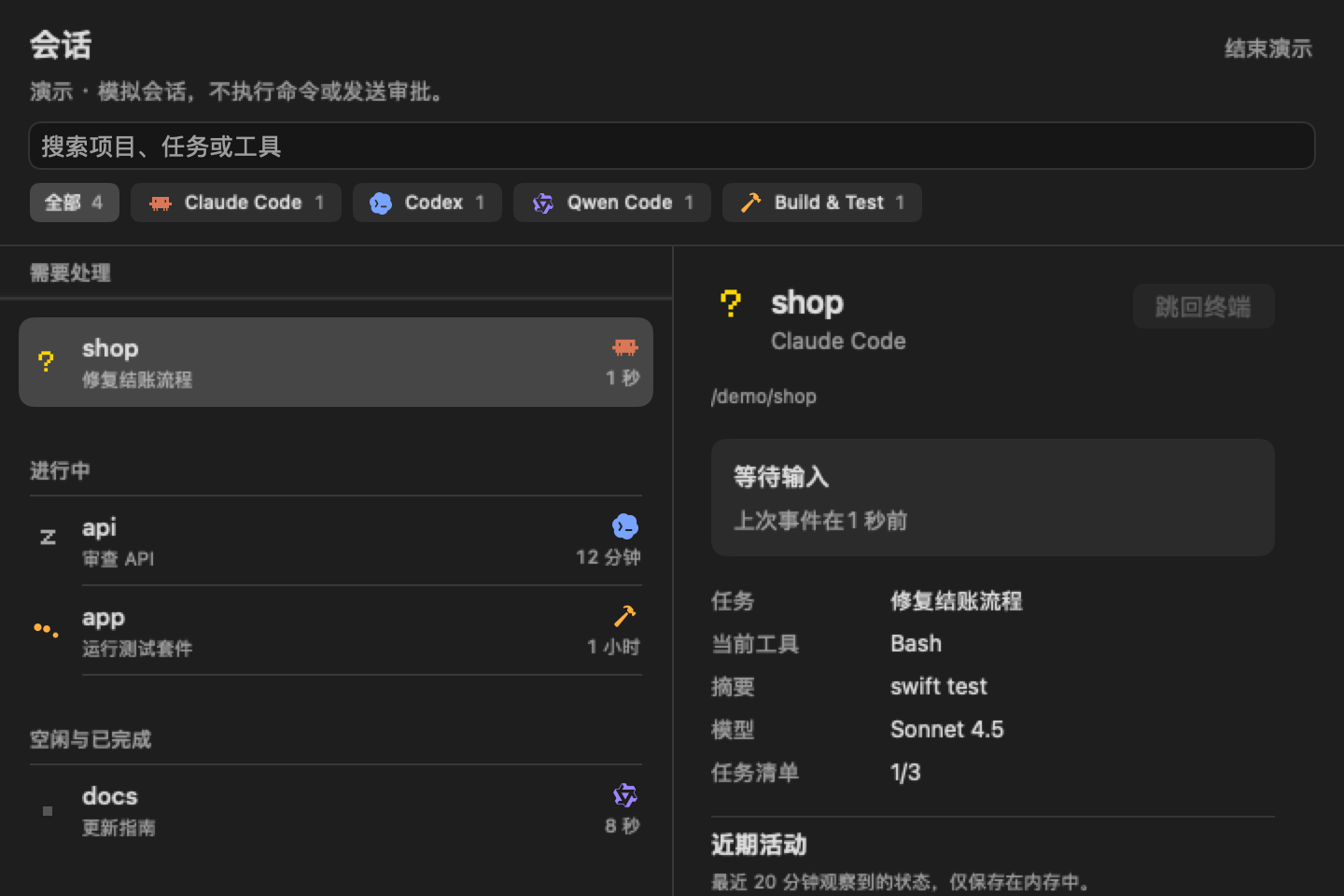
The notch only shows a few sessions at a time, and with more you can't see them all, so there is also a separate session window that lists every agent's sessions. You can search by project, task and tool, filter by source, and see each SSH host's connection status at the top of the window. Open a session to see its status changes over the last 20 minutes; these exist only in memory and are never written to disk.
Sessions on remote servers are read over SSH: in Settings, enter a host that already exists in your SSH config, and Runnock uses your own SSH connection to show the Claude Code and Codex sessions on that machine in the same window. This part is read-only: approvals still have to be done on the remote machine, Runnock doesn't forward ports, and it won't answer password or host-key prompts for you.
It Changes Your Configuration, and It Reads Your Files
To hook into the agents, Runnock has to write hooks into their configuration files. I only do that when you choose to connect a given agent, I keep your original content, and the changes can be undone. A problem with the hooks doesn't affect the agent itself; it only waits for your reply while you're answering a permission request in the notch.
All data stays on your machine. There is no Runnock account, and development content is never uploaded. Variable assignments, auth headers and common secret prefixes in task summaries are masked.
A few things need to be said plainly, though: build logs keep the raw output of the command, which may contain sensitive content; Git change snapshots include file contents; and with "Live messages" turned on, Runnock reads Claude Code's conversation files, as described above. Network use isn't zero either: checking GitHub, checking usage, verifying the license and checking for updates all go online. I won't write something like "completely offline".
+
Where Things Stand
It requires macOS 26 or later and targets Apple Silicon. It isn't in the App Store sandbox, because it needs to write hooks into each agent's configuration and read their session files. Updates use Sparkle, and the installer is signed and notarized.
Ten agents are connected: Claude Code, Codex, Grok Build, Cursor CLI, GitHub Copilot CLI, Command Code, Devin, Qwen Code, Kimi Code, pi. The depth of support varies: Claude Code and Grok Build have the most complete status, able to show compaction, model, task progress, subagents and failure reasons, and the live view is currently Claude Code only; Codex has model, plan progress and compaction; most of the rest only have basic status and approval. Gemini CLI isn't connected yet.
One-time purchase, no trial, no account required.
There are still a few things I haven't finished verifying: reconnecting after a drop when SSH is connected to a real host, the full acceptance pass for VoiceOver and keyboard operation, and behavior under background sessions (claude agents). If you run into problems while using it, you can email me directly.
Copyright
Copyright of this article belongs to its author or rights holder. When reposting or quoting, please follow the applicable license terms and keep the link to this article.
Link to this article: https://xuyi.dev/en/2026-10-16-bdtc-t