Article
Quickly Ship Mac App Update Distribution with Sparkle
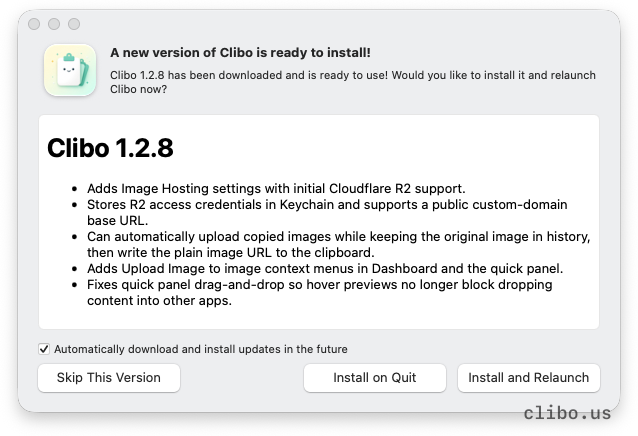
With the Vibe Coding era here, more and more people are going indie, and for a good, complete product, software update distribution is indispensable.
This article is mainly based on that feature and gives a simple walkthrough of how to implement update distribution for a Mac app.
When the Mac software you build isn't meant to go through the Apple App Store, most people choose direct sales from their own website, that is, letting users download the installer from the official site.
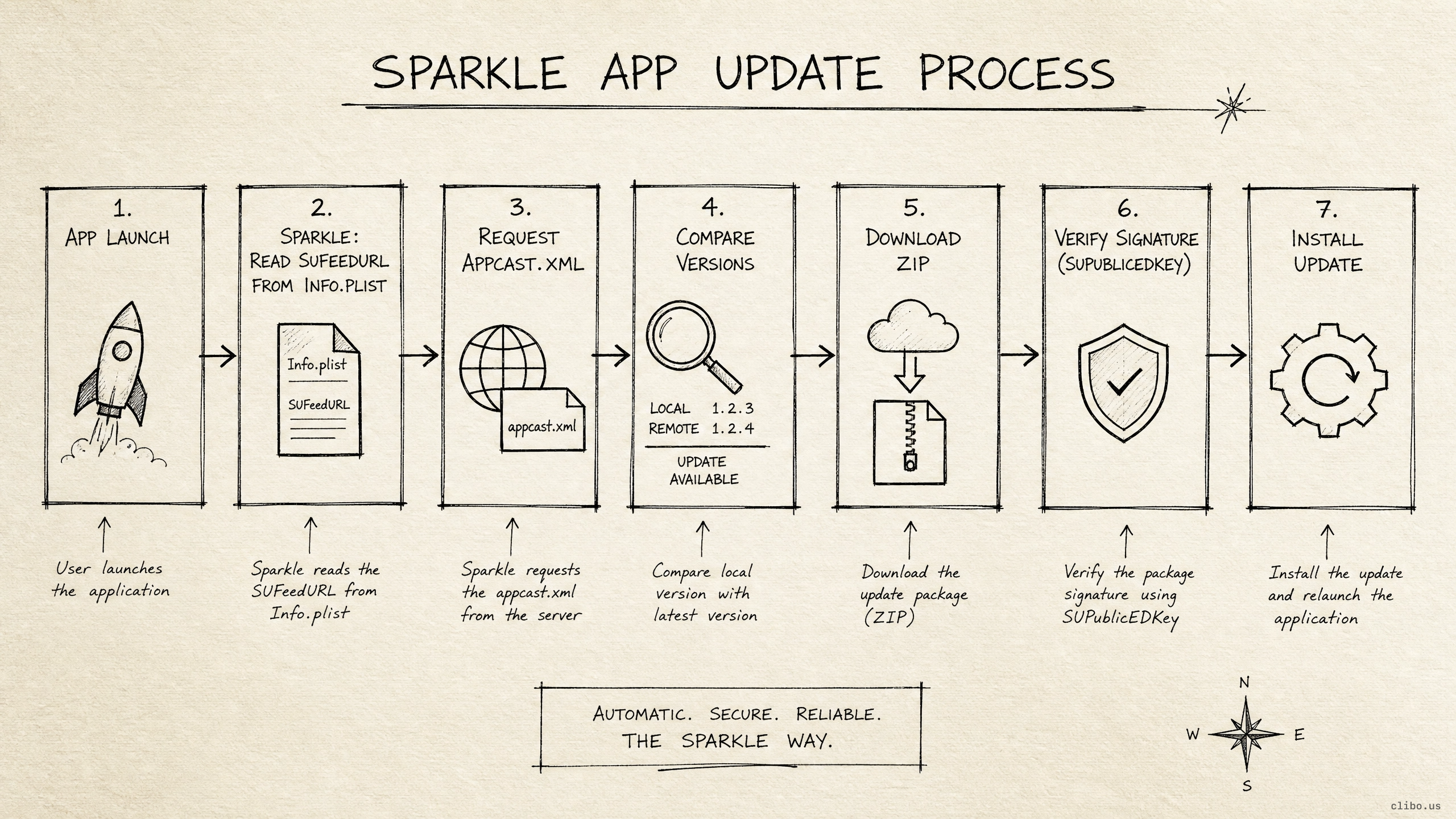
For direct-sale distribution on macOS, one mature solution is to use Sparkle. It's an auto-update framework designed specifically for macOS apps, and it is responsible for:
Checking for new versions
Showing update prompts
Downloading update packages
Verifying signatures and replacing the app
Open source repo: https://github.com/sparkle-project/Sparkle
+
Sparkle Auto-Update Architecture
A Sparkle auto-update system usually consists of three parts.
Integrate the Sparkle framework, initialize the updater at launch, and provide a "Check for Updates" entry point.
An XML file, usually called
appcast.xml, describing the latest version, build number, download URL, file size, signature, and release notes.Generally a zip package containing the new
.app. After Sparkle downloads the zip, it verifies the signature and then completes the replacement install.
2.1 . Adding Sparkle
If your project uses Swift Package Manager, you can add Sparkle in Package.swift:
SWIFT
复制
dependencies: [
    .package(url: "https://github.com/sparkle-project/Sparkle", from: "2.0.0"),
],
targets: [
    .executableTarget(
        name: "YourApp",
        dependencies: [
            .product(name: "Sparkle", package: "Sparkle"),
        ]
    )
]
This lets your app code use the SPUStandardUpdaterController that Sparkle provides. That's the first step in using Sparkle.
2.2 Wrapping the Updater
There are many ways to work with Sparkle, but it's recommended not to operate Sparkle directly in individual Views and instead wrap a standalone Updater service.
SWIFT
复制
import AppKit
import Sparkle

/// AppUpdater is the app's auto-update manager (based on the Sparkle framework)
/// Uses the singleton pattern to ensure only one update controller instance exists in the whole app
@MainActor
final class AppUpdater {
    /// Singleton instance
    static let shared = AppUpdater()

    /// Sparkle's standard updater controller
    private var updaterController: SPUStandardUpdaterController?

    /// Private initializer, preventing external code from creating instances directly
    private init() {}

    /// Determines whether the update feature is configured correctly
    /// Both SUFeedURL and SUPublicEDKey must be set in Info.plist
    var isConfigured: Bool {
        feedURL != nil && publicKey?.isEmpty == false
    }

    /// If configured, start the updater controller
    /// This method is called at app launch or when an update is needed
    func startIfConfigured() {
        guard isConfigured else {
            NSLog("Updater is not configured.")
            return
        }

        // Avoid creating the controller repeatedly
        if updaterController == nil {
            updaterController = SPUStandardUpdaterController(
                startingUpdater: true,        // Start the checker immediately
                updaterDelegate: nil,         // Use the default delegate
                userDriverDelegate: nil       // Use the default user driver
            )
        }
    }

    /// Manually check for updates (usually triggered by the user from a menu)
    func checkForUpdates() {
        guard isConfigured else {
            presentConfigurationMissingAlert()
            return
        }

        startIfConfigured()
        updaterController?.checkForUpdates(nil)
    }

    /// Read the update feed URL from Info.plist
    private var feedURL: URL? {
        guard let value = Bundle.main.object(forInfoDictionaryKey: "SUFeedURL") as? String,
              !value.trimmingCharacters(in: .whitespacesAndNewlines).isEmpty
        else {
            return nil
        }
        return URL(string: value)
    }

    /// Read the Sparkle public key from Info.plist (used to verify update package signatures)
    private var publicKey: String? {
        Bundle.main.object(forInfoDictionaryKey: "SUPublicEDKey") as? String
    }

    /// Show a prompt alert for missing configuration
    /// Usually appears in Debug builds or when Info.plist is not configured correctly
    private func presentConfigurationMissingAlert() {
        let alert = NSAlert()
        alert.messageText = "Updates Not Configured"
        alert.informativeText = "Set SUFeedURL and SUPublicEDKey in Info.plist for release builds."
        alert.alertStyle = .informational
        alert.addButton(withTitle: "OK")
        alert.runModal()
    }
}
Two key points to note here:
startingUpdater:truestarts Sparkle's update-checking mechanism.checkForUpdates(nil)is used for the Check for Updates UI when the user clicks it manually.
2.3 Initializing at Launch
Call it in AppDelegate or the app's launch entry point:
SWIFT
复制
AppUpdater.shared.startIfConfigured()This way, after a release build launches, Sparkle automatically checks for updates according to its own policy. You can also offer a manual update-check entry in the settings page, the menu bar, or the About page.
SWIFT
复制
Button("Check for Updates...") {
    AppUpdater.shared.checkForUpdates()
}
2.4 Configuring Info.plist
Sparkle depends on two important settings, SUFeedURL and SUPublicEDKey.
SUFeedURL is the appcast address.
SUPublicEDKey is Sparkle's EdDSA public key, used to verify update package signatures. The corresponding private key should only be kept in a secure environment on the release machine or CI. If your project is hosted in a remote repository, it must never be committed to it.
In a real project, it's recommended not to hard-code these two values in the development
Info.plist, but to write them in dynamically in the release packaging script. That way Debug builds can leave auto-update disabled, and only Release builds enable it.
2.5 Generating Sparkle Keys
Sparkle provides the generate_keys tool to generate a key pair.
The rough process is:
SWIFT
复制
generate_keyAfter generation you get:
public key: goes into the app's
SUPublicEDKeyprivate key: used to sign the appcast/zip at release time
Keep the private key safe, for example in the Keychain, a secure directory, or CI secrets.
2.6 Packaging the Release zip
SWIFT
复制
ditto -c -k --norsrc --keepParent YourApp.app YourApp-1.0.0.zipFor an official release, you also need to make sure the app has completed:
Developer ID signing
hardened runtime
Apple notarization
Stapling the notarization ticket
Otherwise users may run into a Gatekeeper block after downloading.
2.7 Generating appcast.xml
The appcast is Sparkle's update index. A simplified version looks like this:
SWIFT
复制
<rss xmlns:sparkle="http://www.andymatuschak.org/xml-namespaces/sparkle" version="2.0">
  <channel>
    <title>YourApp</title>
    <item>
      <title>1.0.1</title>
      <sparkle:version>2</sparkle:version>
      <sparkle:shortVersionString>1.0.1</sparkle:shortVersionString>
      <sparkle:minimumSystemVersion>14.0</sparkle:minimumSystemVersion>
      <enclosure
        url="https://releases.example.com/YourApp-1.0.1.zip"
        length="12345678"
        type="application/octet-stream"
        sparkle:edSignature="..." />
    </item>
  </channel>
</rss>sparkle:shortVersionString: the version number users see, for example1.0.1sparkle:version: the build number, corresponding toCFBundleVersion, which must increaseenclosure url: the download URL of the update zipsparkle:edSignature: the signature of the zipsparkle:minimumSystemVersion: the minimum system version
Sparkle provides the generate_appcast tool to generate the appcast automatically, and it can also write in signatures automatically:
SWIFT
复制
generate_appcast \
  --download-url-prefix https://releases.example.com/ \
  --ed-key-file /secure/path/private_key \
  dist/appcast
Once the zip is placed in the
dist/appcastdirectory, the tool generates or updatesappcast.xml.
2.8 Uploading the Release Files
Finally, you need to upload these files to your release server or object storage. I personally use Cloudflare.
SWIFT
复制
https://releases.example.com/appcast.xml
https://releases.example.com/YourApp-1.0.1.zip
https://releases.example.com/release-notes/1.0.1/en.html
Recommended caching strategy:
appcast.xml:no-cachezip/delta packages: long-term caching, with the version and build number in the filename
release notes: can be
no-cache
The reason is that appcast.xml is the entry point for updates, every user update check depends on it, and it must not be cached at the CDN for a long time as an old version.
2.9 Mind the Security
The key to Sparkle's security is signature verification.
The publishing side signs the update package with the private key:
private key -> sign zip -> appcast.xml gets edSignature written in
The client app embeds the public key:
SUPublicEDKey -> verify downloaded zip
If an attacker tampers with the zip, signature verification fails and Sparkle will not install it.
So:
The private key must not go into the repo
The private key must not appear in logs
Changing the public key affects the ability of older versions to upgrade
It's best to host the appcast and zip over HTTPS
+
Copyright
Copyright of this article belongs to its author or rights holder. When reposting or quoting, please follow the applicable license terms and keep the link to this article.
Link to this article: https://xuyi.dev/en/2026-06-30-qvzdko