Article
Translation+ UpdatedClaude Code Official Tutorial
Copyright & source
Copyright of the original work belongs to its author or rights holder. This translation is produced by this site; its use remains subject to the original work's license terms.
Original: https://academy.claude.com/products/code
What Is Claude Code?
If you've used Claude.ai before, you may wonder what makes Claude Code different. Unlike Claude.ai, Claude Code has direct access to your files, your terminal, and your entire codebase. Instead of copying and pasting code back and forth, it goes in and does the work itself.
The key difference is that Claude Code runs as an AI agent.
What Is an Agent?
An agent is a piece of software that can interact with its environment and take actions to accomplish a set goal. At its core, this is done by running a large language model in a loop in real time. An AI agent can access tools, external services, and even other AI agents to help it reach its goal.
+
What Can Claude Code Actually Do?
Here's what it looks like in practice:
Read and understand your codebase. Ask Claude Code to explain a feature or trace a bug through your code.
Edit files across your project. Claude Code can refactor a function and update every file that references it.
Run terminal commands. It can run your build scripts, run your tests, install packages, and use the output to decide what to do next.
Search the web. If it needs documentation or the latest API references, it can use web search to look them up for you.
Using Claude Code Effectively
To use Claude Code effectively, keep these three concepts in mind:
Context window: Think of it as Claude's working memory. It can hold a lot, but not everything at once. This is exactly where the agentic nature shows up: Claude looks for strategic ways to find answers in your codebase without loading the whole thing into context.
Permission requests: By default, Claude Code asks you before running commands or making changes. Whether you prefer to stay hands-on or let it handle things, control always stays with you.
It can make mistakes: Like any tool, Claude Code isn't perfect. It may misread your intent, introduce bugs, or over-engineer a solution. Staying involved helps you catch these problems early.
How Claude Code Works
The Agent Loop
Claude Code is best explained through the agent loop:
You enter a prompt into Claude Code.
Claude gathers the context it needs by interacting with the model, which returns text or tool calls that Claude Code can execute.
Claude takes action, for example editing files or running commands.
It verifies the results and judges whether they achieve the goal set by your prompt.
If they do, Claude finishes and waits for the next prompt. If not, it loops back and tries again until the result is complete and verifiable.
Throughout the loop, you can add context, interrupt, or steer the model to help it move toward your goal.

Context
Claude has a context window, which determines how much conversation, file content, command output, and so on Claude can store and reference. Once the context hits its limit, Claude Code compacts your conversation (automatically deciding what can be dropped or summarized) to bring the context window back to a usable size.
+
Tools
Tools are the backbone of how an agent works. Most AI assistants simply accept text input and return text output. Tools let Claude Code decide when to execute code to move a task forward. This can be a file-reading tool, a web search tool, or any number of other capabilities. Claude Code uses semantic understanding to decide when to call a tool and how to use its output.
+
Permissions
Claude Code has several permission modes:
Manual (default): Claude asks for explicit permission before editing files or running shell commands.
Auto-accept: Files are edited without asking, but running commands still requires approval.
Plan mode: Uses read-only tools to put together a plan of action before any work begins.
+
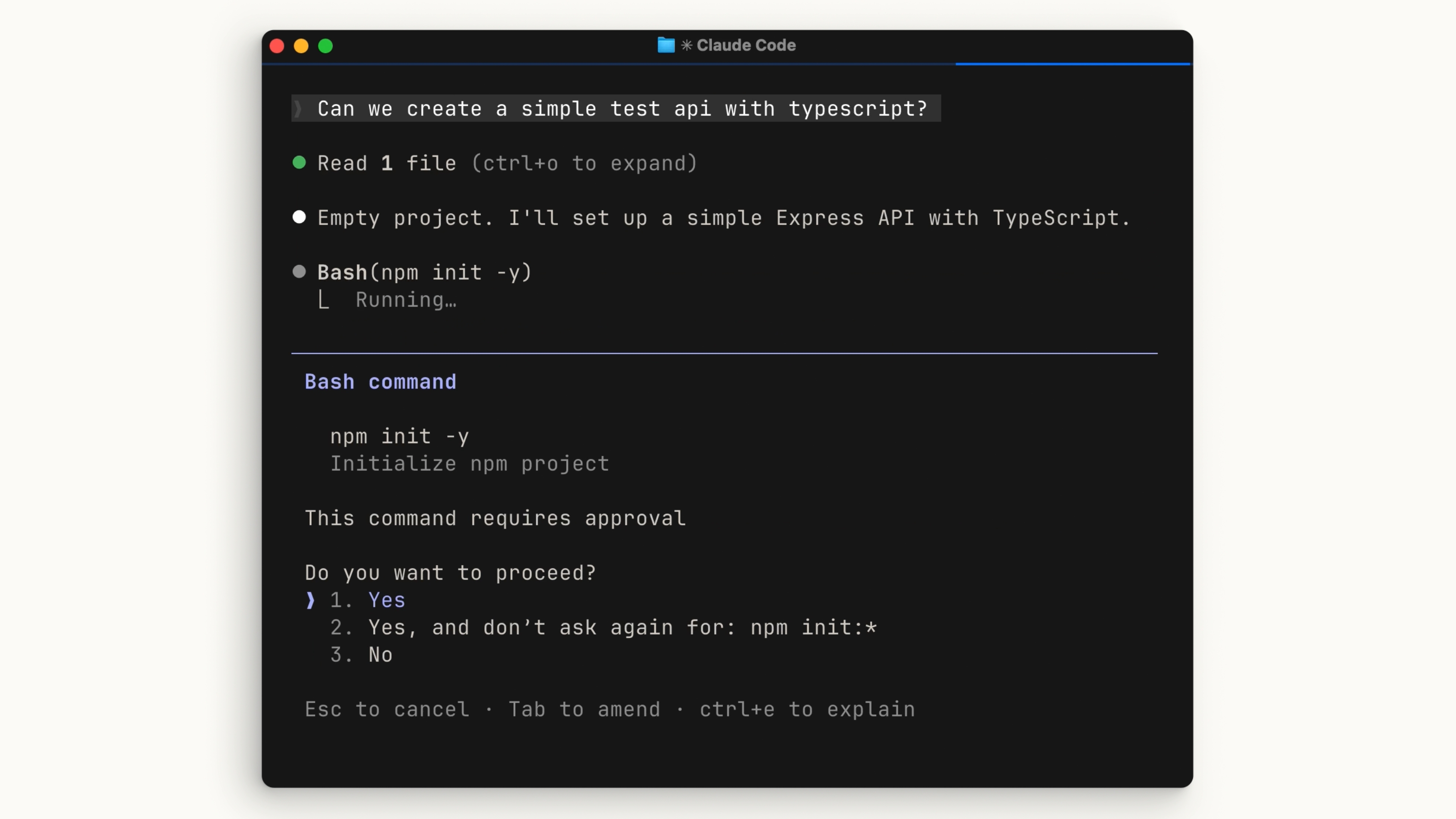
All of this can be configured in your settings file. Be careful when skipping permission checks. Letting Claude Code run commands freely means mistakes can be harder to spot before they happen.
+
Installing Claude Code
Terminal Installation
On macOS, Linux, or WSL, a single curl command completes the installation. If you prefer Homebrew, you can also use brew install, but note that this method doesn't support automatic updates.
On Windows, there are several options. In PowerShell, use the Invoke-RestMethod command. In CMD, use the curl command. There is also a winget command available, but like Homebrew, it doesn't auto-update.
+
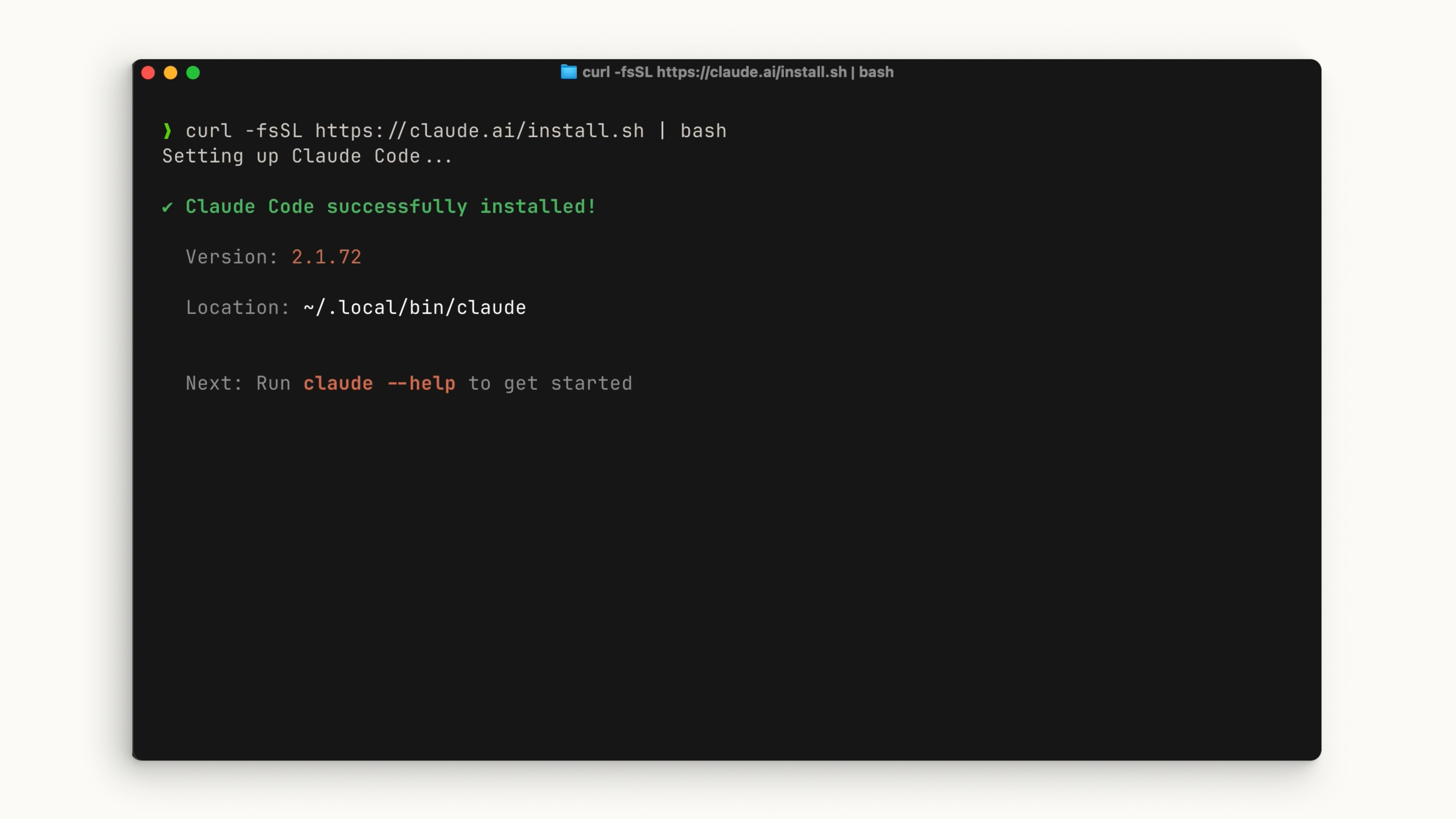
After installation, you should be able to run the claude command. If you can't, restart your terminal. Navigate to your project directory and run:
PLAINTEXT
复制
claudeYou'll go through some initial setup steps, such as choosing a color theme and signing in with your Claude account (Pro, Max, or Enterprise) or using an API key. If your organization has a Claude Enterprise account, be sure to choose that option.
+
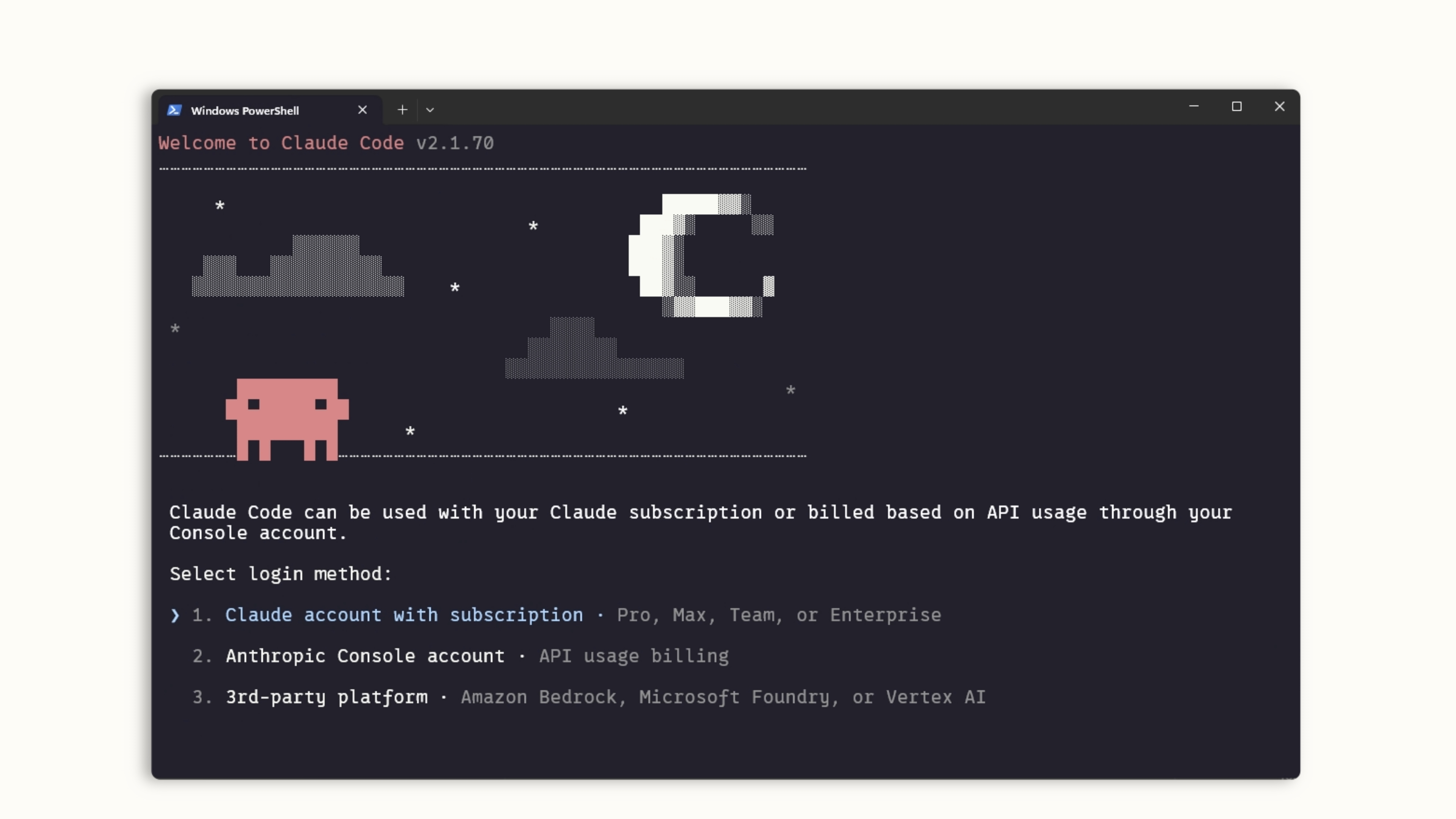
Whichever directory you run claude in, it will be able to access that directory and all of its subfolders.
+
Visual Studio Code
Open your Extensions panel and search for "Claude Code". Look for the Anthropic extension with the blue verified badge. Click Install.
After installation, you may need to restart VS Code. Once it's running, use Ctrl/Cmd + Shift + P to open the command palette and search for "Claude Code Open in New Tab". If the Claude icon is visible in the sidebar, you can also just click it.
+
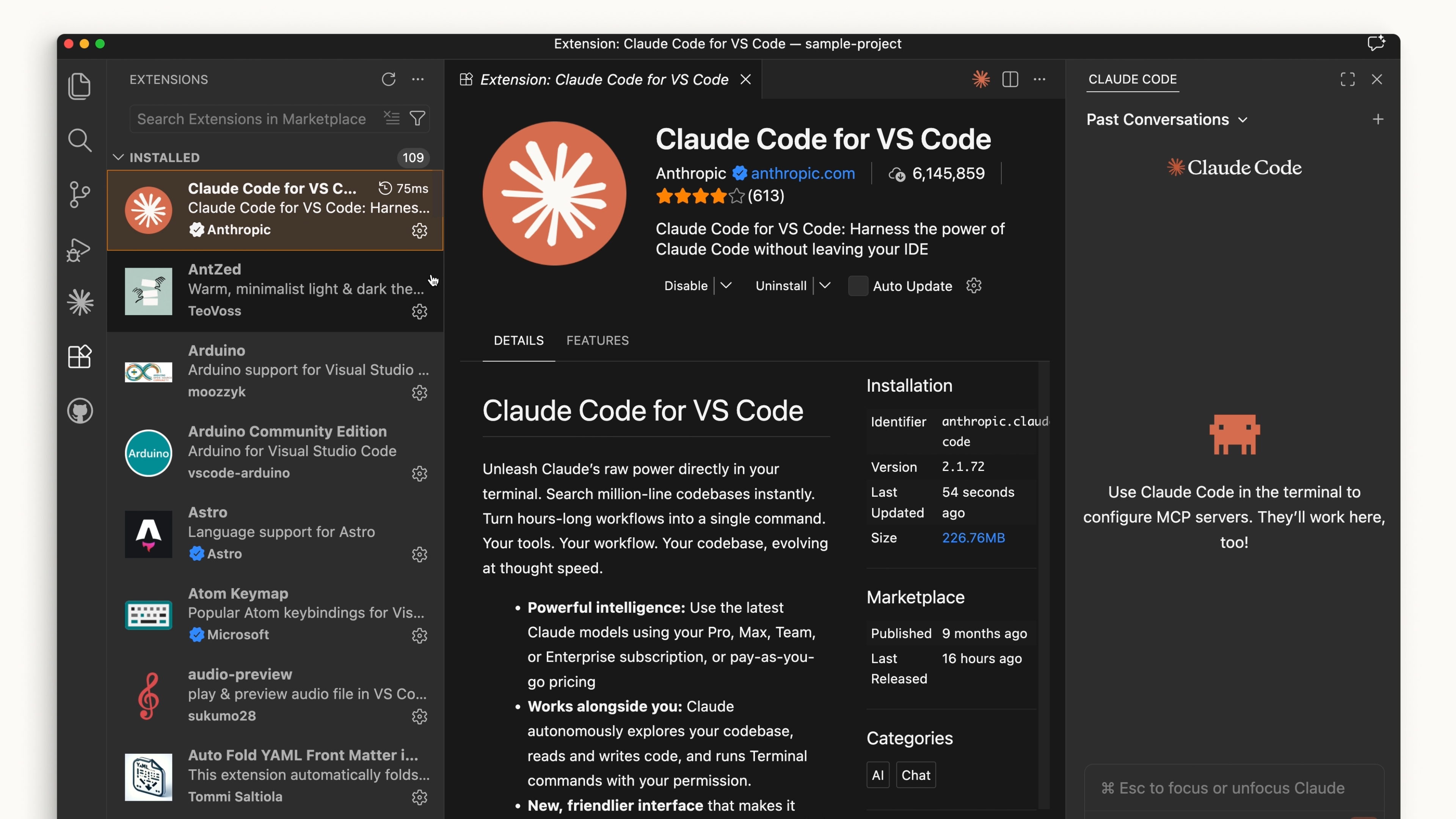
The VS Code extension offers an experience very similar to the terminal. You can also opt out of the UI in settings and use the terminal experience directly.
+
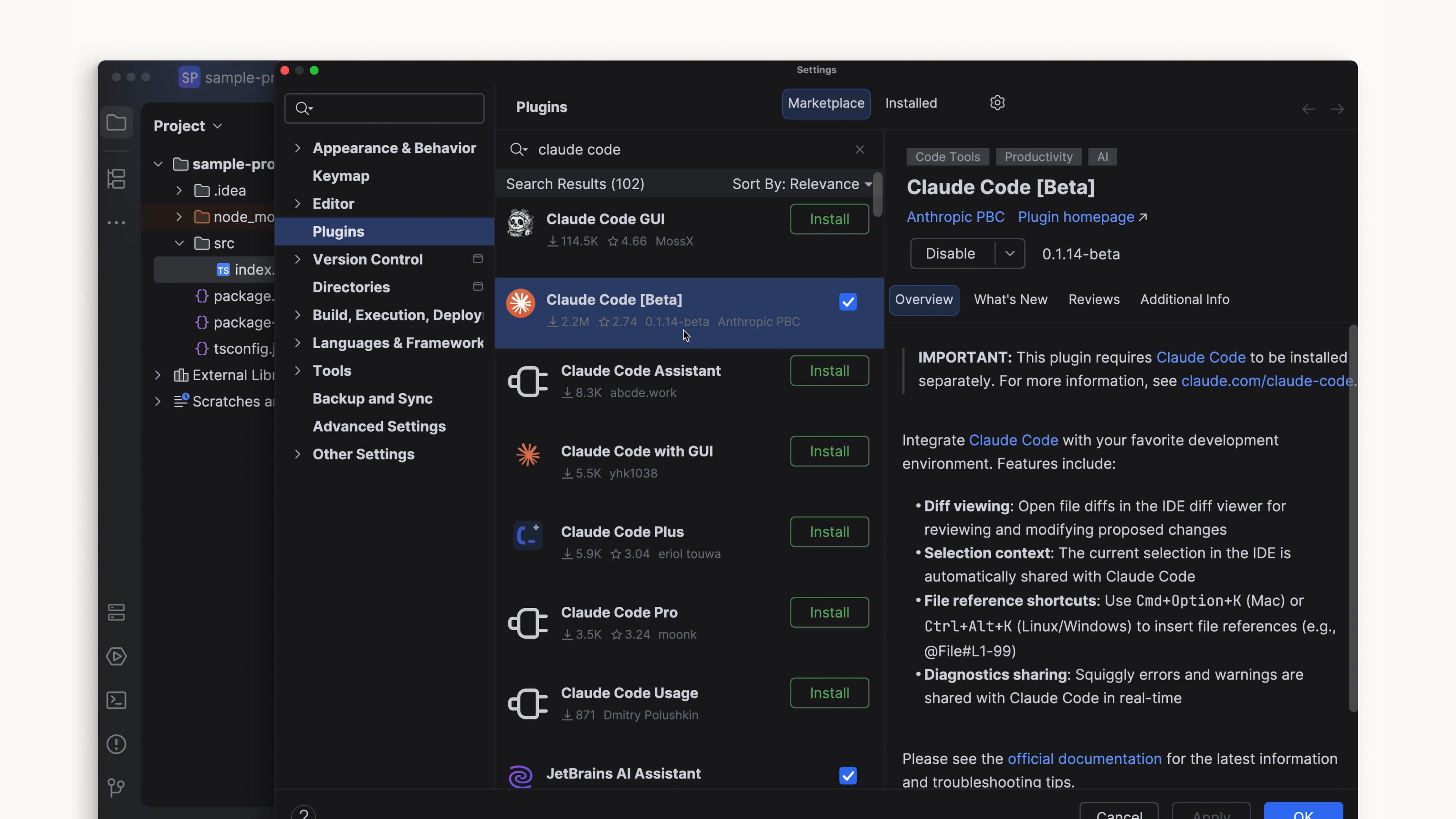
JetBrains
Install the Claude Code plugin from the JetBrains Marketplace. After installation, restart your IDE. When it reopens, you'll see the Claude icon. Clicking it opens a panel that provides a terminal experience working side by side with your editor.
+
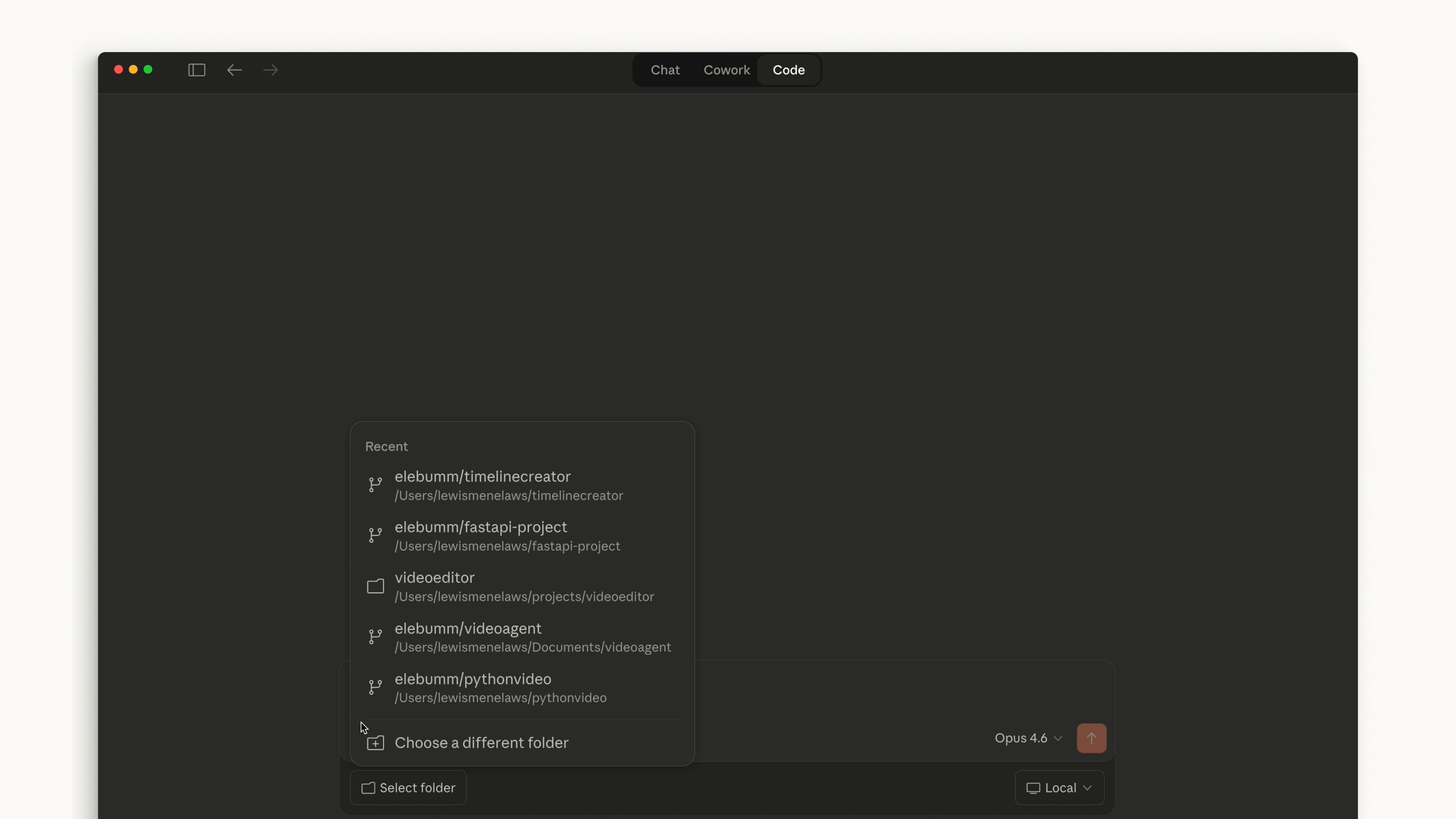
Desktop
Once you've installed Claude Desktop and signed in, you'll see a toggle labeled "Code" at the top. It looks and feels similar to the chat section, but it lets you work in a specific folder, change permissions, and even work in a cloud environment.
+
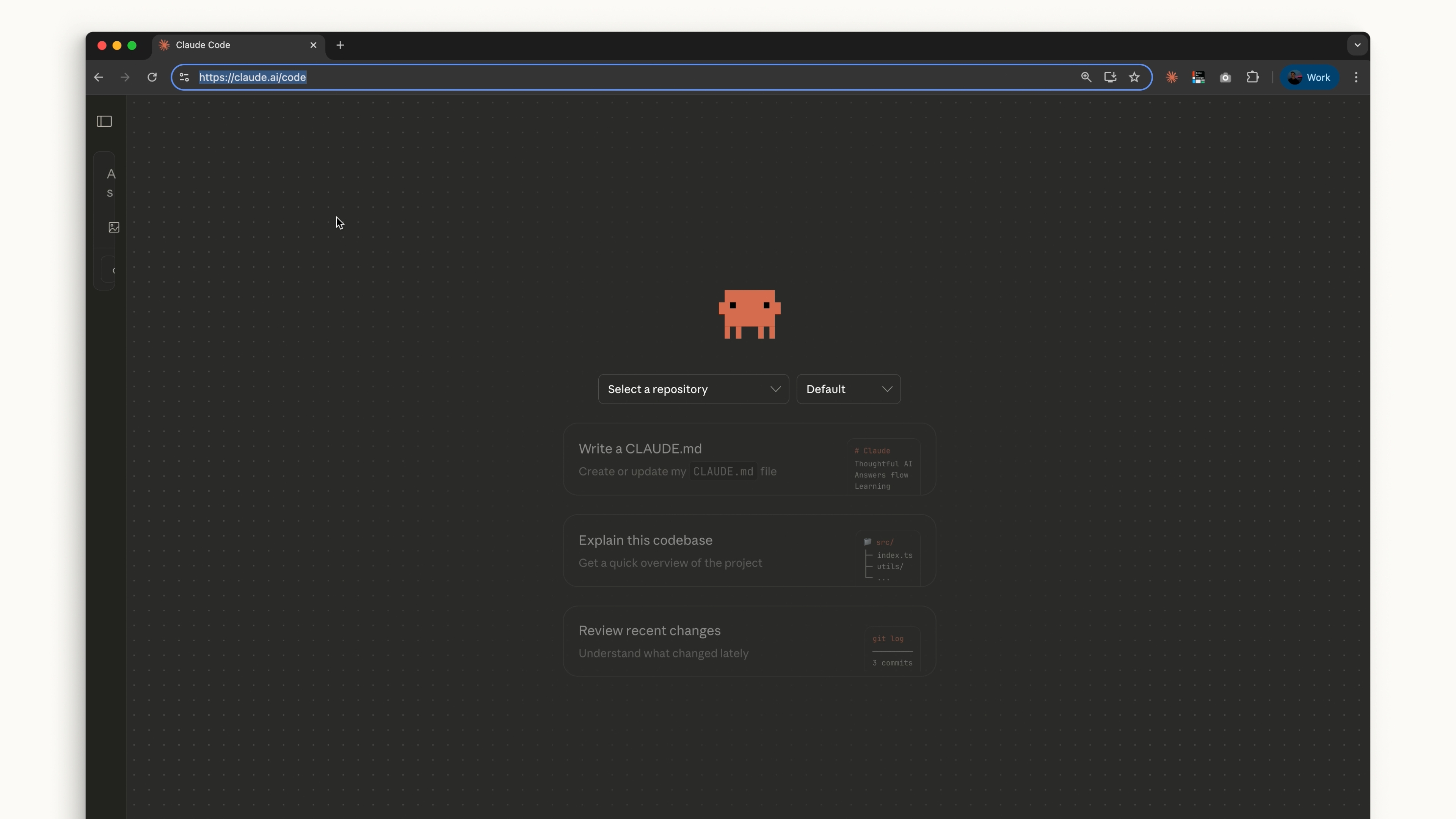
Web
On the web, use Claude Code by visiting claude.ai/code, or by clicking the "Code" tab in the sidebar of the chat app. It works much like the desktop app, but you can only use GitHub repositories.
+
+
How to Choose?
If you want to stay on the cutting edge, the terminal is your best choice, since new features ship there first. If you want Claude Code more tightly integrated with your code editor, the IDE integrations offer a nearly identical experience.
The desktop app is great for letting Claude run in the background while you work on other things.
If you want to work on projects remotely through GitHub repositories, Claude Code on the web is a good choice.
How you use Claude Code is entirely up to you.
Your First Prompt
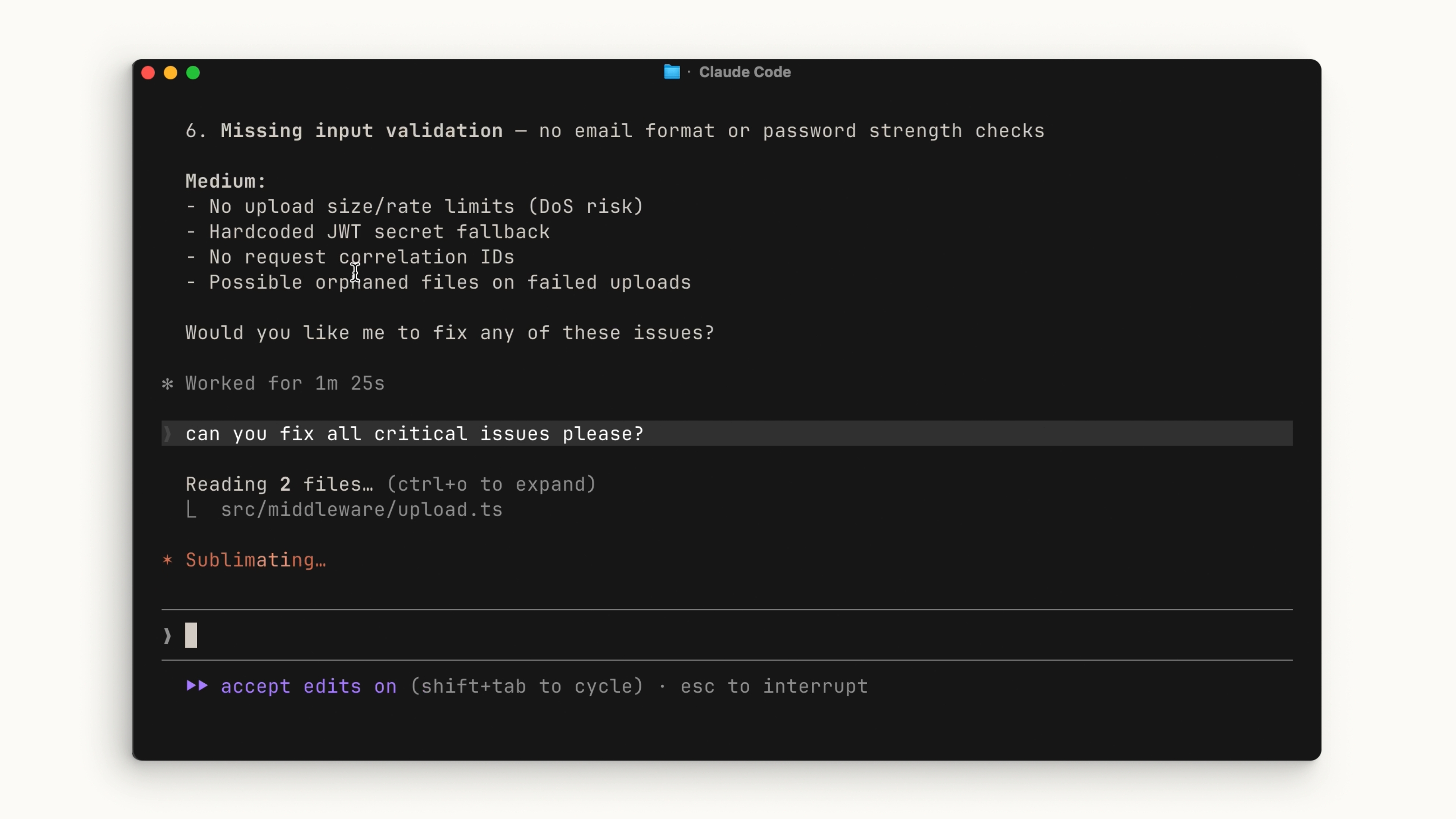
Auto-Accept vs. Manual
You can choose whether Claude automatically accepts every file change it suggests or asks for your explicit permission each time. Press Shift + Tab to switch between modes.
Manual mode: Claude asks for permission whenever it wants to edit a file or run a command.
Auto-accept mode: File edits are approved automatically, but commands still need your permission.
There's no right or wrong here. It all depends on what you feel comfortable with.
+
Plan Mode
The Shift + Tab menu includes Plan Mode. Plan Mode takes your prompt and uses read-only tools to analyze your codebase and research the implementation you're proposing. Along the way it asks clarifying questions, then returns a detailed plan you can act on.
Plan Mode is great for planning complex changes or doing safe code reviews. Often you'll ask Claude to handle a multi-step, feature-oriented implementation, and that's exactly where Plan Mode shines.
+
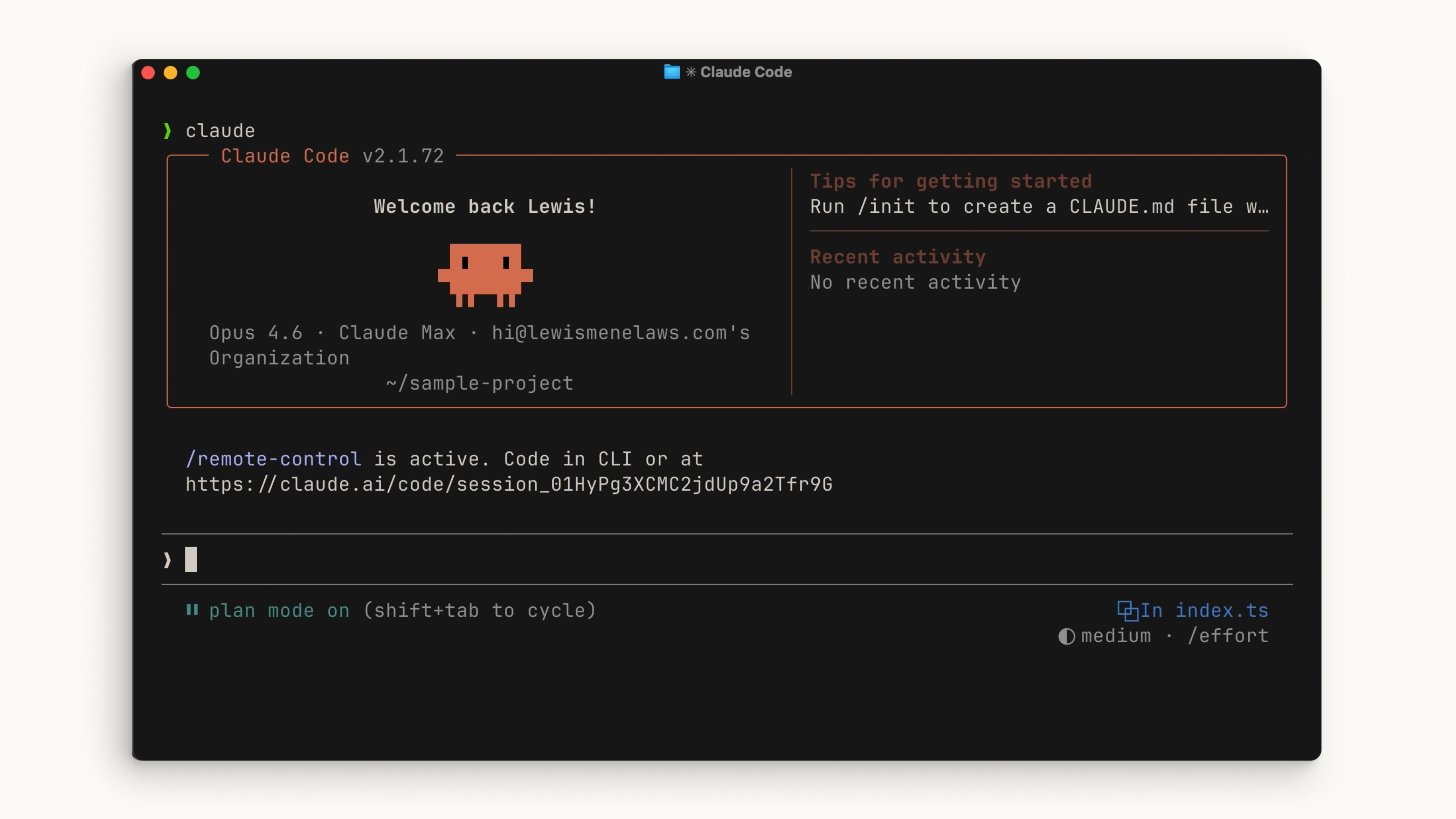
Example: Adding a Dark Mode Toggle
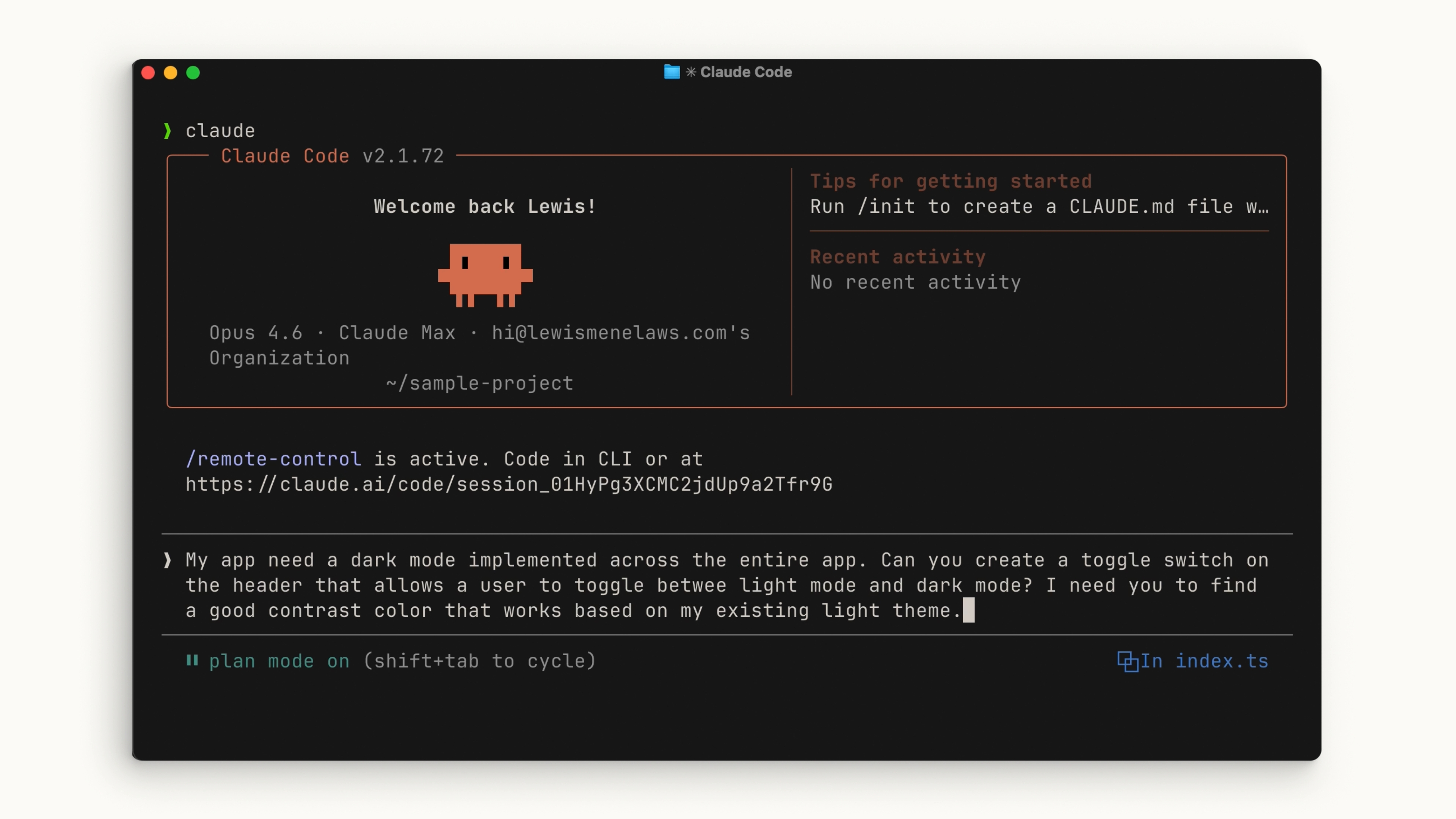
Let's walk through an example. Say you have an app that needs a dark mode toggle. Open the project's root directory and run claude. Press Shift + Tab a few times to enter Plan Mode, then write a prompt like this:
My app needs dark mode throughout. Can you create a toggle in the header that lets users switch between light mode and dark mode? I need you to find a color with good contrast based on my existing light theme.
+
Let Claude draw up a plan. After reviewing it, if it looks good, accept it and have Claude ask for your approval at each step. In the end, you can see exactly what Claude did and how it reached its conclusions.
Everyday Workflow
Explore and Plan
The fastest way to handle the first two steps is to use Plan Mode. In this mode, Claude can't edit files; it only reads files to gather information about how to implement the change.
To enter Plan Mode, press Shift + Tab until you see "Plan Mode" below the text input. Then write a prompt like this:
+
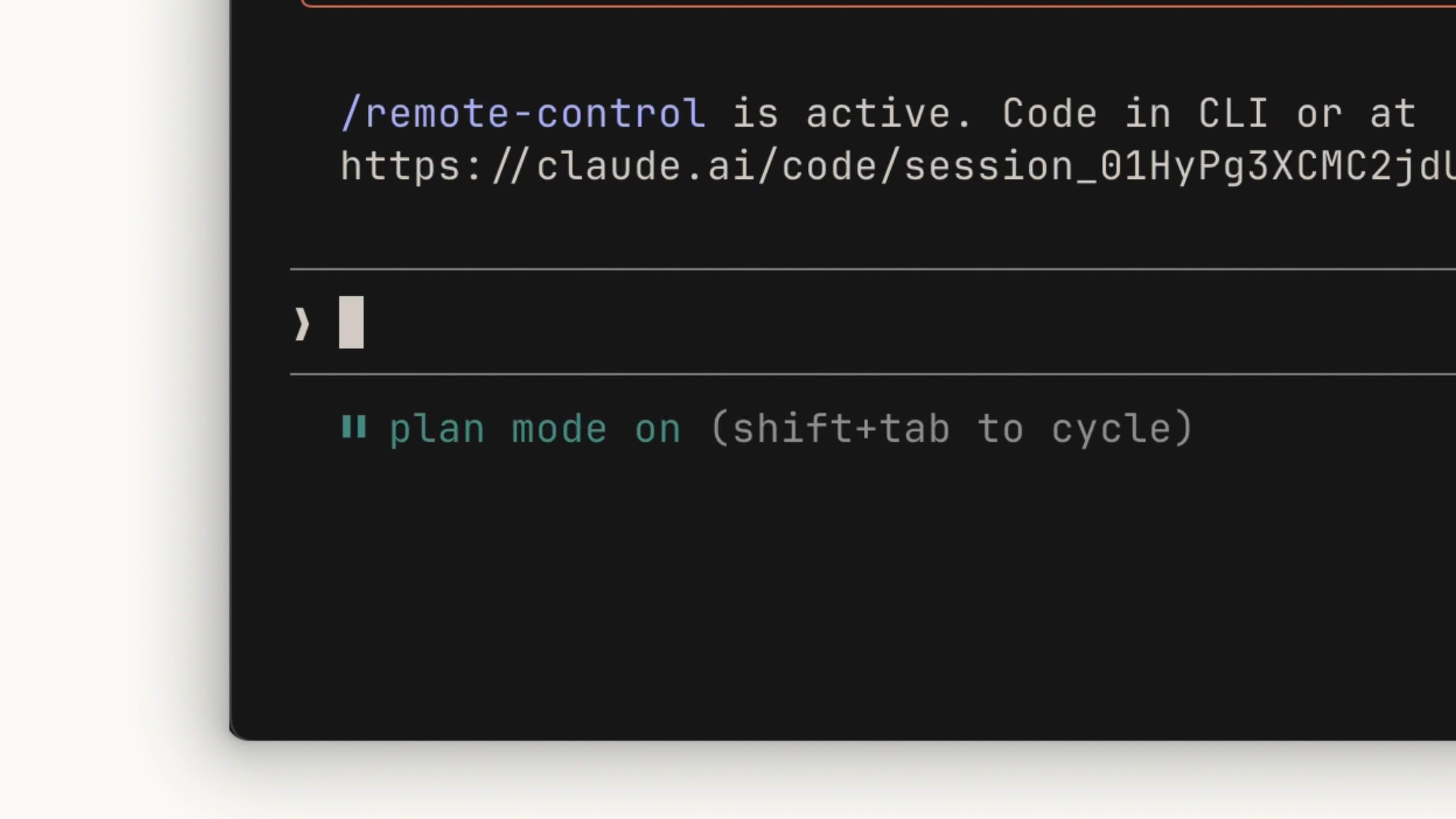
I need to add WebP conversion to our image upload pipeline. Find out where in the pipeline it should happen, whether we need new dependencies, and how it should be implemented.
Claude will read the relevant files, run some web searches, and give you a plan of action. Review it and decide whether it meets your standards. If not, ask it to revise specific parts.
+
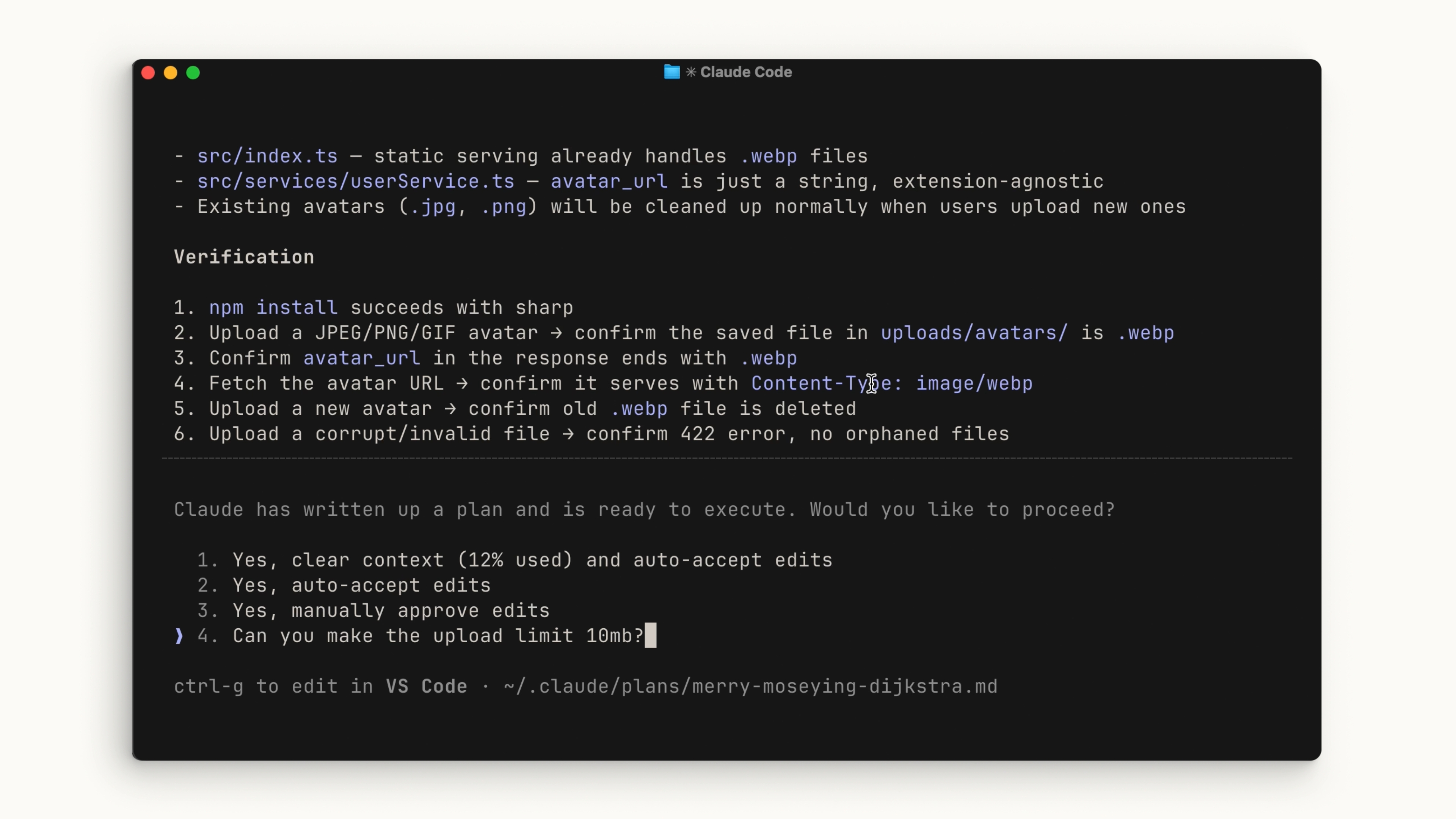
This is the best time to course-correct, because no code has been written yet. If you just want a general overview of the codebase and don't plan to make changes afterward, you can also run the Explore subagent without entering Plan Mode.
Coding
Once the plan looks good, choose "approve" to accept it and let Claude work through the list item by item. You can have Claude auto-accept file edits, or ask you each time.
Claude will do its best to troubleshoot before it considers the plan "done", but sometimes you'll need to step in. That's the benefit of using Plan Mode: after execution, you also have the context for how you got these results, which helps guide Claude's next decisions.
Here are some tips to make the coding phase go more smoothly:
Define success criteria: For Claude to be confident in its results, it needs to be clear on what "correct" means. Spell this out when writing the plan.
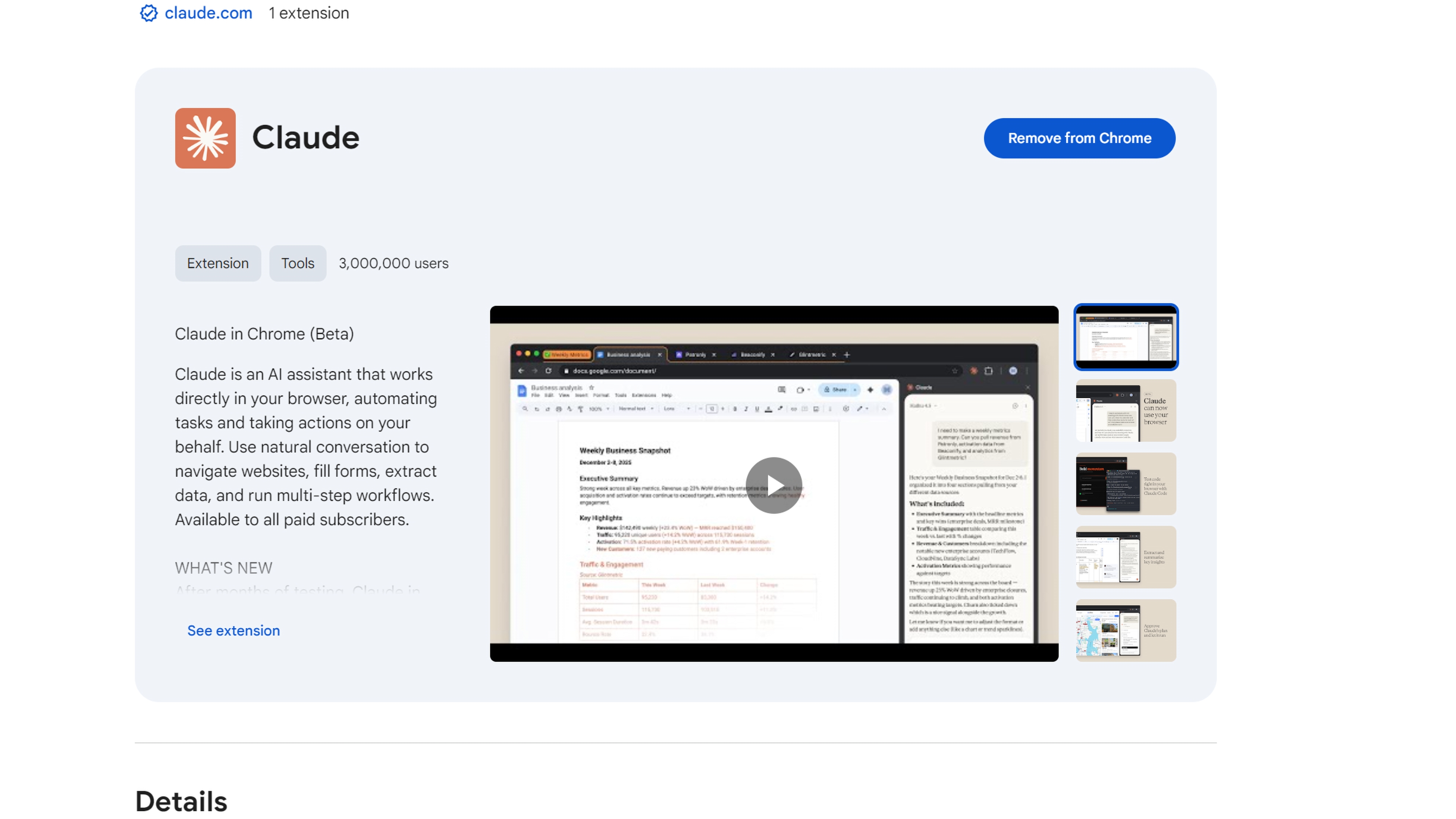
Add tools: Tools that help Claude reach its goal can cut down a lot of back-and-forth. For example, if you're building a web UI, install the Claude in Chrome extension so Claude Code can control browser tabs and test the UI directly.
+
Include a test suite: Give Claude a test suite it can keep verifying against. Claude can even write tests for you. Before handing them to Claude, make sure the tests are a reliable source of truth, so you avoid false positives.
If you notice Claude keeps running into the same problem, ask it to save the solution to its CLAUDE.md file. That way it can quickly reuse the solution the next time that kind of problem comes up, instead of exploring from scratch.
Committing
Once you've tested the changes yourself and are happy with the results, it's time to push your code. Before committing, run a code reviewer subagent to check your work. The subagent looks at the codebase with fresh eyes, free of the biases the main agent may have picked up during the session.
+
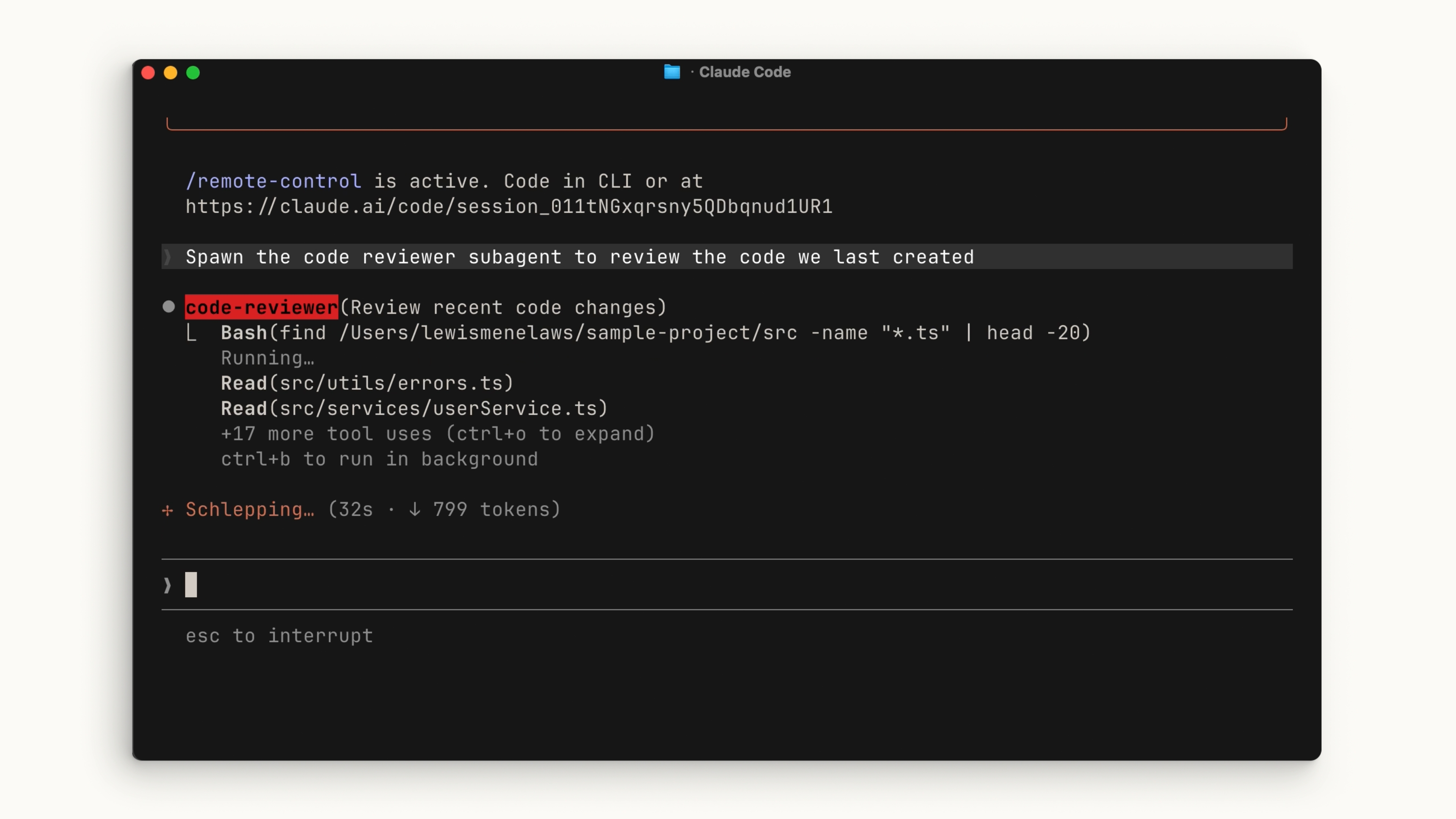
Then have Claude generate a commit message in your style. Repeat the process.
+
Context Management
What is a context window?
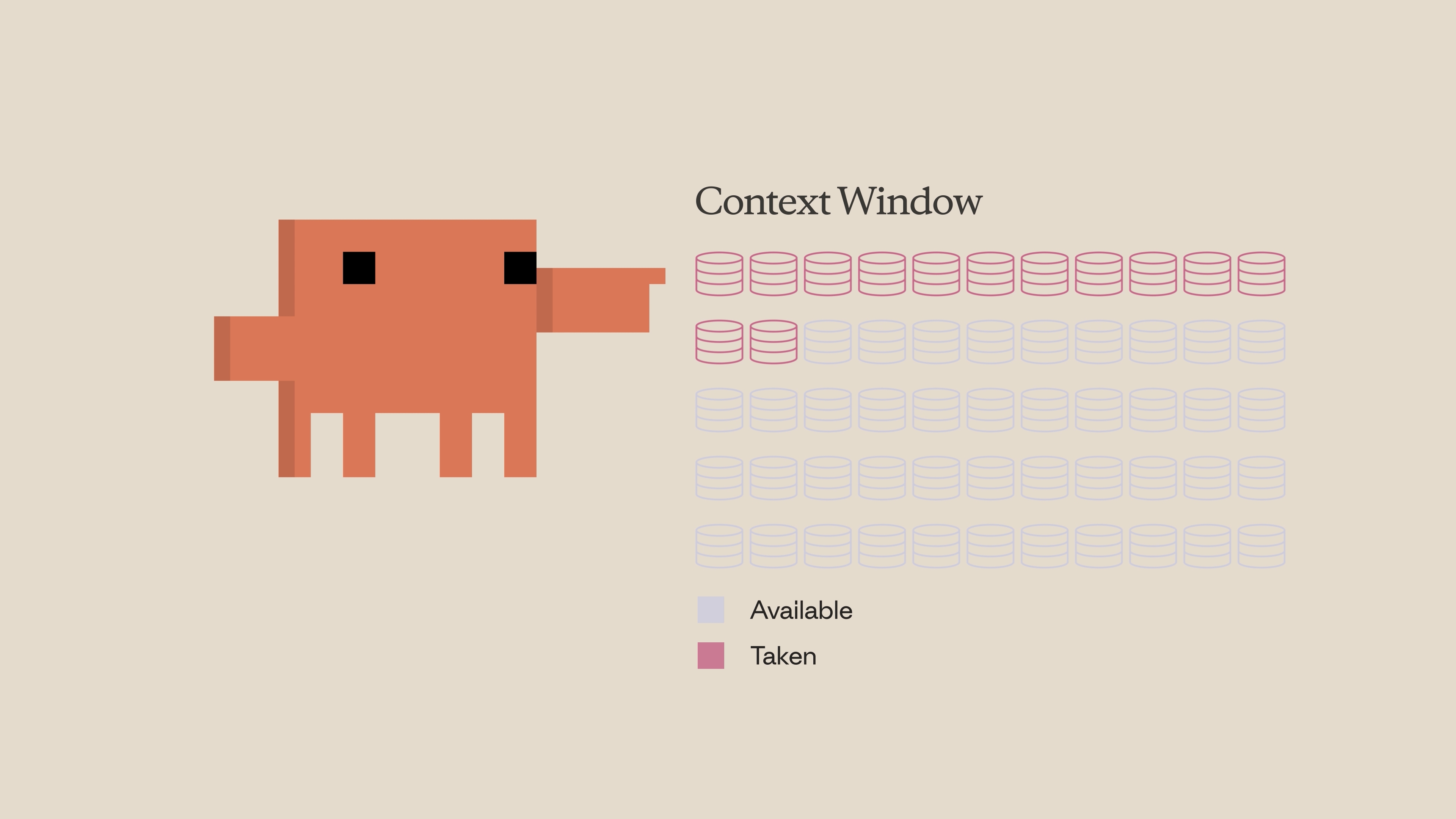
Think of the context window as the capacity of Claude's memory space. Every time you enter a prompt, Claude reads a file, runs a tool call, or receives a call result, the context window fills up a little more. Because space is limited, optimizing how you use it becomes important.
+
What happens when the context window fills up?
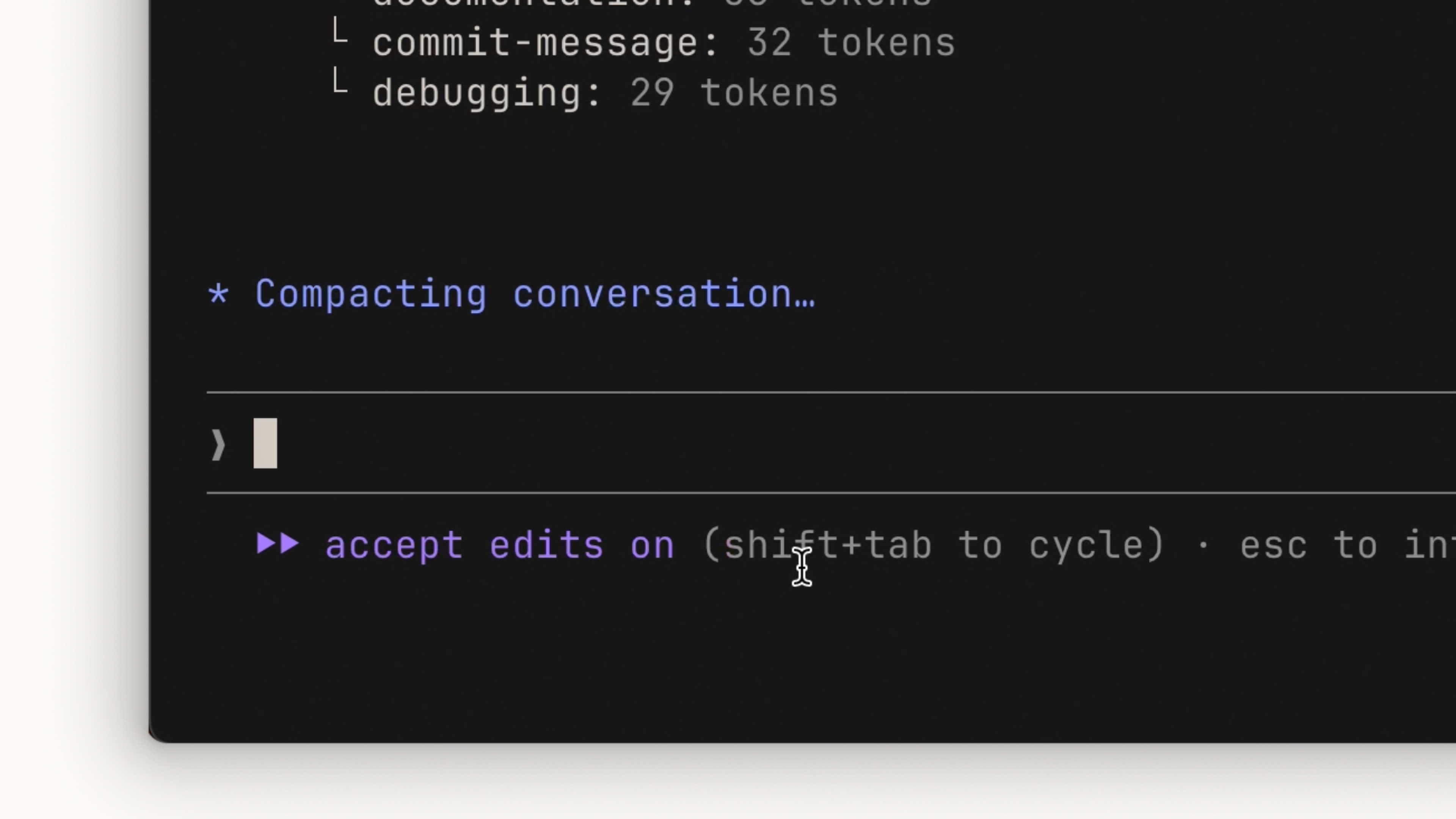
When your context window approaches its limit, it gets compacted. Compaction summarizes the important details and removes unnecessary tool call results to free up space. Note that this process may lose some details.
+
+
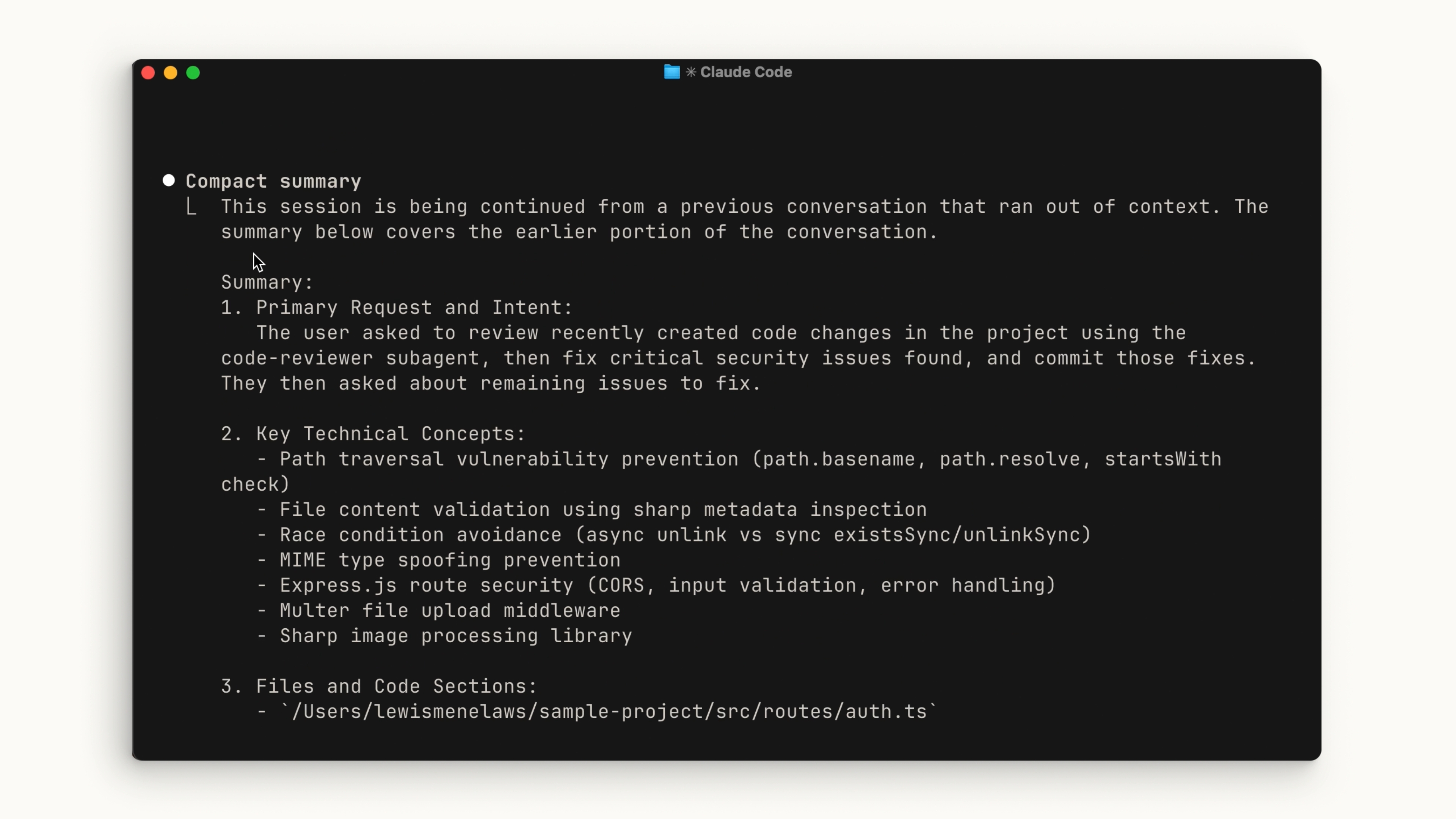
Manual compaction
You can run context compaction manually with the /compact command. It compacts everything up to that point. This is handy when you want to free up context space while keeping a memory of your earlier work.
+
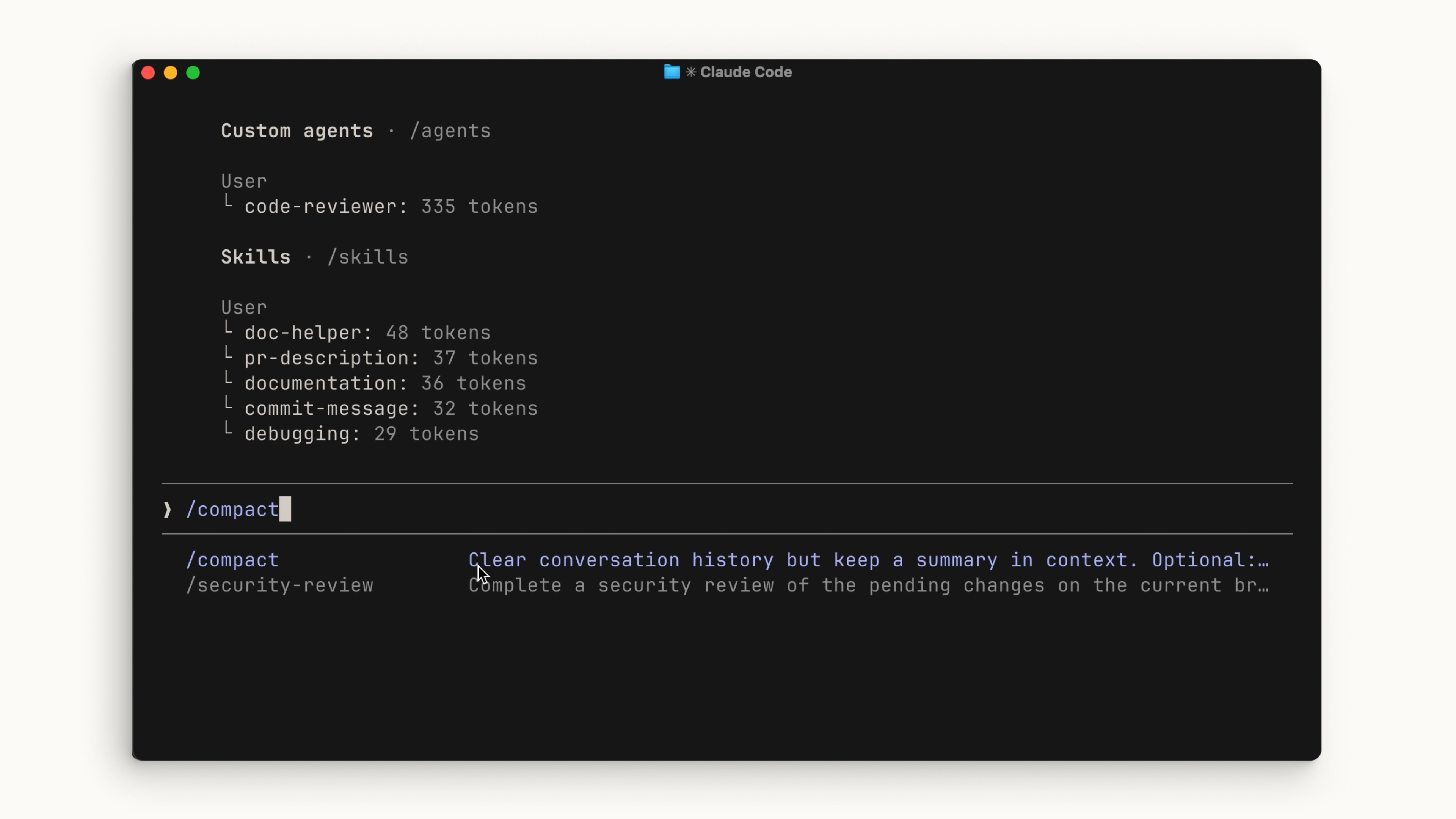
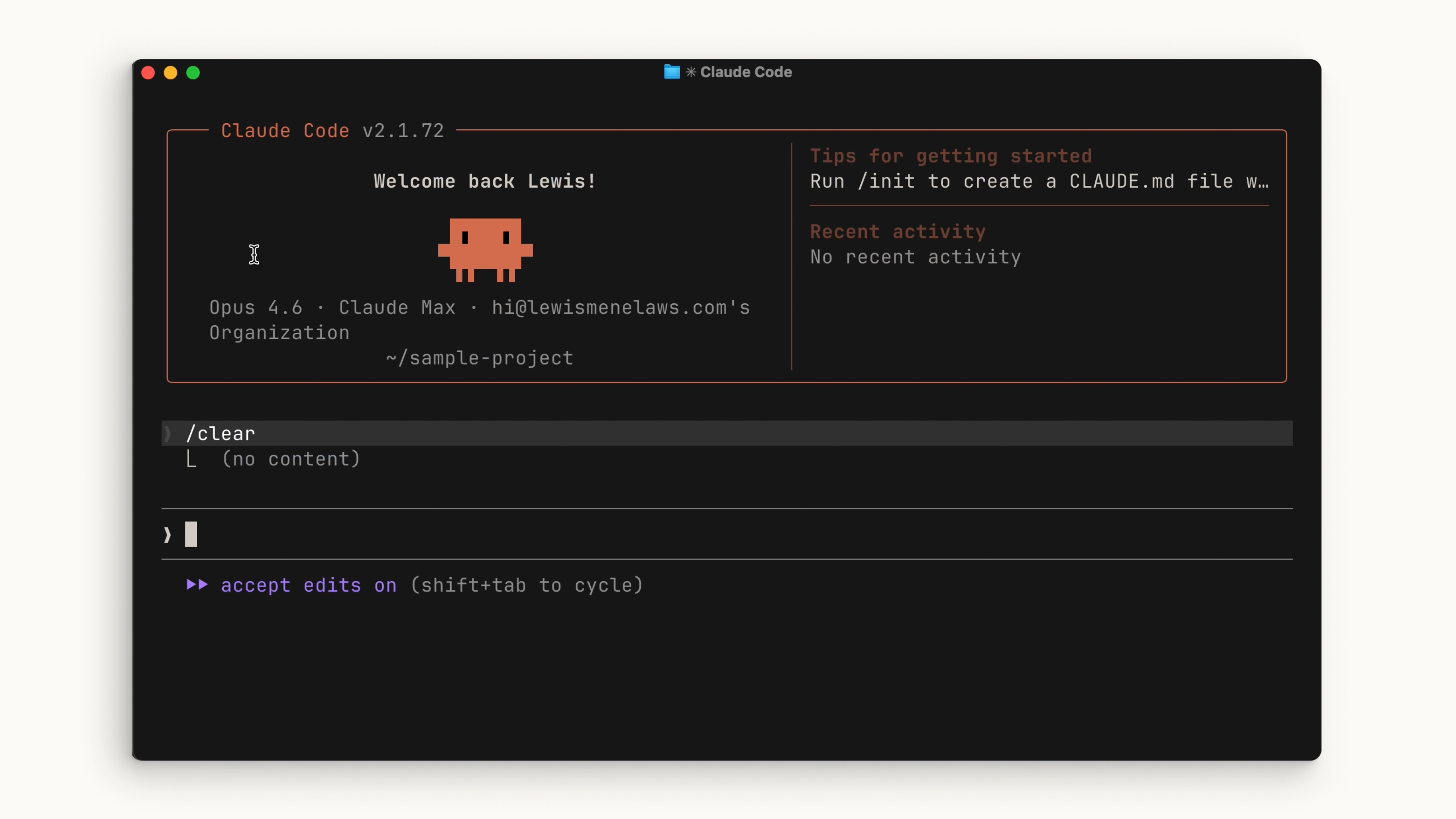
If you want to start completely fresh with no memory of the previous session, run /clear. This removes everything.
+
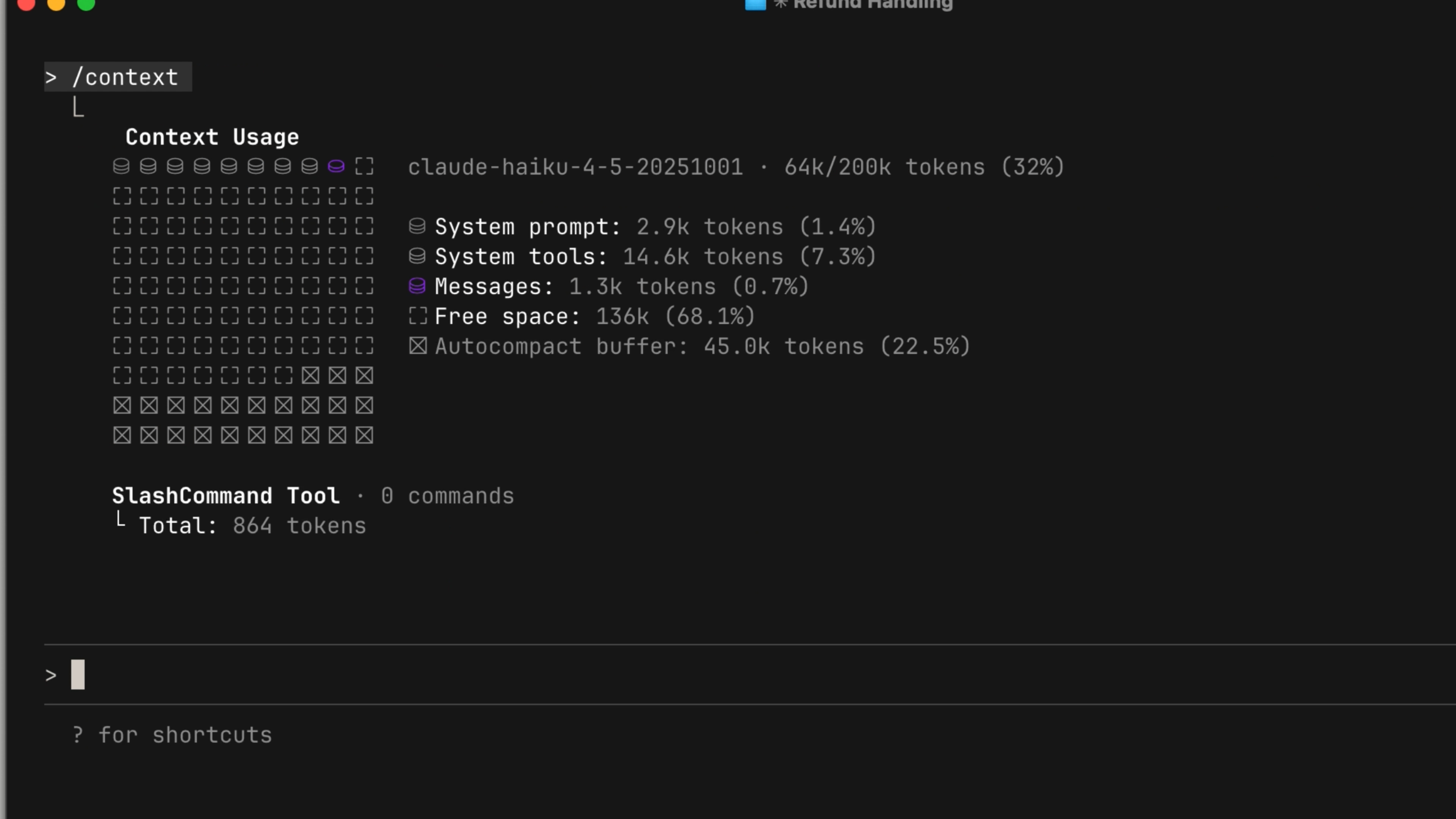
To check the state of your context, run the /context command. You'll get a high-level overview of the context size, the categories taking up the most space, and a visual graphic showing the breakdown.
+
When to use compact vs. clear
A general rule of thumb:
Use /compact: When you're working on a specific feature, are approaching the context limit, but need to continue. It's important to keep the context relevant to the feature you're currently working on.
Use
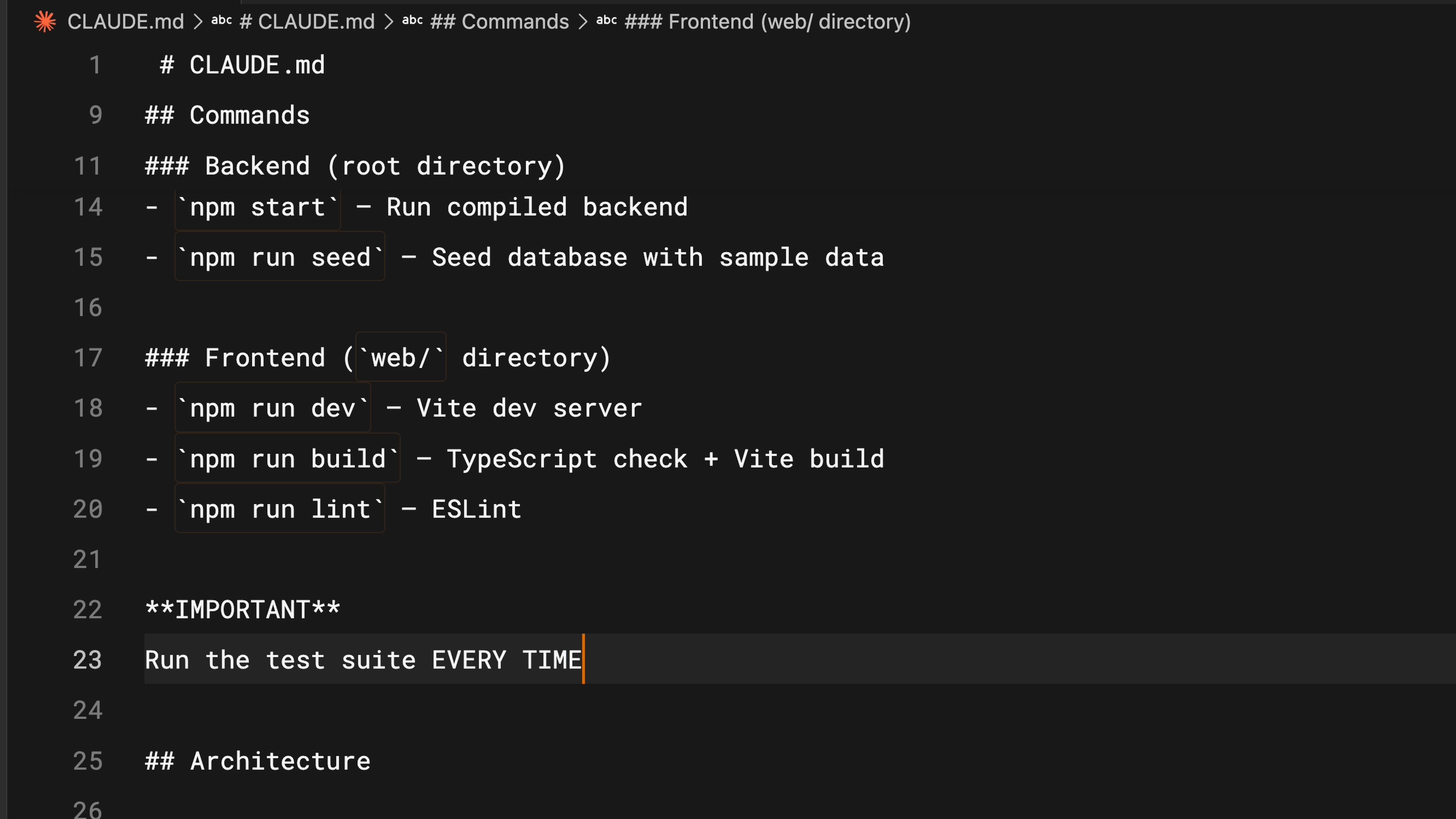
/clearwhen you want to start a new feature. You don't want the previous conversation to bias the new work. For things you want Claude to remember across sessions, put them in your CLAUDE.md file so it doesn't have to rediscover them from scratch.
+
Tips for saving context space
Be specific in your prompts: Vague prompts may look shorter, but in the long run they actually consume more context. Without clear instructions, Claude is forced to explore more code blocks and do its own reasoning, which takes up far more context space than a detailed prompt.
Manage your MCP servers: MCP servers load all of their available tools into context by default, even if you aren't using them. If you've configured servers unrelated to the current project, consider turning them off. You can also try Skills, which work similarly to MCP but don't load everything into context up front.
Use subagents: Subagents run in parallel with your main agent and have a completely separate context window. For tasks where you only need the answer, such as "Where is the authentication API?", you can use a subagent. It does the job and returns a summary to your main agent, keeping the main agent's context clean.
Code Review
Reviewing with Subagents
Before pushing a PR, have a Claude subagent review your changes. A subagent runs in its own separate context window and looks at the code with fresh eyes, free of the bias the main agent has from writing the code in this session.
When creating a code review subagent, restrict it to read-only tools. A reviewer should flag problems, not edit files. Put the subagent configuration under your repository's version control so the whole team uses the same reviewer.
+
The /commit-push-pr Skill
The /commit-push-pr skill can take it further by committing, pushing, and creating the PR. Instead of doing each step by hand, just run the skill and Claude handles everything for you.
If you've configured a Slack MCP server with a channel list in your CLAUDE.md, it will automatically post the PR link to your team's channel.
+
Linking Sessions with --from-pr
When Claude creates a PR with gh pr create, that session is automatically linked to the PR. If you later need to go back to that session, for example to handle review comments or fix a build failure, you can run:
PLAINTEXT
复制
claude --from-pr <PR_NUMBER>This picks up right where you left off.
+
Customizing Claude Code
The CLAUDE.md File
The problem it solves
When you open Claude Code without a CLAUDE.md file, it starts from scratch every time. It has to re-explore your codebase, figure out which dependencies are needed, and understand which features are already implemented. Sometimes it makes assumptions, which makes it harder to steer Claude in the right direction.
CLAUDE.md solves this problem. It's a Markdown file you add to the root of your project, and Claude Code reads it automatically at the start of every session. Think of it as an onboarding script for your codebase. The contents of the CLAUDE.md file are appended to your prompt.
+
An example
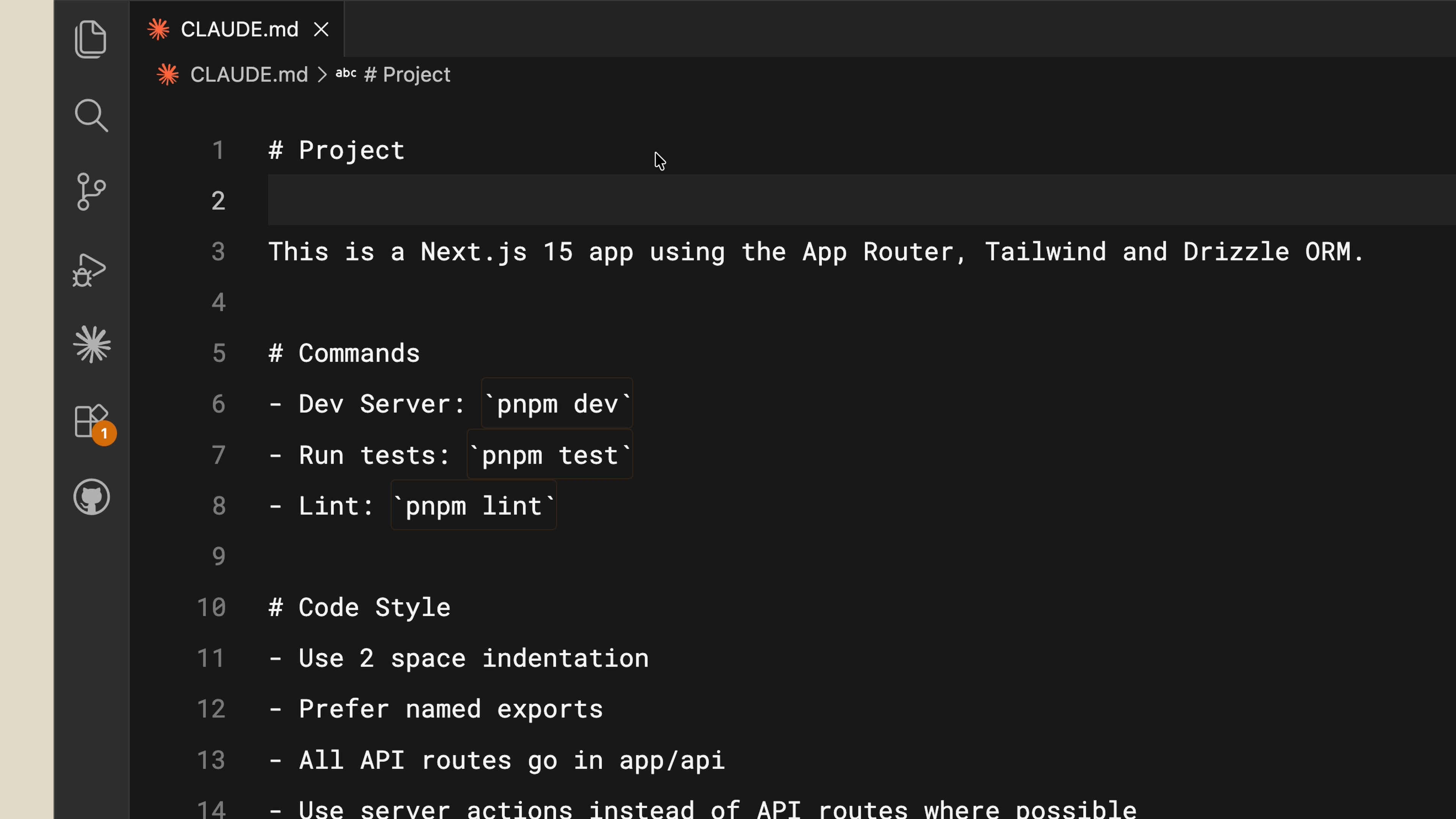
Here's an example of a typical CLAUDE.md file:
PLAINTEXT
复制
# Project
This is a Next.js 15 app using the App Router, Tailwind, and Drizzle ORM.
# Commands
- Dev server: `pnpm dev`
- Run tests: `pnpm test`
- Lint: `pnpm lint`
# Code Style
- Use 2-space indentation
- Prefer named exports
- All API routes go in app/api/
- Use server actions instead of API routes where possibleSimple and clear. Now, if you ask Claude Code to create a React component, it already knows to use Tailwind for styling and to follow your code conventions.
+
CLAUDE.md is for your team
You can (and should) commit your CLAUDE.md file to version control so your team can benefit from it too. In fact, memory files have a hierarchy depending on who they serve:
Project-level CLAUDE.md: Lives in your project root. Shared with the team.
User-level CLAUDE.md: Lives in your config folder. This file is for you alone and applies to all your projects, so put your personal preferences here.
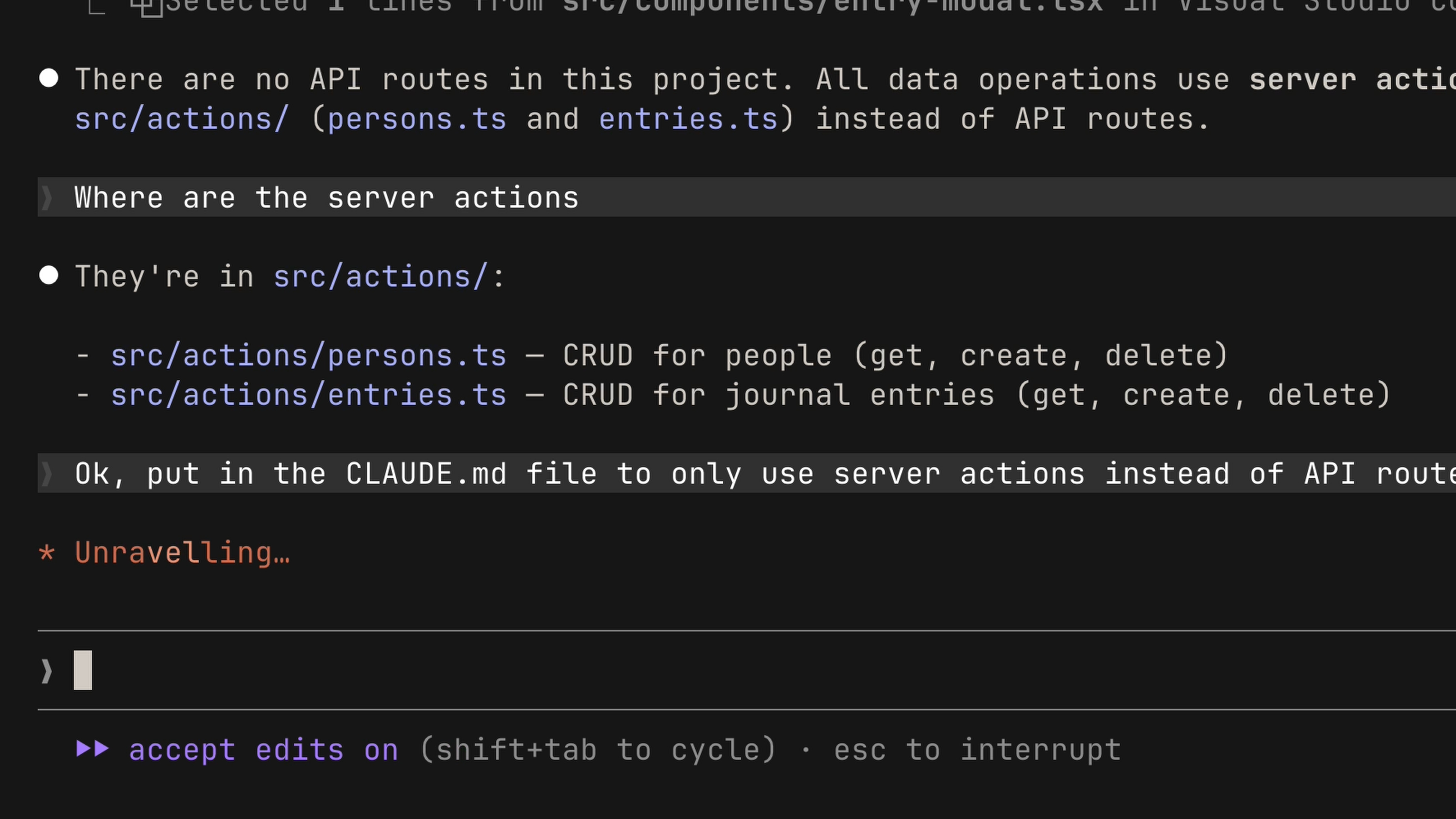
Save corrections to memory. If you find yourself correcting Claude over and over, such as telling it to always use server actions instead of API routes, explicitly ask Claude to save that rule to memory. The next time you open the project, it will know.
+
Reference project docs. If your project has documentation you want Claude to consult, use the @ symbol followed by the file path:
PLAINTEXT
复制
## README.md
Please read if you need more info: @README.mdStart from a blank slate. We recommend starting a project without a CLAUDE.md file, so you can see where you keep having to correct the model. This keeps your CLAUDE.md lean and focused on the essentials. When you're ready, run /init to have Claude generate one for you.
+
The difference between a frustrating Claude Code session and a productive one often comes down to context, and the CLAUDE.md file is how you provide that context. Start with your tech stack, preferences, and commands, then refine it over time as you use it.
Subagents
# How It Works
Managing context in Claude Code is important. A large share of the context window gets taken up by things like tool calls that explore the codebase or web searches run for research. During exploration, Claude spawns a subagent to handle tasks like "help me explore this codebase". The subagent runs in parallel in its own context window, does all the exploration work, summarizes its findings when done, and returns that summary to Claude.
The result is that you get the answer you want without the exploration process polluting and eating up your main agent's context.
Creating your own subagent
Subagents are defined in markdown files with YAML frontmatter. The easiest way to get started is to have Claude generate one for you. Run:
PLAINTEXT
复制
/agentsThen choose "Create subagent". You'll go through a series of steps, including choosing the agent's scope, defining its purpose, choosing which tools it can access, and even picking a color for it.
Claude will generate the name, description, and prompt for the subagent. This also tells Claude when to invoke the subagent, based on the prompts you give it.
+
If you want to customize your subagent further, here are some good suggestions:
Persistent memory: Persistent memory lets your subagent retain memory across conversations. It's very useful if you keep using it on the same project.
You can preload skills into a subagent by adding a skills key and listing the skills by name. Note that unlike skills in the main agent's conversation, here the entire skill is loaded into context.
Skills
See the dedicated article: https://academy.claude.com/zh-CN/courses/claude-code-101/skills
+
+
MCP
A lot of your context lives outside the codebase, in productivity apps or public repositories. MCP bridges that gap for you.
+
What can you do with it?
First, it's important to understand the concept of "tools" in agentic AI. Tools give an agent like Claude Code the ability to take actions, helping it complete tasks more effectively. This differs from typical AI, where all you get is a text response.
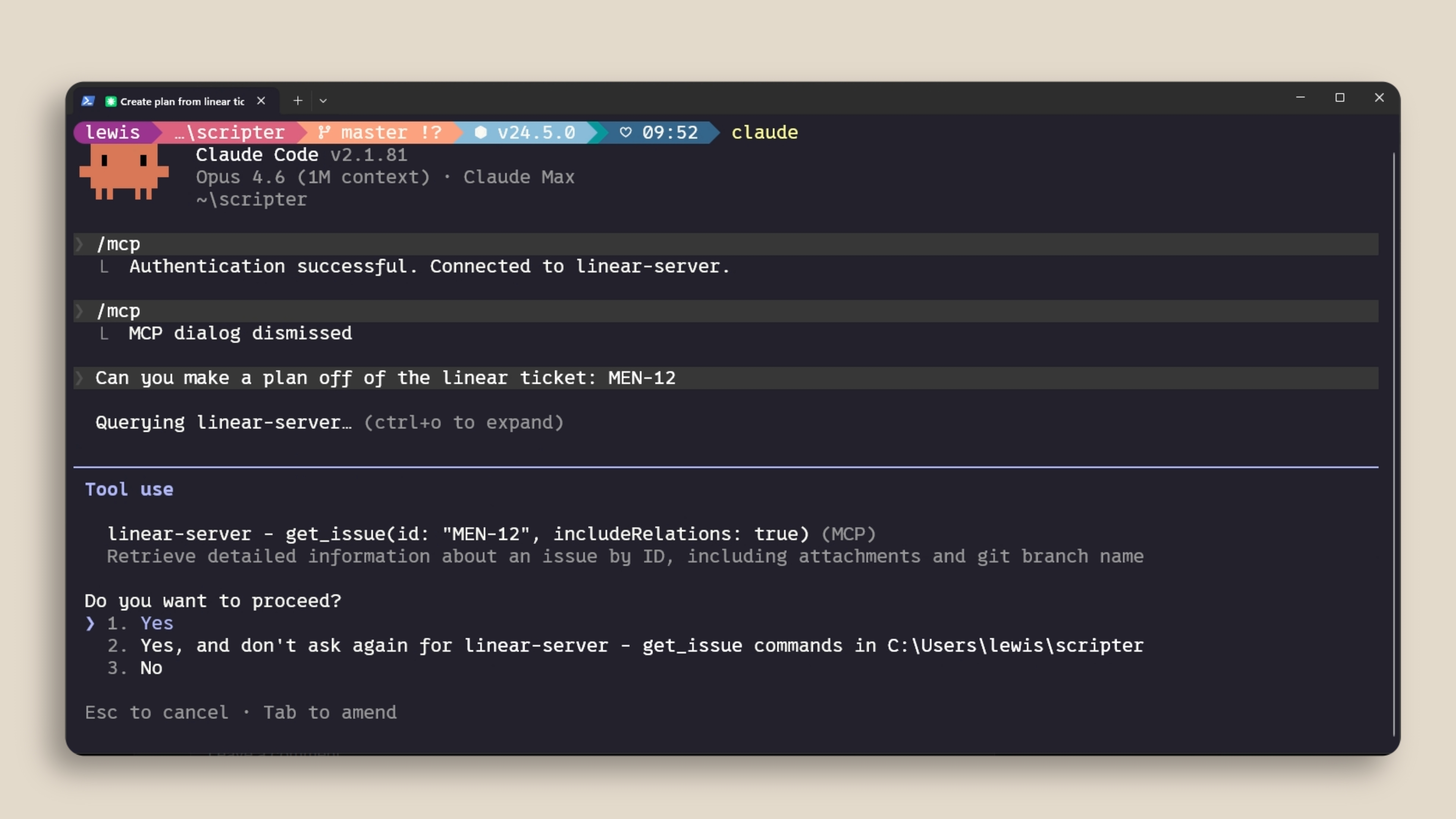
For example, if your team uses Linear for project management, you can add a Linear MCP server to pull in the details of your specific issues. If you need up-to-date documentation for a dependency, a documentation MCP server like Context7 can provide that information to Claude Code.
+
+
+
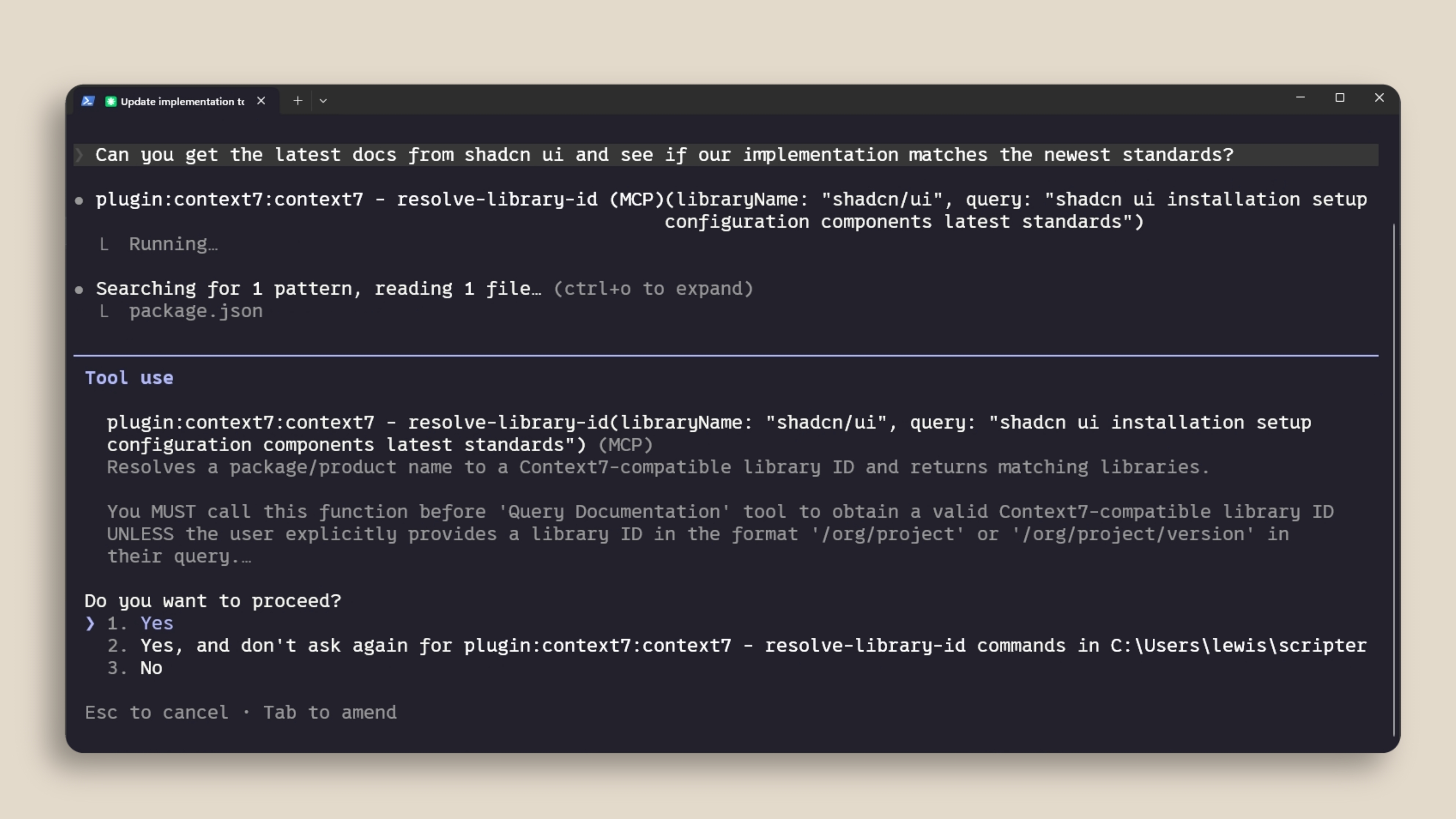
Adding an MCP server
You can add an MCP server with the claude mcp add command. There are two main types:
+
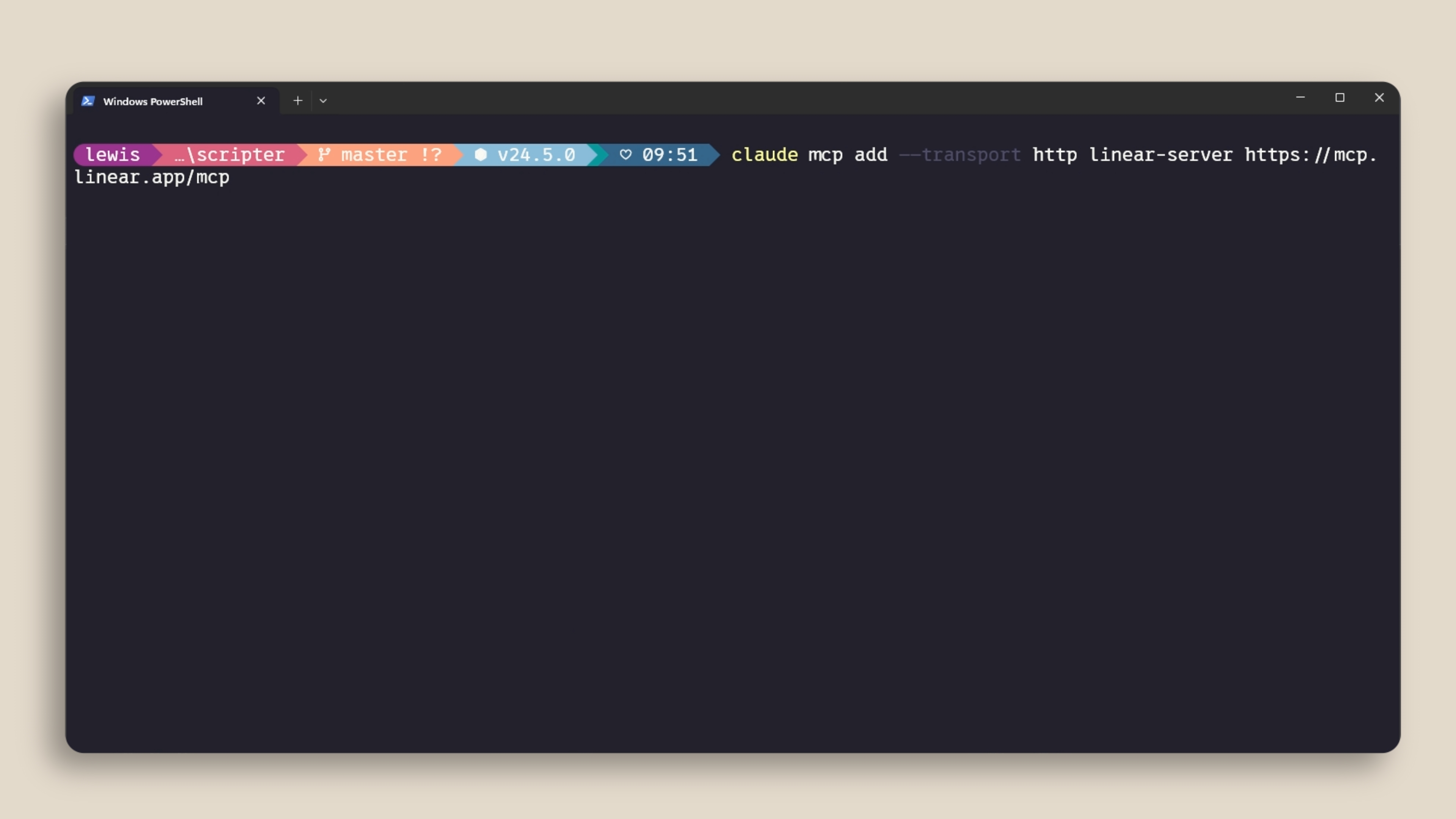
HTTP servers are for remote services. These are hosted by the service provider and connected to over the network.
Stdio servers are for local processes running on your machine.
+
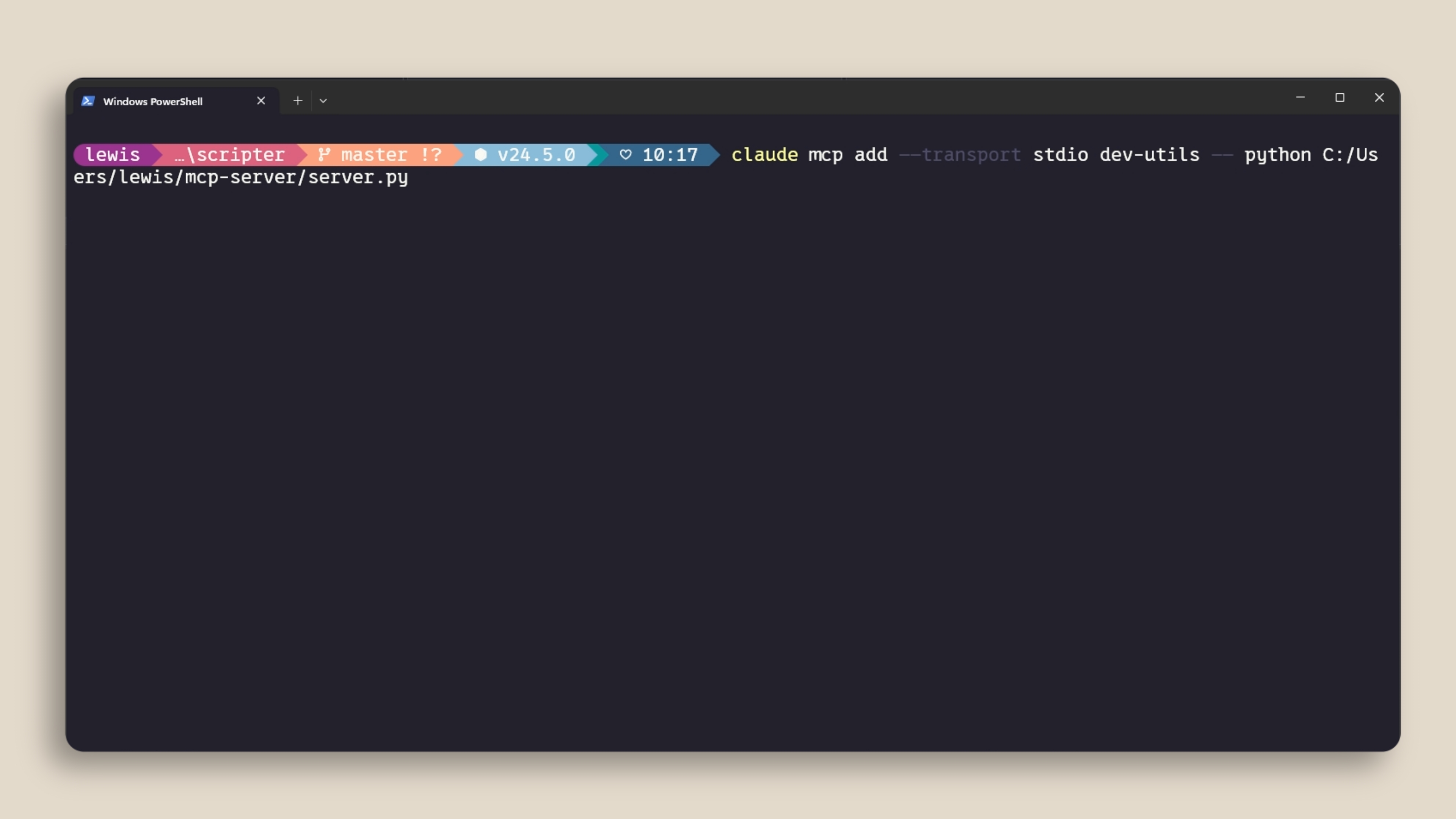
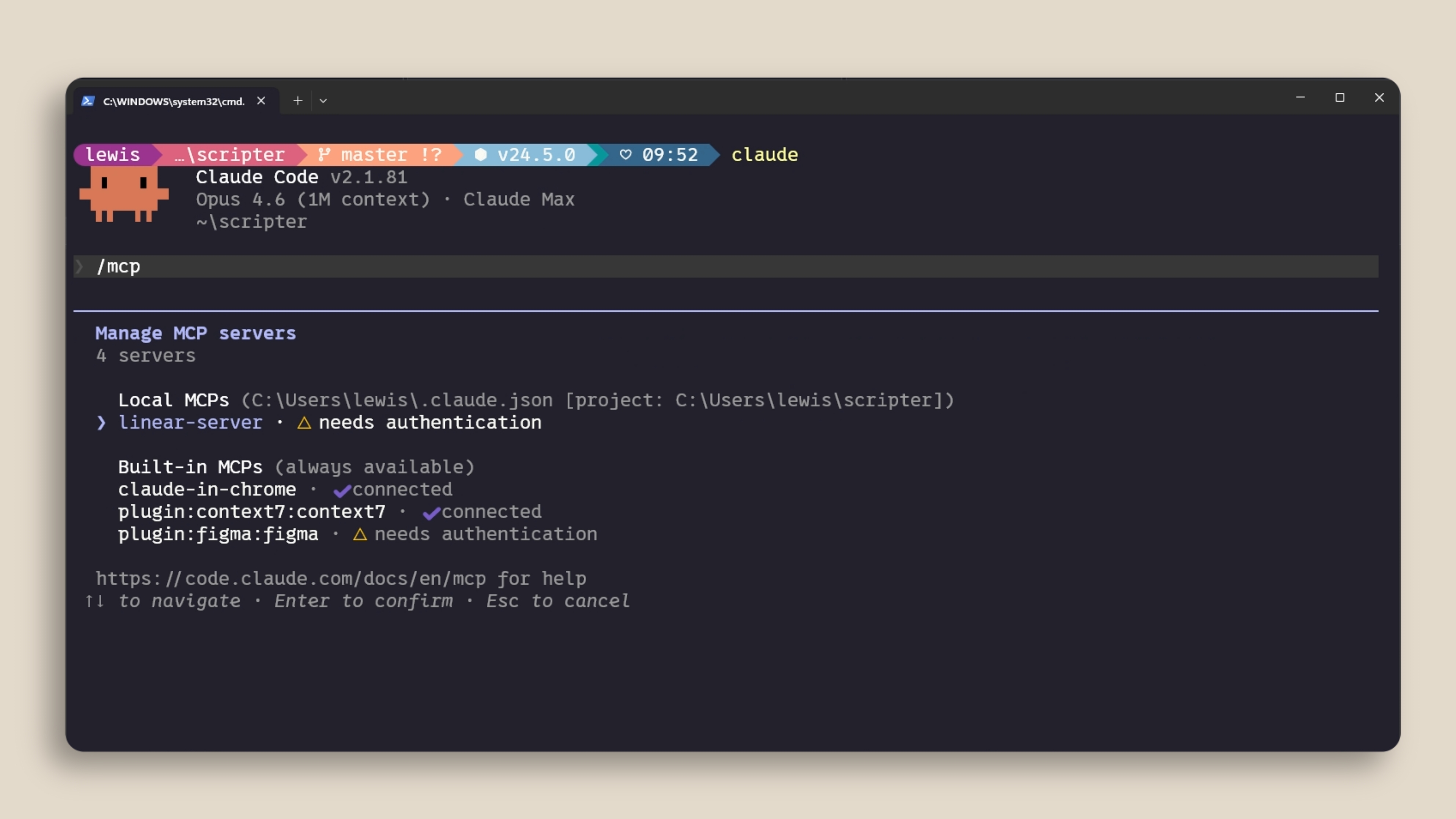
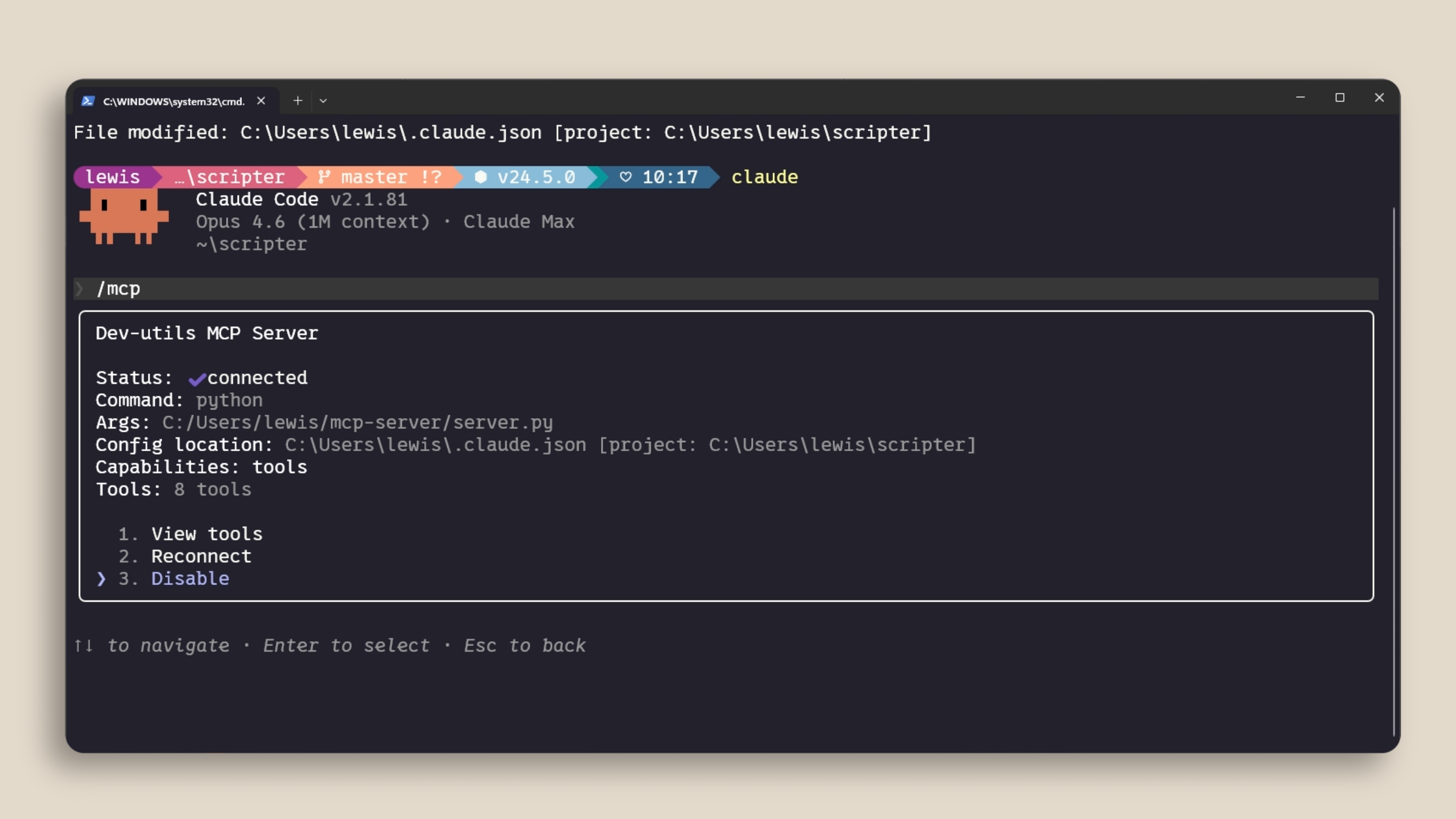
You can use /mcp within a Claude Code session to manage your servers, see what's connected, check status, and disable the ones you don't need.
+
Server scopes
MCP servers can be scoped in three ways:
Local: available only in the current project, and only to you.
User: available across all your projects.
Project: uses a
.mcp.jsonfile that you check into version control, so everyone on the codebase automatically gets exactly the same servers.
Context cost
MCP servers add tool definitions to your context window, even if you aren't actively using them. If you've configured a lot of servers, this eats into your available context. Run /mcp to see what's connected, and disable anything you aren't actively using.
+
If a tool has a CLI equivalent (such as gh for GitHub or aws for AWS), the CLI is more efficient in terms of context, because it doesn't add persistent tool definitions.
You may also benefit from using Skills. A skill has a name and description loaded into context, and Claude only loads the full skill content when it determines it needs to use it.
If your MCP tools exceed 10% of the context window, Claude Code automatically switches to tool search mode, which discovers the right tools on demand, though this may be less reliable than loading them directly.
+
Hooks
Why use hooks?
You can tell Claude in CLAUDE.md to run Prettier after every file edit. Most of the time it will. But sometimes it won't. Hooks ensure this happens every time, without exception.
Common use cases include:
Automatically formatting after file edits
Logging every executed command for compliance
Blocking dangerous operations, such as modifying production files
Sending you a notification when Claude finishes a task
+
How they work
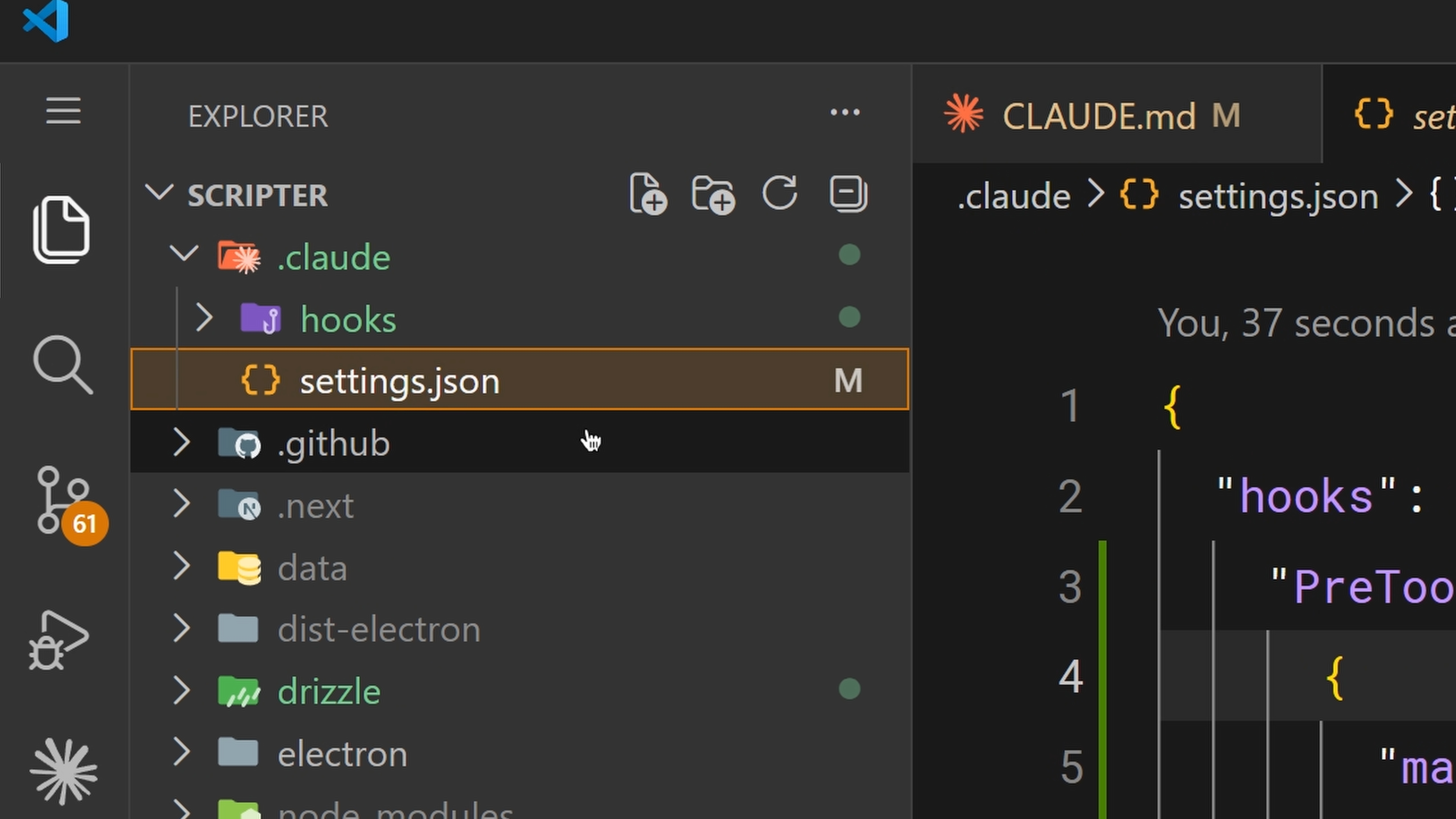
Hooks are configured in your settings.json. You pick an event, optionally set a matcher to specify which tools it applies to, and provide the command to run. Some of the most common events include:
PreToolUse: runs before a tool call
PostToolUse: runs after a tool call completes
UserPromptSubmit: runs after you submit a prompt, before Claude processes it
Stop: runs when Claude finishes responding
Notification: runs when Claude sends a notification
These are only some of the events you can hook into, and Claude Code supports many more. See the hooks reference documentation for the full list.
You can configure them with the /hooks command inside Claude Code, or by editing settings.json directly.
+
+
A practical example
The most common hook: auto-format after edits. Set up a PostToolUse hook with the matcher "Edit|MultiEdit|Write", so it fires whenever Claude modifies a file. The command checks the file extension and runs the appropriate formatter: Prettier for TypeScript, gofmt for Go, depending on what your project uses.
Blocking with PreToolUse
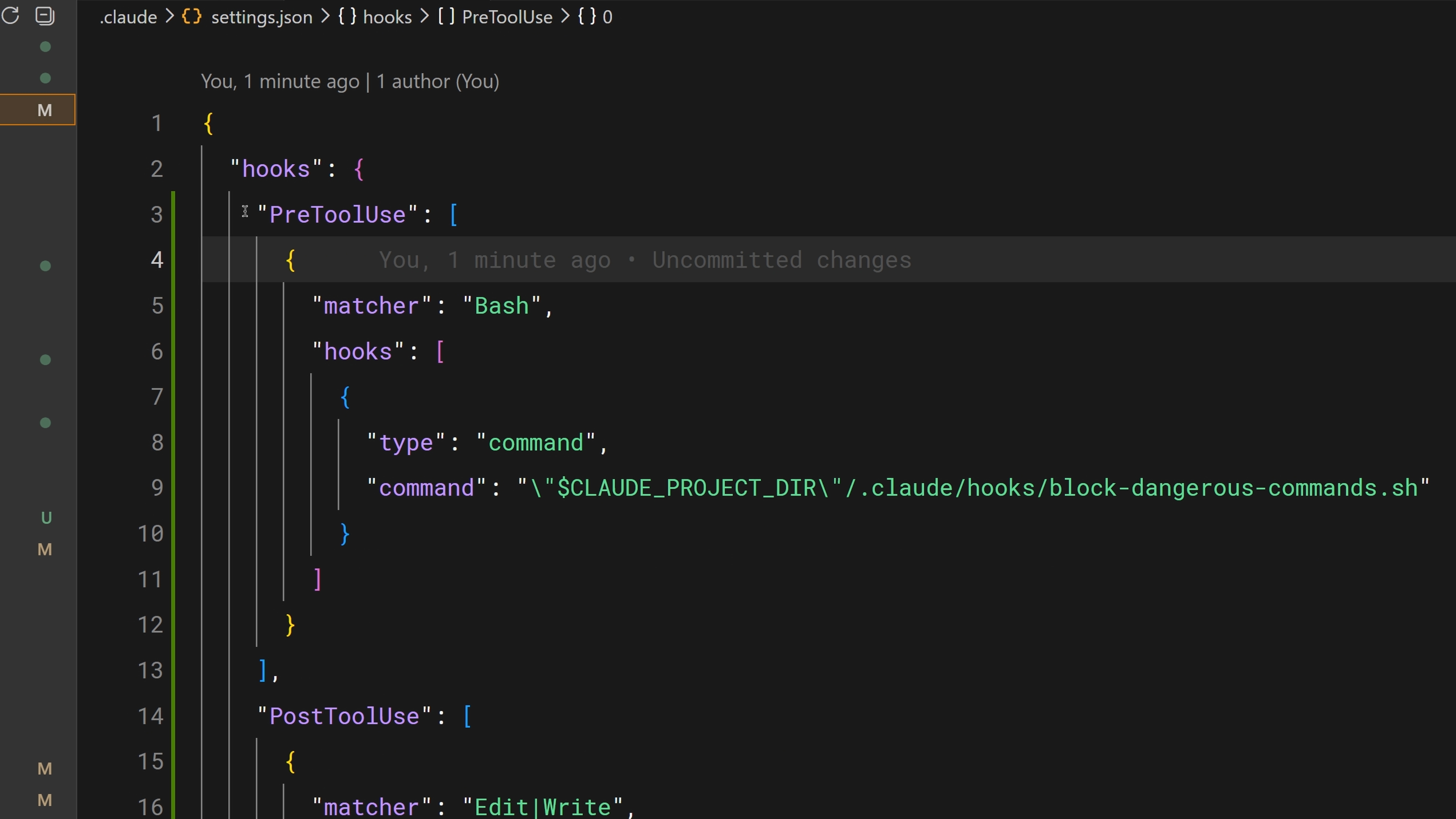
PreToolUse hooks can block tool calls before they execute. Your hook receives the tool name and input as JSON via stdin. The exit code determines the behavior:
Exit code 0: proceed as normal.
Exit code 2: block the operation. The stderr message is passed back to Claude as feedback, so it knows why it was blocked and can adjust accordingly.
Any other exit code: a non-blocking error that is shown to you but doesn't block anything.
This is how you enforce hard rules. Block writes to the production config directory. Block bash commands containing rm -rf. Block commits to the main branch. Anything your team needs to guarantee rather than merely suggest can be handled this way.
+
Sharing hooks with the team
Hooks configured in .claude/settings.json are project-level and can be checked into your repository's version control. This means your whole team automatically gets the same hooks. Use the CLAUDE_PROJECT_DIR environment variable in commands to reference scripts stored in the project, so they work regardless of Claude's current working directory.
+
The translation of the official Claude Code tutorial ends here. When I have time I'll keep updating with other high-quality tutorials, and I hope it helps more people. If you can, you're also welcome to read them directly on the Claude website. Copyright belongs to Claude. If you repost, please credit the source and include the relevant copyright notice. Thank you!
+
Copyright
Copyright of this article belongs to its author or rights holder. When reposting or quoting, please follow the applicable license terms and keep the link to this article.
Link to this article: https://xuyi.dev/en/2026-08-23-hsbxcl
Original: https://academy.claude.com/products/code