Article
Translation+ UpdatedClaude Code Official Tutorial - Getting Started with Agent Skills
Copyright & source
Copyright of the original work belongs to its author or rights holder. This translation is produced by this site; its use remains subject to the original work's license terms.
Original: https://academy.claude.com/zh-CN/courses/introduction-to-agent-skills/what-are-skills
Build, configure and share skills in Claude Code — reusable Markdown instructions that Claude applies automatically when a task matches. Covers everything from creating your first skill to team distribution and troubleshooting.
What Is a Skill?
A skill is a markdown file that teaches Claude how to do something once; after that, Claude applies that knowledge automatically when it's relevant.
A skill is a folder of instructions and resources that Claude Code can discover and use to handle tasks more accurately. Each skill lives in a SKILL.md file whose frontmatter contains a name and a description.
Build, configure and share skills in Claude Code — reusable Markdown instructions that Claude applies automatically when a task matches. Covers everything from creating your first skill to team distribution and troubleshooting.
What Is a Skill?
A skill is a markdown file that teaches Claude how to do something once; after that, Claude applies that knowledge automatically when it's relevant.
A skill is a folder of instructions and resources that Claude Code can discover and use to handle tasks more accurately. Each skill lives in a SKILL.md file whose frontmatter contains a name and a description.
+
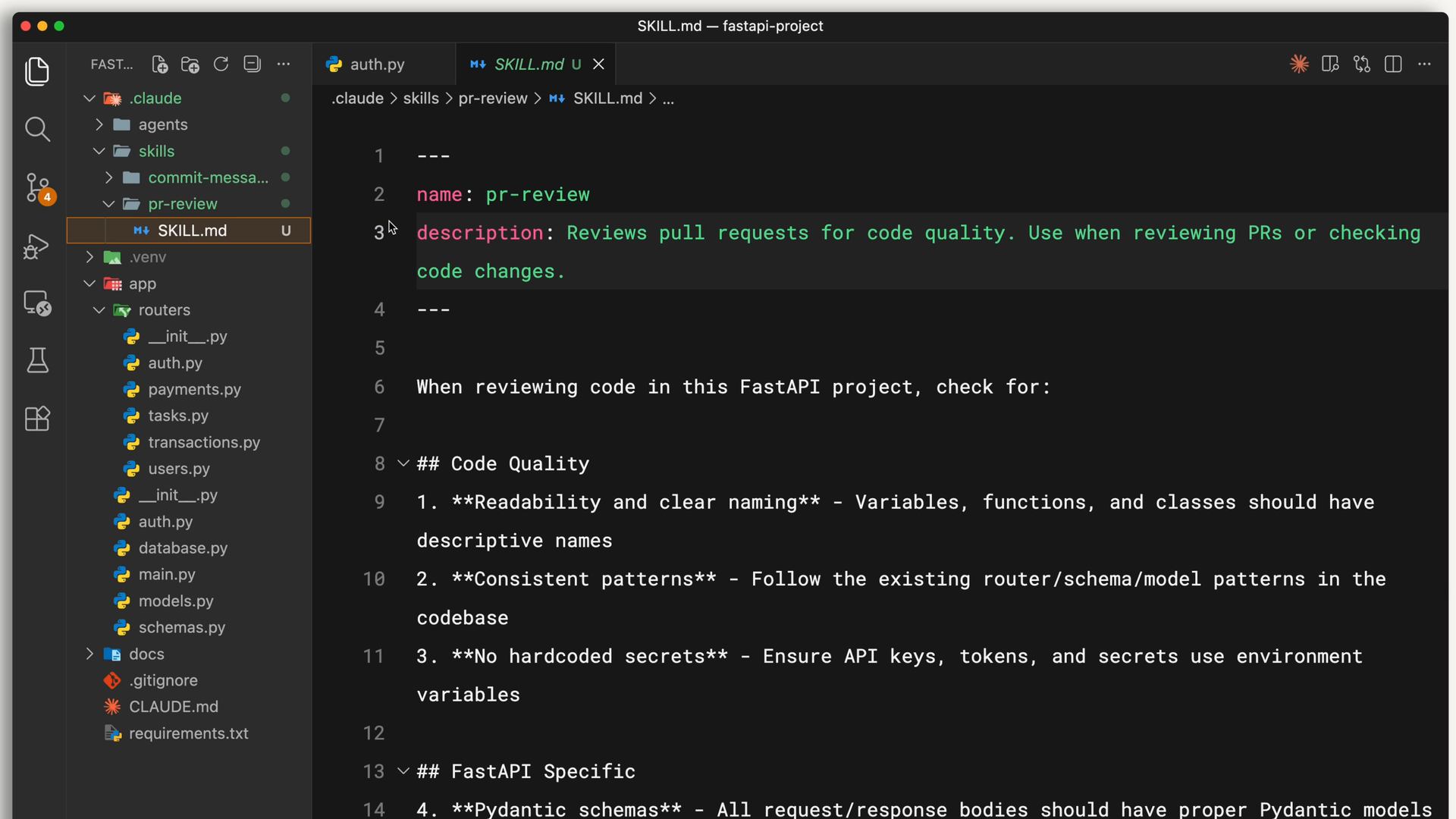
The description is what Claude uses to decide whether to use the skill. When you ask Claude to review a PR, it matches your request against the available skill descriptions and finds the relevant one. Claude reads your request, compares it with all available skill descriptions, and activates the ones that match. Here is what a skill's frontmatter looks like:
PLAINTEXT
复制
  ---
  name: pr-review
  description: Reviews pull requests for code quality. Use when reviewing PRs or checking code changes.
  ---
Below the frontmatter, you write the actual instructions: your review checklist, your formatting preferences, or anything else Claude needs to know when carrying out the task.
+
Where Skills Live
You can store skills in different places depending on who needs them:
Personal skills live in
~/.claude/skills(your home directory). These skills follow you across all your projects — your commit-message style, your documentation format, how you like code explained.Project skills live in
.claude/skillsinside the repository root. Anyone who clones the repository automatically gets these skills. Team standards live here, such as your company's brand guidelines, or the fonts and colors preferred for web design.
On Windows, personal skills live in C:/Users/<your-user>/.claude/skills.
Project skills are committed to version control along with your code, so the whole team shares them.
+
Skills vs. CLAUDE.md vs. Slash Commands
Claude Code has several ways to shape behavior. What makes skills unique is that they are automatic and task-specific. Here is how they compare:
CLAUDE.md files are loaded into every conversation. If you want Claude to always use
TypeScriptstrict mode, put that convention in CLAUDE.md.Skills are loaded on demand when they match your request. Claude initially loads only the name and description, so they don't fill your whole context window. For example, while you're debugging, your PR review checklist doesn't need to be in that context; it's loaded when you actually ask for a review.
Slash commands require you to type them explicitly. Skills don't; Claude uses them when it recognizes the right situation.
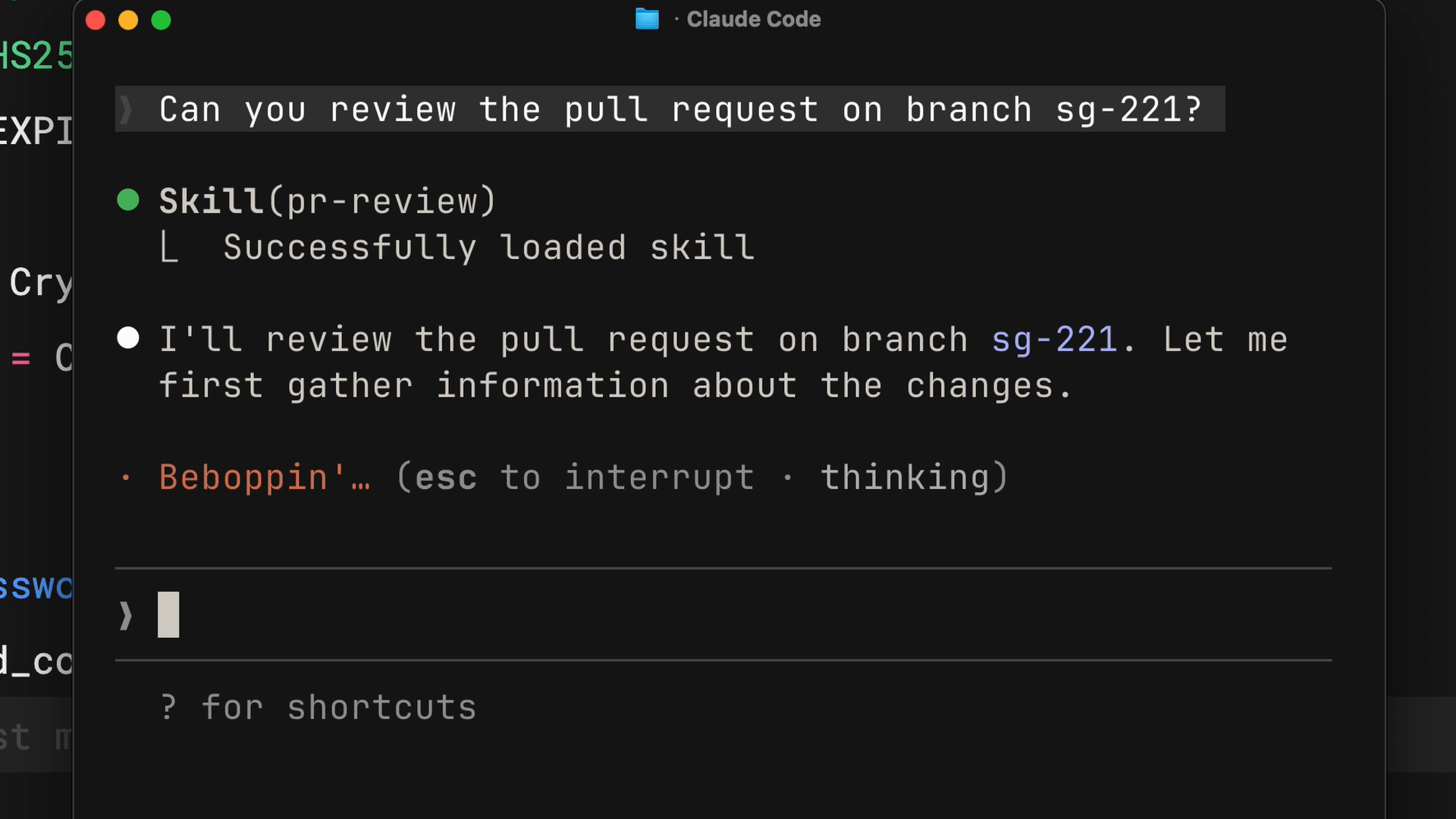
When Claude matches a skill to what you need right now, you can see it loading in the terminal.
+
+
When to Use Skills
Skills are best suited to specialized knowledge for specific tasks:
The code review standards your team follows
Your preferred commit message format
Your organization's brand guidelines
Document templates for specific types of documents
Debugging checklists for specific frameworks
The rule of thumb is simple: if you find yourself explaining the same thing to Claude over and over, that means there's a skill waiting to be written.
+
Create Your First Skill
We'll build a personal skill that teaches Claude how to write PR descriptions in a consistent format. Because it's a personal skill, we can put it in your home directory, and it applies to all your projects.
First, create a directory for your skill in the skills folder; the directory name matches your skill name:
PLAINTEXT
复制
mkdir -p ~/.claude/skills/pr-descriptionThen create a SKILL.md file inside that directory. The file has two parts, separated by frontmatter dashes:
PLAINTEXT
复制
  ---
  name: pr-description
  description: Writes pull request descriptions. Use when creating a PR, writing a PR, or when the user asks to summarize changes for a pull request.
  ---

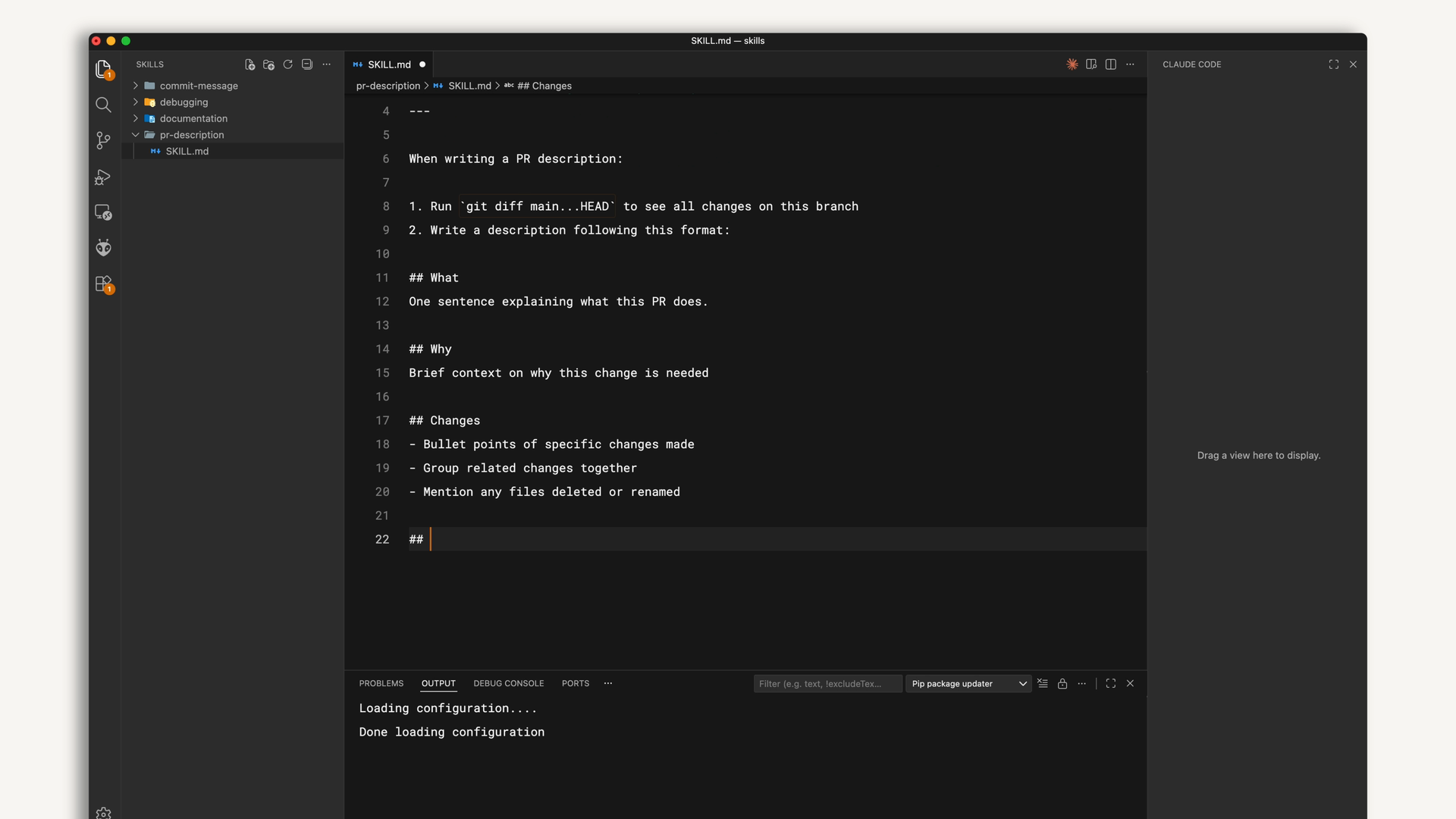
  When writing a PR description:

  1. Run `git diff main...HEAD` to see all changes on this branch
  2. Write a description following this format:

  ## What
  One sentence explaining what this PR does.

  ## Why
  Brief context on why this change is needed

  ## Changes
  - Bullet points of specific changes made
  - Group related changes together
  - Mention any files deleted or renamed
If you don't yet know what markdown is, take a look at another of my ancient tutorials, Getting Started with Markdown: The Must-Learn Markup Language for Boosting Efficiency, to get up to speed quickly.
Here, name is your skill's identifier, that is, the skill name. description tells Claude when to use it, and it is a very important field that determines whether Claude can automatically match your skill when it recognizes a relevant need.
Everything after the second set of dashes is the instructions Claude follows when the skill is activated — in other words, the body of the skill.
+
+
Test Your Skill
Claude Code loads skills at startup, so restart your session after creating a skill. You can verify it's available by checking the list of available skills.
+
+
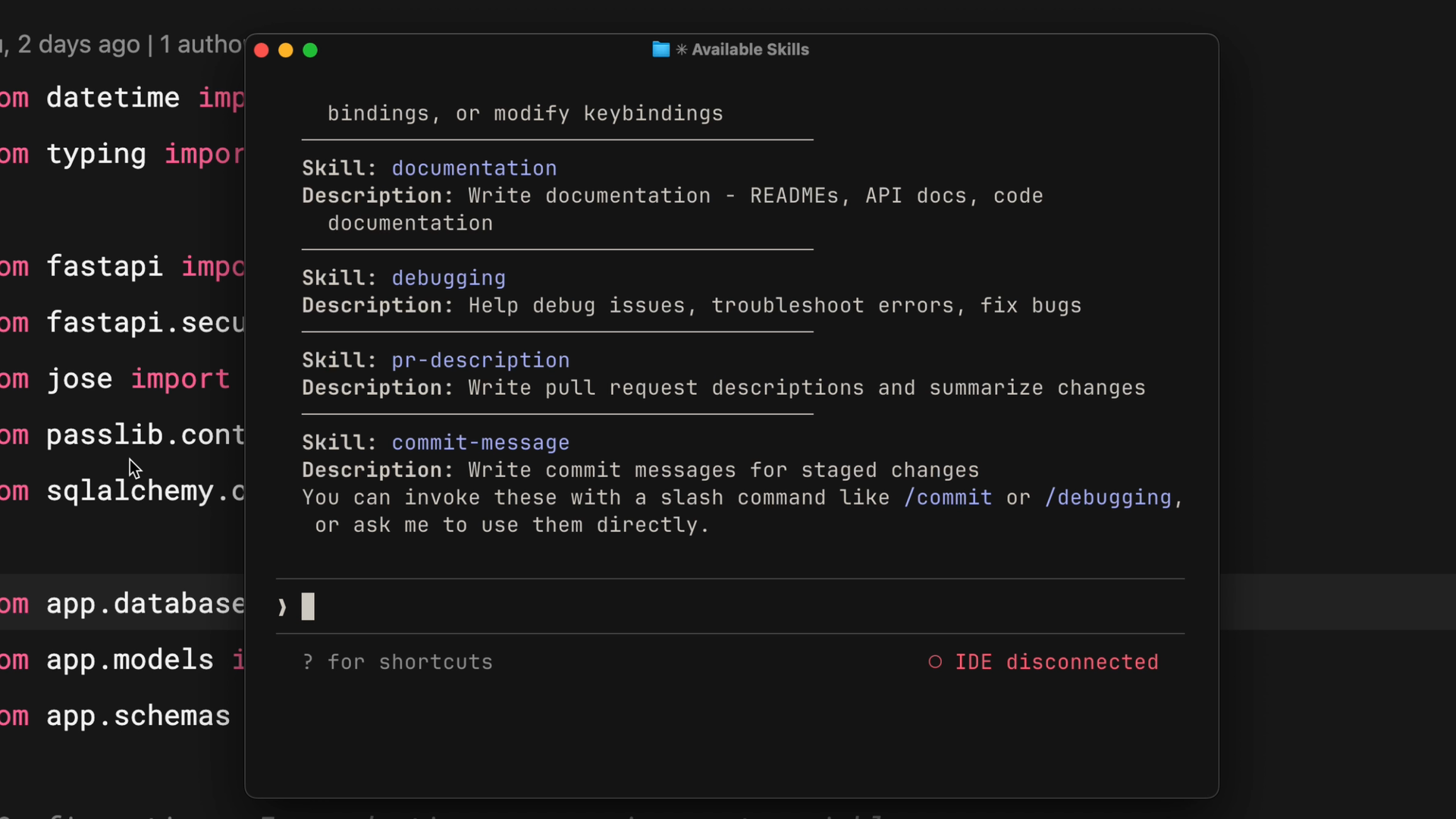
You should see your skill listed there. To test it, make some changes on a branch, then say something like "write a PR description for my changes". Claude will indicate that it's using the PR description skill, check your diff, and write the description following your template — in the same format every time.
+
How Skill Matching Works
When Claude Code starts, it scans four locations for skills, but loads only the name and description — not the full contents. This is an important detail.
When you send a request, Claude compares your message against the descriptions of all available skills. For example, "explain what this function does" would match a skill described as "explain code with visual diagrams", because the intent overlaps.
Once it finds a match, Claude asks you to confirm loading the skill. This confirmation step lets you see what context Claude is bringing in. After you confirm, Claude reads the full SKILL.md file and follows the instructions in it.
+
+
Skill Priority
If you clone a repository that has a skill with the same name as one of your personal skills, which one wins? There is a clear priority order:
Enterprise — managed settings, highest priority
Personal — your home directory (
~/.claude/skills)Project — the
.claude/skillsdirectory inside the repositoryPlugins — installed plugins, lowest priority
This lets organizations enforce standards through enterprise skills while still allowing personal customization. If your company has an enterprise "code-review" skill and you create a personal "code-review" skill with the same name, the enterprise version takes precedence.
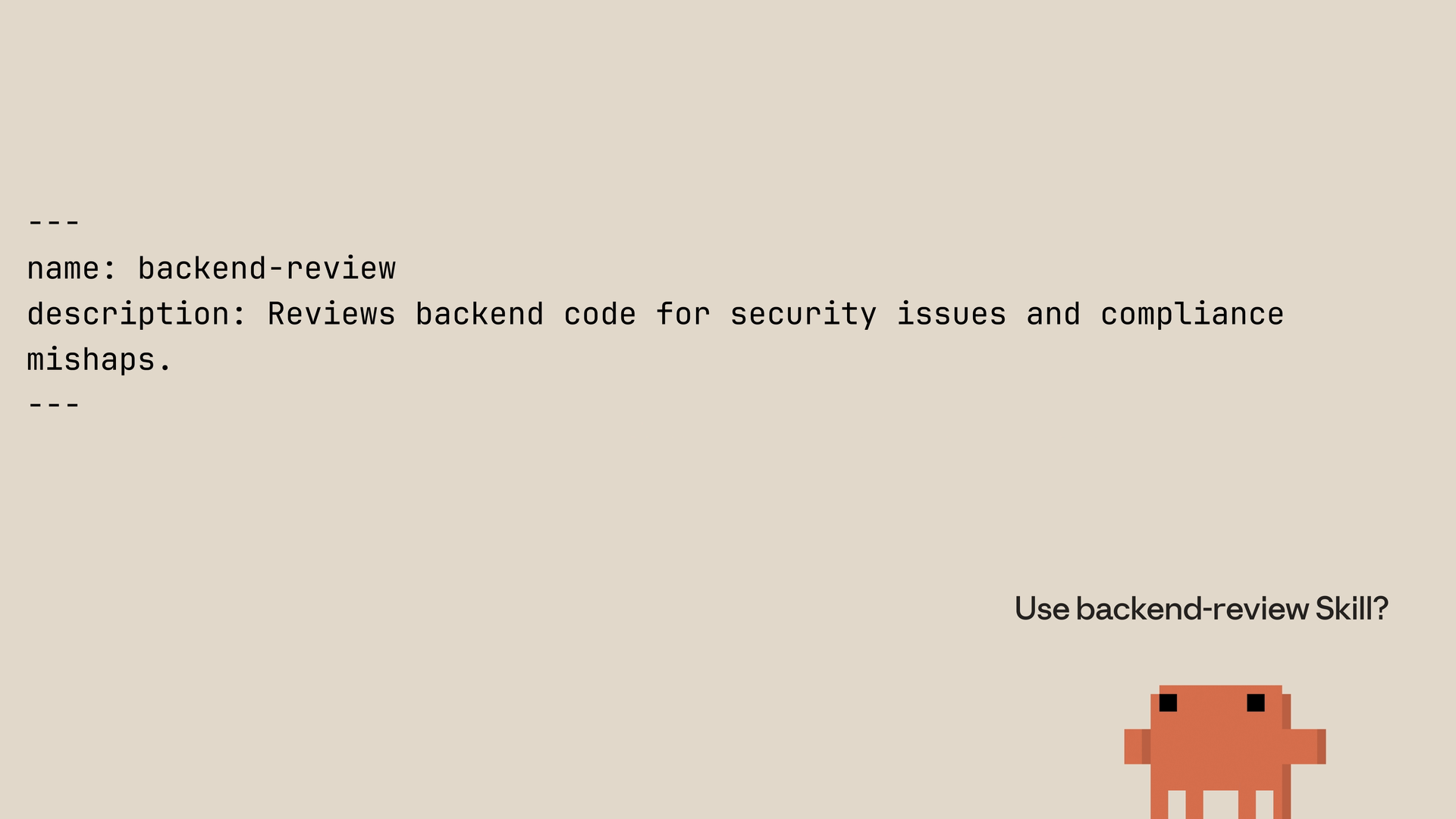
To avoid conflicts, use descriptive names. Instead of just "review", use names like "frontend-review" or "backend-review".
+
Updating and Deleting Skills
To update a skill, edit its SKILL.md file. To delete a skill, delete its directory. Claude Code needs to be restarted after any change for it to take effect.
+
Configuration and Multi-File Skills
A basic skill needs only a name and a description to work, but there are several advanced techniques that can make your skills more effective in Claude Code. Let's go through the key fields, best practices for descriptions, tool restrictions, and how to build larger skills.
Skill Metadata Fields
The Agent Skills open standard supports several fields in the SKILL.md frontmatter. Two of them are required and the rest are optional:
name (required) — Identifies your skill. Use only lowercase letters, numbers and hyphens. Up to 64 characters. It should match your directory name.
description (required) — Tells Claude when to use the skill. Up to 1,024 characters. This is the most important field, because Claude uses it for matching.
allowed-tools (optional) — Restricts which tools Claude can use while the skill is active.
model (optional) — Specifies which Claude model the skill should use.
Writing Effective Descriptions
Be explicit with your instructions. If someone told you "your job is to help with documents", you wouldn't know what to do — Claude thinks the same way.
A good description answers two questions:
What does the skill do?
When should Claude use it?
If your skill doesn't trigger as expected, try adding more keywords that match how you actually phrase your requests. The description is what Claude uses to judge whether a skill is relevant, so the wording matters.
Restrict Tools with allowed-tools
Sometimes you want a skill to be able to read files but not modify them. This is useful for security-sensitive workflows, read-only tasks, or any case where you want guardrails.
+
+
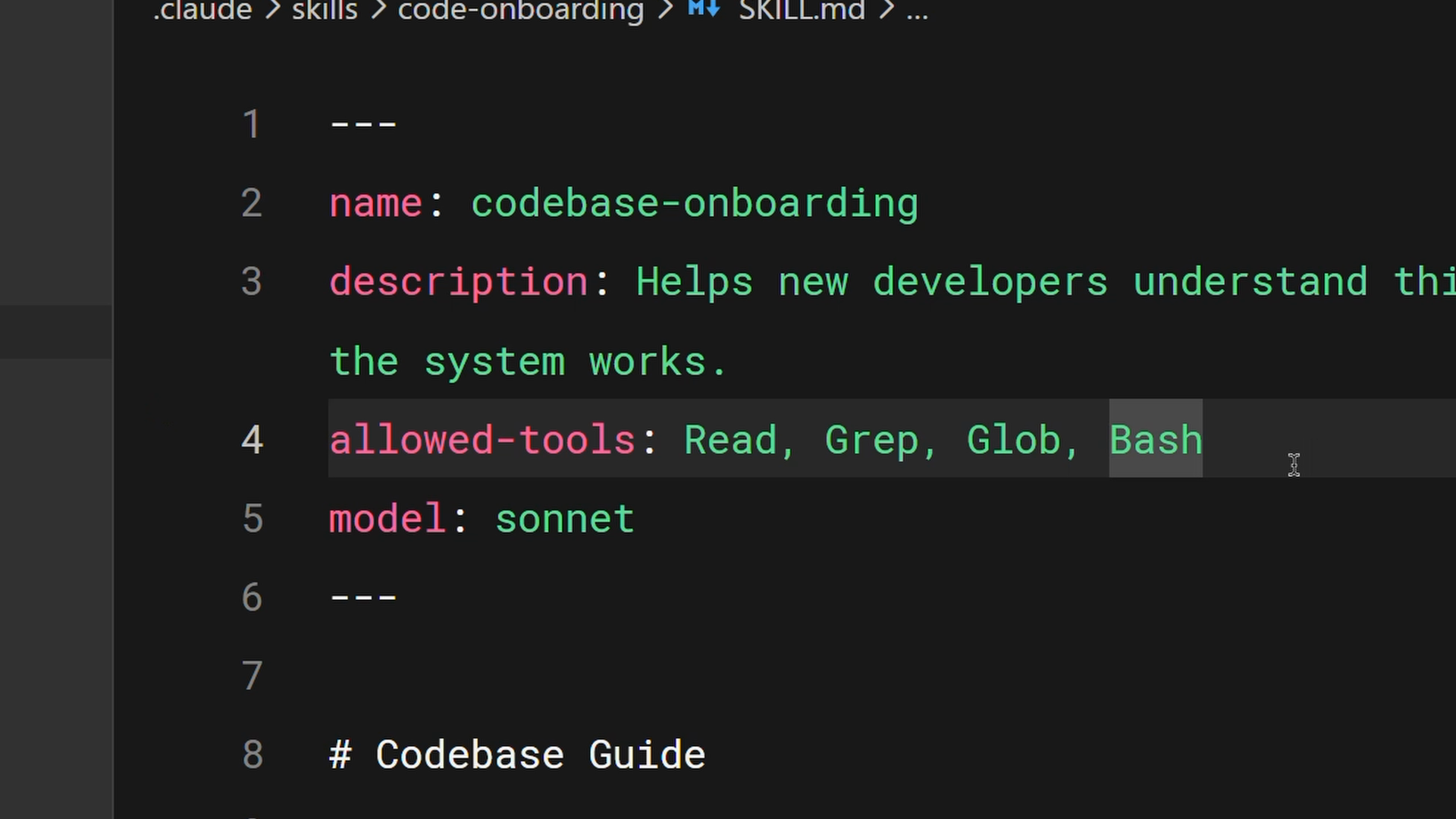
In this example, the allowed-tools field is set to Read, Grep, Glob, Bash. While this skill is active, Claude can use only these tools without asking for permission — no editing, no writing.
yaml
PLAINTEXT
复制
  ---
  name: codebase-onboarding
  description: Helps new developers understand the system works.
  allowed-tools: Read, Grep, Glob, Bash
  model: sonnet
  ---
If you omit allowed-tools entirely, the skill restricts nothing. Claude will use its normal permission model.
Progressive Disclosure
Skills share Claude's context window with your conversation. When Claude activates a skill, it loads that SKILL.md's contents into the context. But sometimes you need reference material, examples or utility scripts that the skill depends on.
Cramming everything into a single 2,000-line file creates two problems: it takes up a lot of context-window space, and it isn't easy to maintain either.
Progressive disclosure solves this. Keep the essential instructions in SKILL.md and put detailed reference material in separate files, which Claude reads only when needed.
The open standard recommends organizing your skill directory as follows:
scripts/ — executable code
references/ — additional documentation
assets/ — images, templates or other data files
Then, in SKILL.md, link to the supporting files, with explicit instructions about when to load them:
+
+
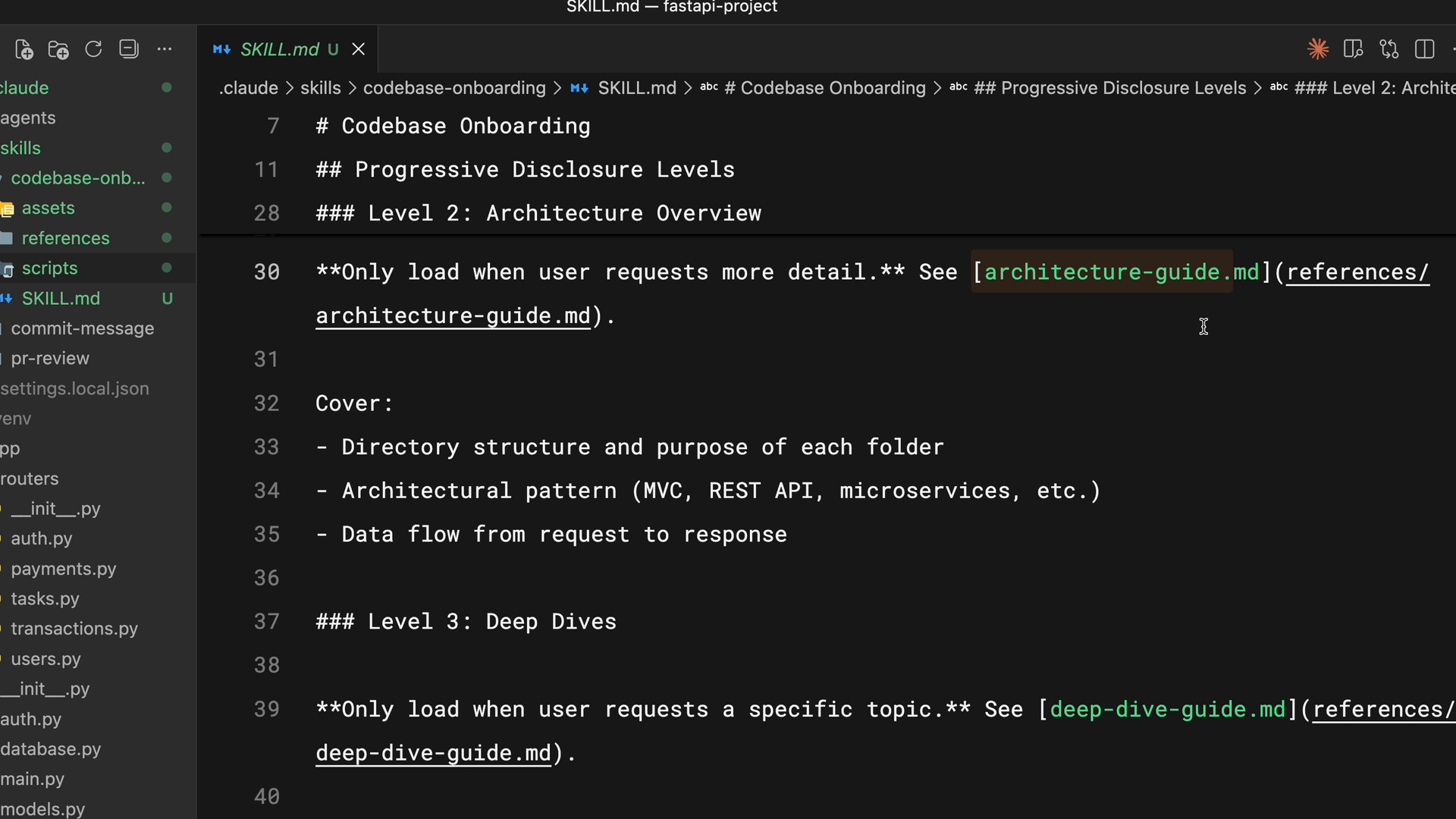
In this example, Claude reads architecture-guide.md only when someone asks about system design. If they ask where to add a component, it never loads that file. It's like having a table of contents in the context window rather than the whole document.
A good rule of thumb: keep SKILL.md under 500 lines. If it goes beyond that, consider whether some content should be split into separate reference files.
Using Scripts Efficiently
Scripts in your skill directory can run without loading their contents into the context. After a script runs, only its output consumes tokens. The key instruction to include in your SKILL.md is to tell Claude to run the script, not to read it.
This is especially useful for:
Environment validation
Data transformations that need to stay consistent
Operations where tested code is more reliable than generated code
How Skills Compare with Other Claude Code Features
CLAUDE.md vs. Skills
CLAUDE.md is always loaded into every conversation. If you want Claude to use TypeScript strict mode in your project, put it in your CLAUDE.md file.
Skills are loaded on demand. When Claude matches a request to a skill, that skill's instructions are added to the conversation. When you're writing new code, your PR review checklist doesn't need to be in the context — it's activated only when you ask for a review.
+
+
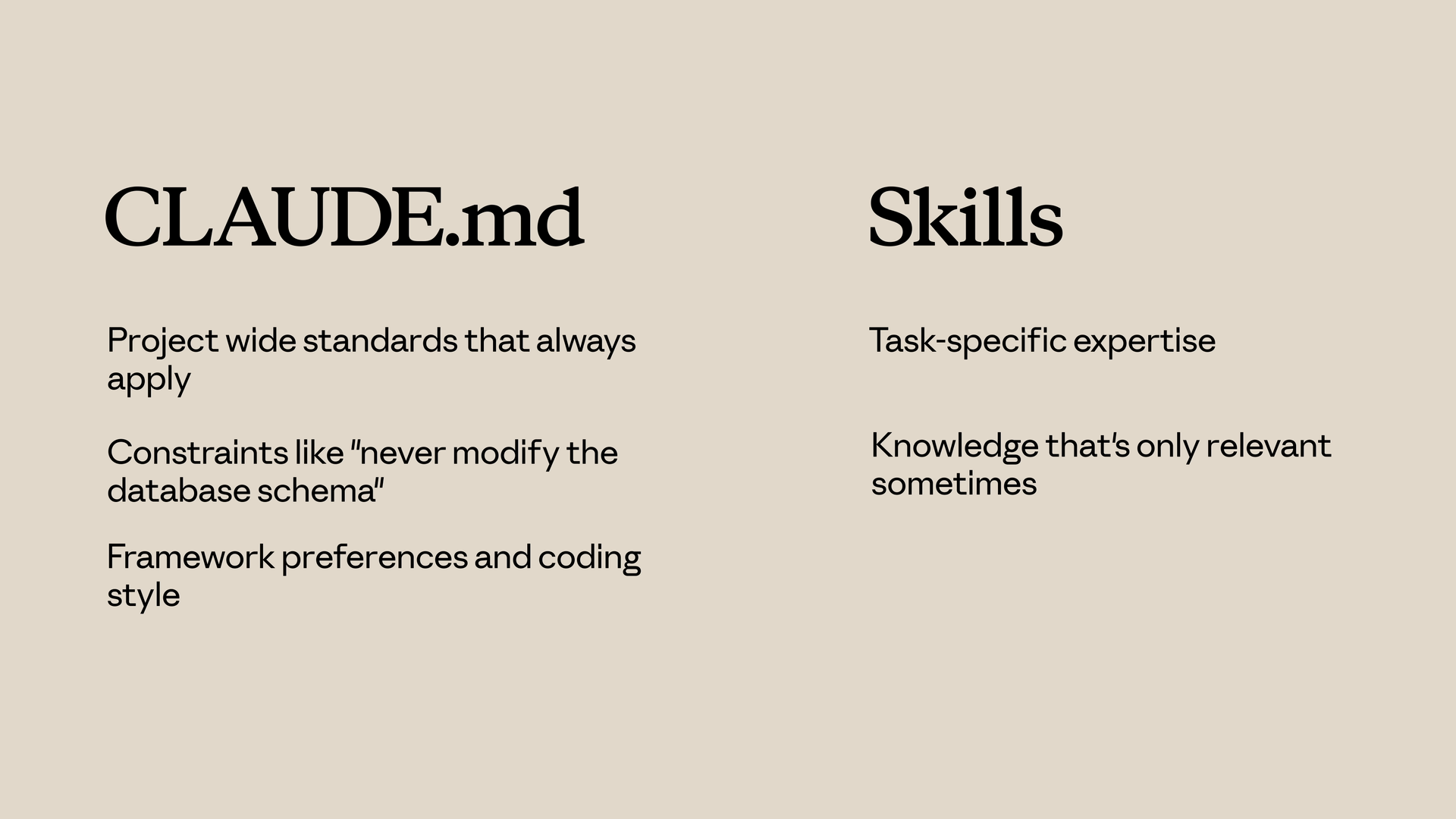
Use CLAUDE.md when:
Project-level standards that always apply
Constraints such as "never modify the database schema"
Framework preferences and coding style
Use Skills when:
Specialized knowledge for specific tasks
Knowledge that is relevant only in certain situations
Detailed procedures that would clutter every conversation
Skills vs. Subagents
Skills add knowledge to your current conversation. When a skill is activated, its instructions are added to the existing context.
Subagents run in a separate context. They receive a task, do the work independently, and then return the result. They are isolated from the main conversation.
Use Subagents when:
You want to delegate a task to a separate execution context
You need different tool access from the main conversation
You want to keep delegated work isolated from the main context
Use Skills when:
You want to strengthen Claude's knowledge for the current task
The expertise applies throughout the whole conversation
Skills vs. Hooks
Hooks fire when an event happens. A hook might run a linter every time Claude saves a file, or validate input before a particular tool call. They are event-driven.
Skills are request-driven. They activate based on the content of your request.
Use Hooks when:
Actions that should run on every file save
Validation before specific tool calls
Automated side effects of Claude's actions
Use Skills when:
Knowledge that affects how Claude handles requests
Guiding principles that affect Claude's reasoning process
Putting Them Together
A typical setup might include:
CLAUDE.md — project standards that are always in effect
Skills — task-specific expertise loaded on demand
Hooks — automated actions triggered by events
Subagents — isolated execution contexts for delegated work
MCP servers — external tools and integrations
Each feature has its own strengths. Don't cram everything into skills when another option is a better fit — and you can use several features at the same time. Skills provide automated task-specific expertise, CLAUDE.md is for always-on instructions, subagents run in isolated contexts, hooks fire when events happen, and MCP provides external tools.
Use skills when you have knowledge that Claude should apply automatically when a relevant topic comes up, and combine them with other features for full customization.
Sharing Skills
Committing Skills to Your Repository
The simplest way to share is to commit skills directly to your repository. Put them in .claude/skills, and anyone who clones the repository automatically gets them — no extra installation needed.
When you push updates, everyone gets them the next time they pull. This approach suits:
Team coding standards
Project-specific workflows
Skills that reference your codebase structure
The
.claudedirectory contains your agents, hooks, skills and settings — all version-controlled and shared with the team through the normal Git workflow.
Distributing Skills Through Plugins
Plugins are a way to extend Claude Code with custom functionality, designed to be shared across teams and projects. In your plugin project, create a skills directory that follows a file structure similar to the .claude directory — each skill has its own folder containing a SKILL.md file.
Once you distribute your plugin to a marketplace, other users can discover it and install it into Claude Code themselves.
+
+
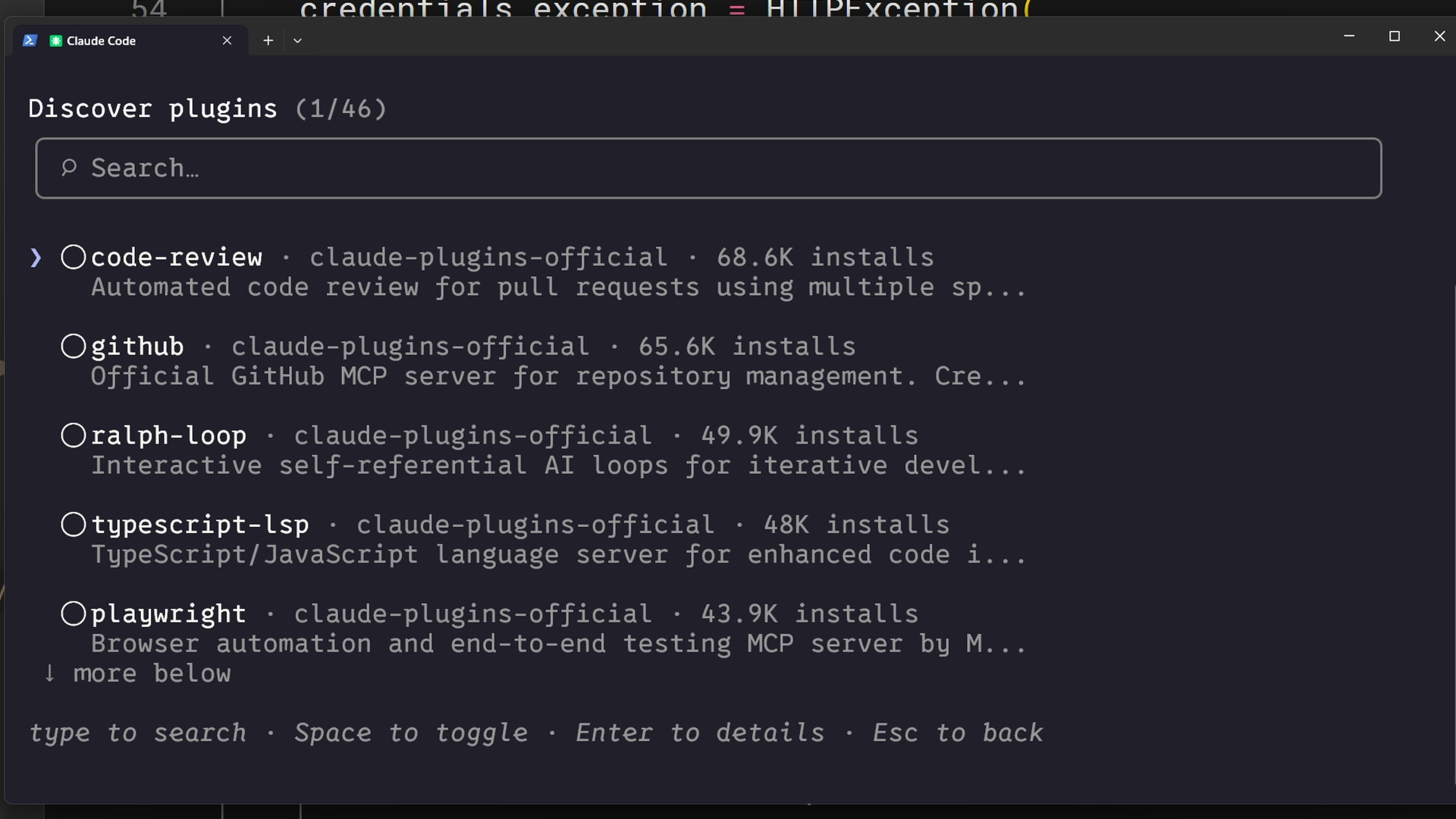
This approach is best when your skills aren't overly specific to one project and are useful to community members beyond your immediate team.
Enterprise Deployment via Managed Settings
Administrators can deploy skills across the entire organization through managed settings. Enterprise skills have the highest priority — they override personal, project and plugin skills with the same name.
+
+
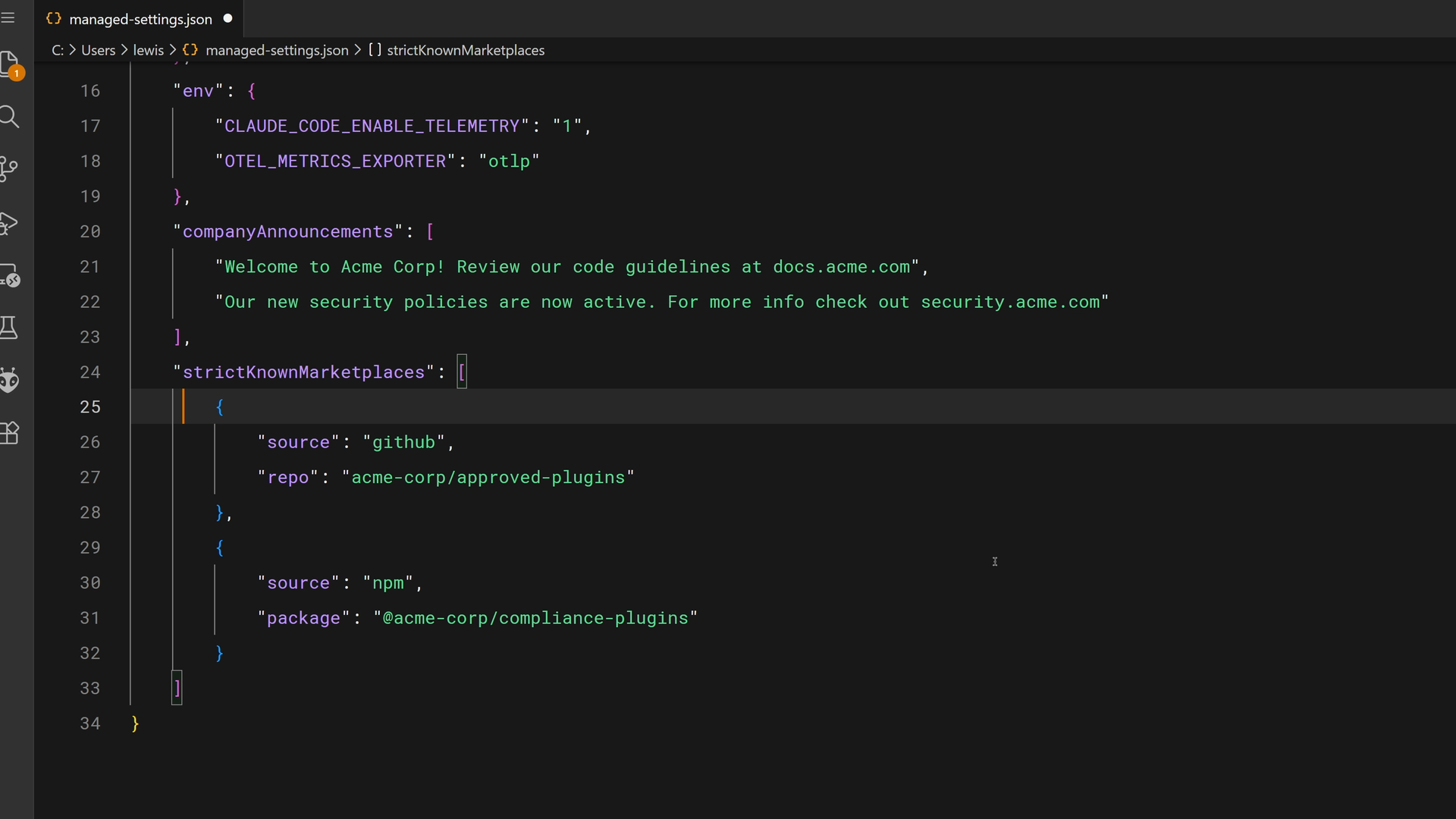
The managed settings file supports features such as strictKnownMarketplaces, to control where plugins can be installed from:
json
PLAINTEXT
复制
  "strictKnownMarketplaces": [
    {
      "source": "github",
      "repo": "acme-corp/approved-plugins"
    },
    {
      "source": "npm",
      "package": "@acme-corp/compliance-plugins"
    }
  ]
For mandatory standards, security requirements, compliance workflows and coding practices that must stay consistent across the whole organization, this is the right choice. The keyword here is "must".
Skills and Subagents
One thing will surprise people: subagents don't automatically see your skills. When you delegate a task to a subagent, it starts with a fresh, clean context.
Here are some important distinctions to understand:
Built-in agents (such as Explorer, Plan and Verify) have no access to skills at all
Custom subagents that you define can use skills, but only if you list them explicitly
Skills are loaded when the subagent starts, not on demand as in the main conversation
To create a custom subagent with skills, add an agent markdown file in .claude/agents. You can create one interactively with the /agents command in Claude Code:
+
+
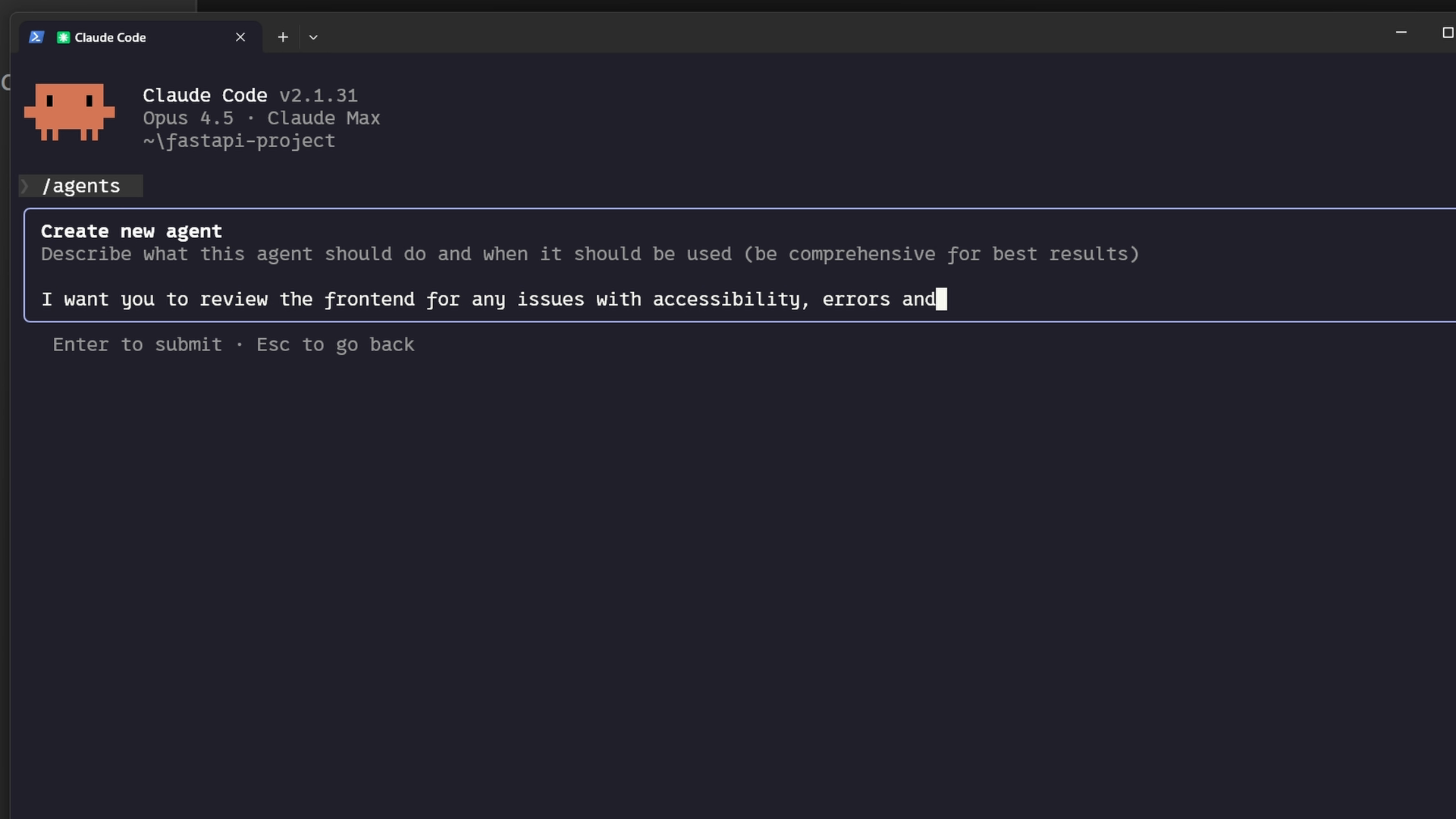
The generated agent file contains a skills field listing the skills to load. Here is what the frontmatter looks like:
PLAINTEXT
复制
  ---
  name: frontend-security-accessibility-reviewer
  description: "Use this agent when you need to review frontend code for accessibility..."
  tools: Bash, Glob, Grep, Read, WebFetch, WebSearch, Skill...
  model: sonnet
  color: blue
  skills: accessibility-audit, performance-check
  ---
When you delegate to this subagent, it loads both skills and applies them to every review. First make sure the skills exist in your .claude/skills directory, then create a new subagent, or add the skills field to an existing agent's markdown file.
This pattern works very well when:
You want isolated task delegation with specific expertise
Different subagents need different skills (a frontend reviewer vs. a backend reviewer)
You want to enforce standards in delegated work without relying on prompts
Troubleshooting Skills
Use the Skill Verifier
The first thing to try is the agent skills verifier command. Installation steps vary by operating system, but using uv is the quickest way to set it up.
After installation, you can navigate to your skill directory, or run the command from anywhere. The verifier catches structural problems before you spend time debugging other issues.
The Skill Doesn't Trigger
Your skill exists and passes validation, but Claude doesn't use it when you expect it to. The cause is almost always the description.
Claude uses semantic matching, so your request needs to overlap with the meaning of the description. If the overlap is insufficient, there's no match. Here's what you should do:
Check your description against how you actually phrase requests
Add trigger phrases users would actually say
Test with a variety of variants, such as "help me analyze this performance", "why is this so slow?", "make this a bit faster"
If any variant fails to trigger, add those keywords to your description
The Skill Doesn't Load
If your skill doesn't show up when you ask Claude "what skills are available", check the following structural requirements:
The
SKILL.mdfile must be inside a named directory, not at the root of the skills directoryThe file name must be exactly
SKILL.md— "SKILL" in all caps, "md" in lowercase
Run claude --debug to see load errors. Look for messages that mention your skill's name. Sometimes that alone points straight at the problem.
The Wrong Skill Is Used
If Claude uses the wrong skill, or seems confused between several skills, your descriptions are probably too similar. Make them more distinct. Being as specific as possible not only helps Claude decide when to use your skill — it also prevents conflicts with other similar-sounding skills.
Skill Priority Conflicts
If your personal skill is being ignored, there may be an enterprise-level or higher-priority skill with the same name.
+
+
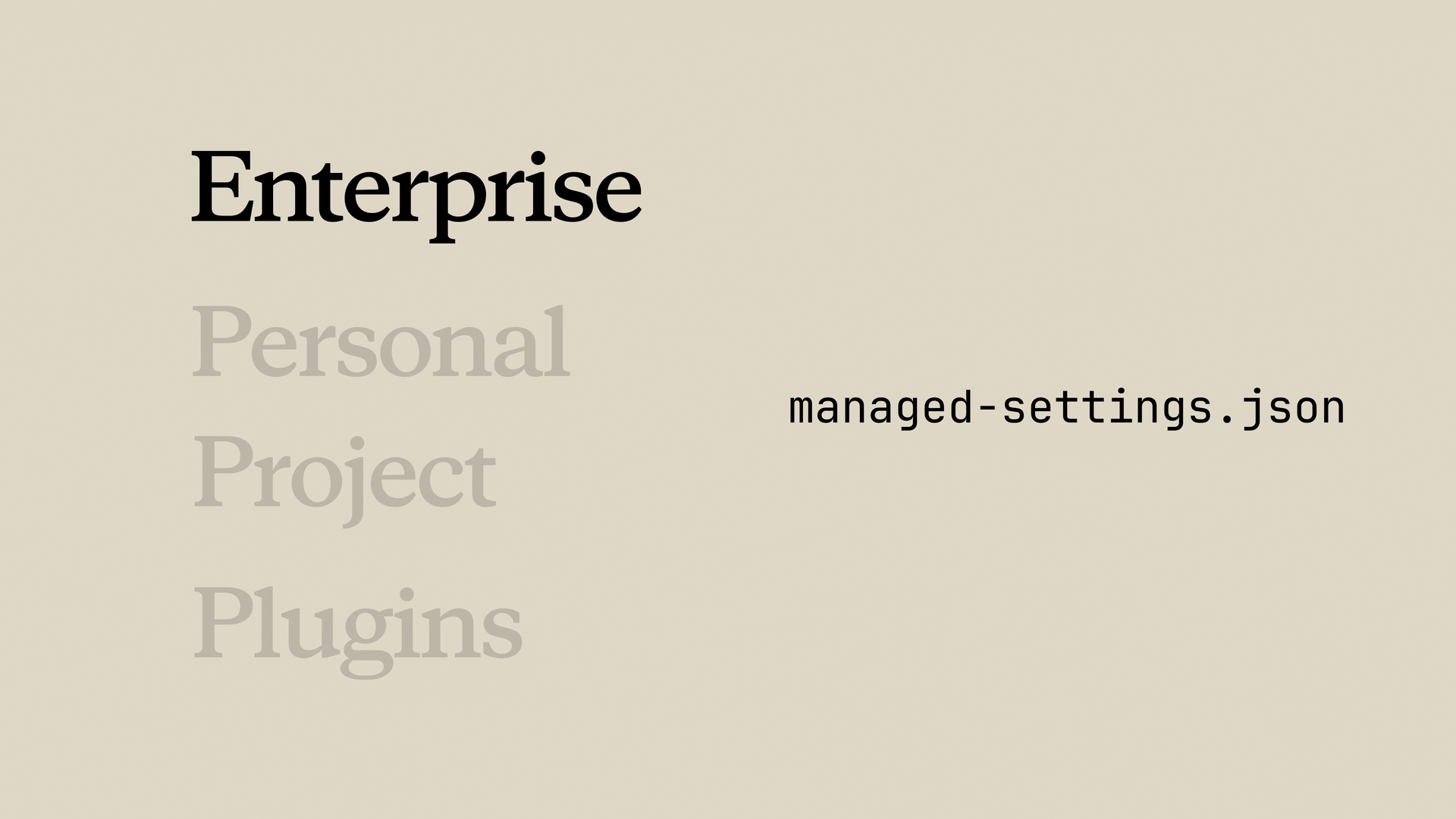
For example, if there is an enterprise "code-review" skill and you also have a personal "code-review" skill, the enterprise one wins every time. Your options:
Rename your skill to something more distinctive (this is usually the simpler approach)
Talk to your administrator about the enterprise skill
Plugin Skills Don't Appear
Installed a plugin but can't see its skills? Clear the cache, restart Claude Code, and reinstall.
If the skills still don't appear afterwards, the plugin's structure may have a problem. This is exactly when the verifier tool really earns its keep.
Runtime Errors
The skill loaded but failed during execution. A few common causes:
Missing dependencies: If your skill uses external packages, they must be installed. Add the dependency information to your skill's description so Claude knows what's needed.
Permission issues: Scripts need execute permission. Run
chmod +xon any script your skill references.Path separators: Use forward slashes everywhere, even on Windows.
Quick Troubleshooting Checklist
Doesn't trigger? Improve your description and add trigger phrases.
Doesn't load? Check your paths, file names and YAML syntax.
Wrong skill used? Make the descriptions more distinct from each other.
Shadowed? Check the priority hierarchy, and rename if necessary.
Plugin skills missing? Clear the cache and reinstall.
Runtime failures? Check dependencies, permissions and paths.
The description is what Claude uses to decide whether to use the skill. When you ask Claude to review a PR, it matches your request against the available skill descriptions and finds the relevant one. Claude reads your request, compares it with all available skill descriptions, and activates the ones that match. Here is what a skill's frontmatter looks like:
PLAINTEXT
复制
 ---
 name: pr-review
 description: Reviews pull requests for code quality. Use when reviewing PRs or checking code changes.
 ---
Below the frontmatter, you write the actual instructions: your review checklist, your formatting preferences, or anything else Claude needs to know when carrying out the task.
+
Where Skills Live
You can store skills in different places depending on who needs them:
Personal skills live in
~/.claude/skills(your home directory). These skills follow you across all your projects — your commit-message style, your documentation format, how you like code explained.Project skills live in
.claude/skillsinside the repository root. Anyone who clones the repository automatically gets these skills. Team standards live here, such as your company's brand guidelines, or the fonts and colors preferred for web design.
On Windows, personal skills live in C:/Users/<your-user>/.claude/skills.
Project skills are committed to version control along with your code, so the whole team shares them.
+
Skills vs. CLAUDE.md vs. Slash Commands
Claude Code has several ways to shape behavior. What makes skills unique is that they are automatic and task-specific. Here is how they compare:
CLAUDE.md files are loaded into every conversation. If you want Claude to always use
TypeScriptstrict mode, put that convention in CLAUDE.md.Skills are loaded on demand when they match your request. Claude initially loads only the name and description, so they don't fill your whole context window. For example, while you're debugging, your PR review checklist doesn't need to be in that context; it's loaded when you actually ask for a review.
Slash commands require you to type them explicitly. Skills don't; Claude uses them when it recognizes the right situation.
When Claude matches a skill to what you need right now, you can see it loading in the terminal.
+
When to Use Skills
Skills are best suited to specialized knowledge for specific tasks:
The code review standards your team follows
Your preferred commit message format
Your organization's brand guidelines
Document templates for specific types of documents
Debugging checklists for specific frameworks
The rule of thumb is simple: if you find yourself explaining the same thing to Claude over and over, that means there's a skill waiting to be written.
+
Create Your First Skill
We'll build a personal skill that teaches Claude how to write PR descriptions in a consistent format. Because it's a personal skill, we can put it in your home directory, and it applies to all your projects.
First, create a directory for your skill in the skills folder; the directory name matches your skill name:
PLAINTEXT
复制
mkdir -p ~/.claude/skills/pr-descriptionThen create a SKILL.md file inside that directory. The file has two parts, separated by frontmatter dashes:
PLAINTEXT
复制
---
name: pr-description
description: Writes pull request descriptions. Use when creating a PR, writing a PR, or when the user asks to summarize changes for a pull request.
---
When writing a PR description:
1. Run `git diff main...HEAD` to see all changes on this branch
2. Write a description following this format:
## What
One sentence explaining what this PR does.
## Why
Brief context on why this change is needed
## Changes
- Bullet points of specific changes made
- Group related changes together
- Mention any files deleted or renamedIf you don't yet know what markdown is, take a look at another of my ancient tutorials, Getting Started with Markdown: The Must-Learn Markup Language for Boosting Efficiency, to get up to speed quickly.
Here, name is your skill's identifier, that is, the skill name. description tells Claude when to use it, and it is a very important field that determines whether Claude can automatically match your skill when it recognizes a relevant need.
Everything after the second set of dashes is the instructions Claude follows when the skill is activated — in other words, the body of the skill.
+
Test Your Skill
Claude Code loads skills at startup, so restart your session after creating a skill. You can verify it's available by checking the list of available skills.
+
You should see your skill listed there. To test it, make some changes on a branch, then say something like "write a PR description for my changes". Claude will indicate that it's using the PR description skill, check your diff, and write the description following your template — in the same format every time.
+
How Skill Matching Works
When Claude Code starts, it scans four locations for skills, but loads only the name and description — not the full contents. This is an important detail.
When you send a request, Claude compares your message against the descriptions of all available skills. For example, "explain what this function does" would match a skill described as "explain code with visual diagrams", because the intent overlaps.
Once it finds a match, Claude asks you to confirm loading the skill. This confirmation step lets you see what context Claude is bringing in. After you confirm, Claude reads the full SKILL.md file and follows the instructions in it.
+
Skill Priority
If you clone a repository that has a skill with the same name as one of your personal skills, which one wins? There is a clear priority order:
Enterprise — managed settings, highest priority
Personal — your home directory (
~/.claude/skills)Project — the
.claude/skillsdirectory inside the repositoryPlugins — installed plugins, lowest priority
This lets organizations enforce standards through enterprise skills while still allowing personal customization. If your company has an enterprise "code-review" skill and you create a personal "code-review" skill with the same name, the enterprise version takes precedence.
To avoid conflicts, use descriptive names. Instead of just "review", use names like "frontend-review" or "backend-review".
+
Updating and Deleting Skills
To update a skill, edit its SKILL.md file. To delete a skill, delete its directory. Claude Code needs to be restarted after any change for it to take effect.
+
Configuration and Multi-File Skills
A basic skill needs only a name and a description to work, but there are several advanced techniques that can make your skills more effective in Claude Code. Let's go through the key fields, best practices for descriptions, tool restrictions, and how to build larger skills.
Skill Metadata Fields
The Agent Skills open standard supports several fields in the SKILL.md frontmatter. Two of them are required and the rest are optional:
name (required) — Identifies your skill. Use only lowercase letters, numbers and hyphens. Up to 64 characters. It should match your directory name.
description (required) — Tells Claude when to use the skill. Up to 1,024 characters. This is the most important field, because Claude uses it for matching.
allowed-tools (optional) — Restricts which tools Claude can use while the skill is active.
model (optional) — Specifies which Claude model the skill should use.
Writing Effective Descriptions
Be explicit with your instructions. If someone told you "your job is to help with documents", you wouldn't know what to do — Claude thinks the same way.
A good description answers two questions:
What does the skill do?
When should Claude use it?
If your skill doesn't trigger as expected, try adding more keywords that match how you actually phrase your requests. The description is what Claude uses to judge whether a skill is relevant, so the wording matters.
Restrict Tools with allowed-tools
Sometimes you want a skill to be able to read files but not modify them. This is useful for security-sensitive workflows, read-only tasks, or any case where you want guardrails.
+
In this example, the allowed-tools field is set to Read, Grep, Glob, Bash. While this skill is active, Claude can use only these tools without asking for permission — no editing, no writing.
yaml
PLAINTEXT
复制
 ---
 name: codebase-onboarding
 description: Helps new developers understand the system works.
 allowed-tools: Read, Grep, Glob, Bash
 model: sonnet
 ---
If you omit allowed-tools entirely, the skill restricts nothing. Claude will use its normal permission model.
Progressive Disclosure
Skills share Claude's context window with your conversation. When Claude activates a skill, it loads that SKILL.md's contents into the context. But sometimes you need reference material, examples or utility scripts that the skill depends on.
Cramming everything into a single 2,000-line file creates two problems: it takes up a lot of context-window space, and it isn't easy to maintain either.
Progressive disclosure solves this. Keep the essential instructions in SKILL.md and put detailed reference material in separate files, which Claude reads only when needed.
The open standard recommends organizing your skill directory as follows:
scripts/ — executable code
references/ — additional documentation
assets/ — images, templates or other data files
Then, in SKILL.md, link to the supporting files, with explicit instructions about when to load them:
+
In this example, Claude reads architecture-guide.md only when someone asks about system design. If they ask where to add a component, it never loads that file. It's like having a table of contents in the context window rather than the whole document.
A good rule of thumb: keep SKILL.md under 500 lines. If it goes beyond that, consider whether some content should be split into separate reference files.
Using Scripts Efficiently
Scripts in your skill directory can run without loading their contents into the context. After a script runs, only its output consumes tokens. The key instruction to include in your SKILL.md is to tell Claude to run the script, not to read it.
This is especially useful for:
Environment validation
Data transformations that need to stay consistent
Operations where tested code is more reliable than generated code
How Skills Compare with Other Claude Code Features
CLAUDE.md vs. Skills
CLAUDE.md is always loaded into every conversation. If you want Claude to use TypeScript strict mode in your project, put it in your CLAUDE.md file.
Skills are loaded on demand. When Claude matches a request to a skill, that skill's instructions are added to the conversation. When you're writing new code, your PR review checklist doesn't need to be in the context — it's activated only when you ask for a review.
+
Use CLAUDE.md when:
Project-level standards that always apply
Constraints such as "never modify the database schema"
Framework preferences and coding style
Use Skills when:
Specialized knowledge for specific tasks
Knowledge that is relevant only in certain situations
Detailed procedures that would clutter every conversation
Skills vs. Subagents
Skills add knowledge to your current conversation. When a skill is activated, its instructions are added to the existing context.
Subagents run in a separate context. They receive a task, do the work independently, and then return the result. They are isolated from the main conversation.
Use Subagents when:
You want to delegate a task to a separate execution context
You need different tool access from the main conversation
You want to keep delegated work isolated from the main context
Use Skills when:
You want to strengthen Claude's knowledge for the current task
The expertise applies throughout the whole conversation
Skills vs. Hooks
Hooks fire when an event happens. A hook might run a linter every time Claude saves a file, or validate input before a particular tool call. They are event-driven.
Skills are request-driven. They activate based on the content of your request.
Use Hooks when:
Actions that should run on every file save
Validation before specific tool calls
Automated side effects of Claude's actions
Use Skills when:
Knowledge that affects how Claude handles requests
Guiding principles that affect Claude's reasoning process
Putting Them Together
A typical setup might include:
CLAUDE.md — project standards that are always in effect
Skills — task-specific expertise loaded on demand
Hooks — automated actions triggered by events
Subagents — isolated execution contexts for delegated work
MCP servers — external tools and integrations
Each feature has its own strengths. Don't cram everything into skills when another option is a better fit — and you can use several features at the same time. Skills provide automated task-specific expertise, CLAUDE.md is for always-on instructions, subagents run in isolated contexts, hooks fire when events happen, and MCP provides external tools.
Use skills when you have knowledge that Claude should apply automatically when a relevant topic comes up, and combine them with other features for full customization.
Sharing Skills
Committing Skills to Your Repository
The simplest way to share is to commit skills directly to your repository. Put them in .claude/skills, and anyone who clones the repository automatically gets them — no extra installation needed.
When you push updates, everyone gets them the next time they pull. This approach suits:
Team coding standards
Project-specific workflows
Skills that reference your codebase structure
The
.claudedirectory contains your agents, hooks, skills and settings — all version-controlled and shared with the team through the normal Git workflow.
Distributing Skills Through Plugins
Plugins are a way to extend Claude Code with custom functionality, designed to be shared across teams and projects. In your plugin project, create a skills directory that follows a file structure similar to the .claude directory — each skill has its own folder containing a SKILL.md file.
Once you distribute your plugin to a marketplace, other users can discover it and install it into Claude Code themselves.
+
This approach is best when your skills aren't overly specific to one project and are useful to community members beyond your immediate team.
Enterprise Deployment via Managed Settings
Administrators can deploy skills across the entire organization through managed settings. Enterprise skills have the highest priority — they override personal, project and plugin skills with the same name.
+
The managed settings file supports features such as strictKnownMarketplaces, to control where plugins can be installed from:
json
PLAINTEXT
复制
 "strictKnownMarketplaces": [
   {
     "source": "github",
     "repo": "acme-corp/approved-plugins"
   },
   {
     "source": "npm",
     "package": "@acme-corp/compliance-plugins"
   }
 ]
For mandatory standards, security requirements, compliance workflows and coding practices that must stay consistent across the whole organization, this is the right choice. The keyword here is "must".
Skills and Subagents
One thing will surprise people: subagents don't automatically see your skills. When you delegate a task to a subagent, it starts with a fresh, clean context.
Here are some important distinctions to understand:
Built-in agents (such as Explorer, Plan and Verify) have no access to skills at all
Custom subagents that you define can use skills, but only if you list them explicitly
Skills are loaded when the subagent starts, not on demand as in the main conversation
To create a custom subagent with skills, add an agent markdown file in .claude/agents. You can create one interactively with the /agents command in Claude Code:
+
The generated agent file contains a skills field listing the skills to load. Here is what the frontmatter looks like:
PLAINTEXT
复制
 ---
 name: frontend-security-accessibility-reviewer
 description: "Use this agent when you need to review frontend code for accessibility..."
 tools: Bash, Glob, Grep, Read, WebFetch, WebSearch, Skill...
 model: sonnet
 color: blue
 skills: accessibility-audit, performance-check
 ---
When you delegate to this subagent, it loads both skills and applies them to every review. First make sure the skills exist in your .claude/skills directory, then create a new subagent, or add the skills field to an existing agent's markdown file.
This pattern works very well when:
You want isolated task delegation with specific expertise
Different subagents need different skills (a frontend reviewer vs. a backend reviewer)
You want to enforce standards in delegated work without relying on prompts
Troubleshooting Skills
Use the Skill Verifier
The first thing to try is the agent skills verifier command. Installation steps vary by operating system, but using uv is the quickest way to set it up.
After installation, you can navigate to your skill directory, or run the command from anywhere. The verifier catches structural problems before you spend time debugging other issues.
The Skill Doesn't Trigger
Your skill exists and passes validation, but Claude doesn't use it when you expect it to. The cause is almost always the description.
Claude uses semantic matching, so your request needs to overlap with the meaning of the description. If the overlap is insufficient, there's no match. Here's what you should do:
Check your description against how you actually phrase requests
Add trigger phrases users would actually say
Test with a variety of variants, such as "help me analyze this performance", "why is this so slow?", "make this a bit faster"
If any variant fails to trigger, add those keywords to your description
The Skill Doesn't Load
If your skill doesn't show up when you ask Claude "what skills are available", check the following structural requirements:
The
SKILL.mdfile must be inside a named directory, not at the root of the skills directoryThe file name must be exactly
SKILL.md— "SKILL" in all caps, "md" in lowercase
Run claude --debug to see load errors. Look for messages that mention your skill's name. Sometimes that alone points straight at the problem.
The Wrong Skill Is Used
If Claude uses the wrong skill, or seems confused between several skills, your descriptions are probably too similar. Make them more distinct. Being as specific as possible not only helps Claude decide when to use your skill — it also prevents conflicts with other similar-sounding skills.
Skill Priority Conflicts
If your personal skill is being ignored, there may be an enterprise-level or higher-priority skill with the same name.
+
For example, if there is an enterprise "code-review" skill and you also have a personal "code-review" skill, the enterprise one wins every time. Your options:
Rename your skill to something more distinctive (this is usually the simpler approach)
Talk to your administrator about the enterprise skill
Plugin Skills Don't Appear
Installed a plugin but can't see its skills? Clear the cache, restart Claude Code, and reinstall.
If the skills still don't appear afterwards, the plugin's structure may have a problem. This is exactly when the verifier tool really earns its keep.
Runtime Errors
The skill loaded but failed during execution. A few common causes:
Missing dependencies: If your skill uses external packages, they must be installed. Add the dependency information to your skill's description so Claude knows what's needed.
Permission issues: Scripts need execute permission. Run
chmod +xon any script your skill references.Path separators: Use forward slashes everywhere, even on Windows.
Quick Troubleshooting Checklist
Doesn't trigger? Improve your description and add trigger phrases.
Doesn't load? Check your paths, file names and YAML syntax.
Wrong skill used? Make the descriptions more distinct from each other.
Shadowed? Check the priority hierarchy, and rename if necessary.
Plugin skills missing? Clear the cache and reinstall.
Runtime failures? Check dependencies, permissions and paths.
+
Copyright
Copyright of this article belongs to its author or rights holder. When reposting or quoting, please follow the applicable license terms and keep the link to this article.
Link to this article: https://xuyi.dev/en/2026-08-25-puymgi
Original: https://academy.claude.com/zh-CN/courses/introduction-to-agent-skills/what-are-skills